Account Setup
This page covers creating an Autodarts account and logging in for the first time.
What you'll need
- A web browser, or the Autodarts app on a phone or tablet — Autodarts: Darts Scorer in the App Store and on Google Play, which needs iOS 18 or Android 7.1 at a minimum. You can register in either. The steps below follow the browser, at play.autodarts.com; the app takes you through the same flow, so they apply there too.
- An email address, or an existing Google or Apple account to register with instead.
Create your account
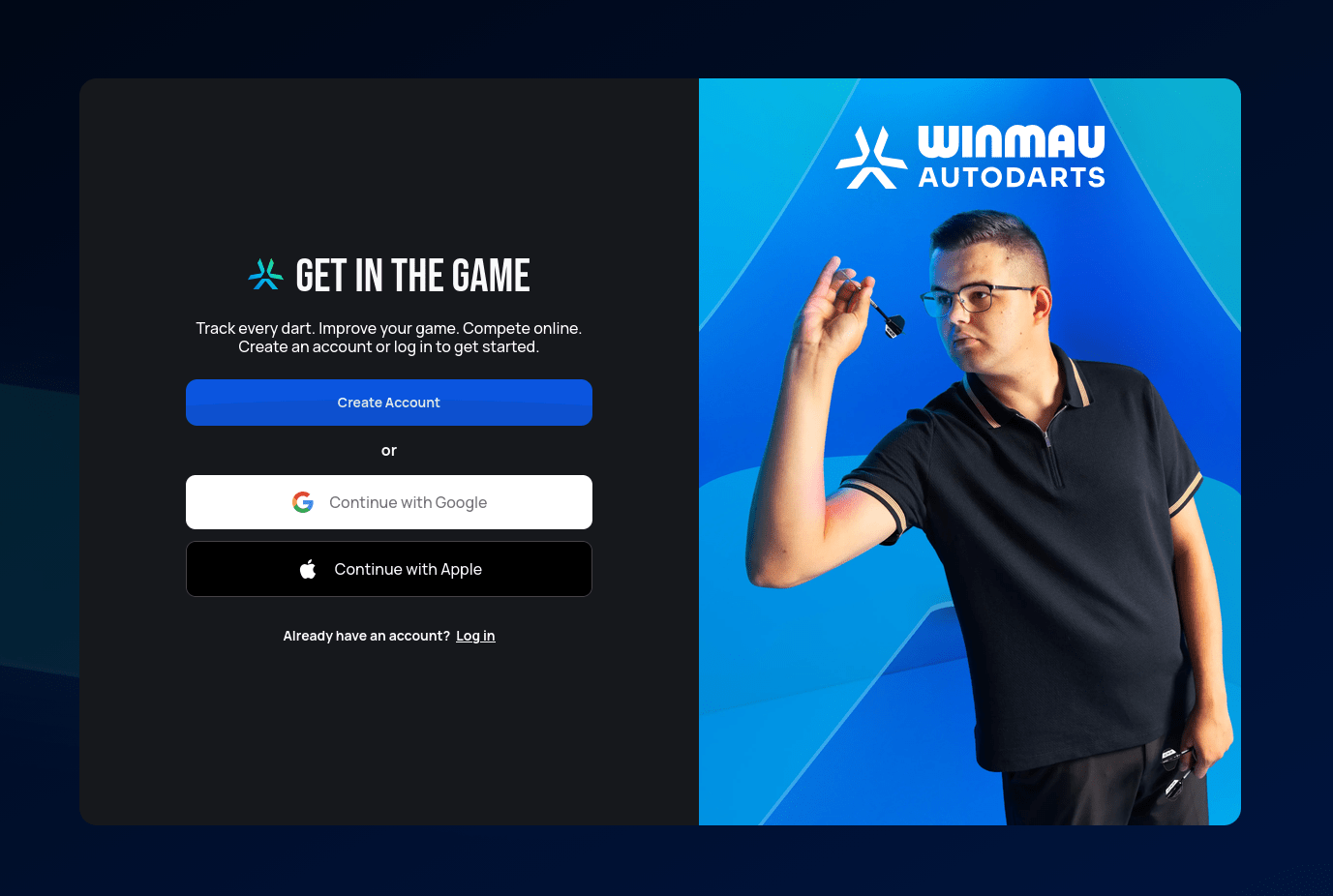
From the landing page, choose Create Account to sign up with an email address and password, or Continue with Google / Continue with Apple to register with an account you already have.
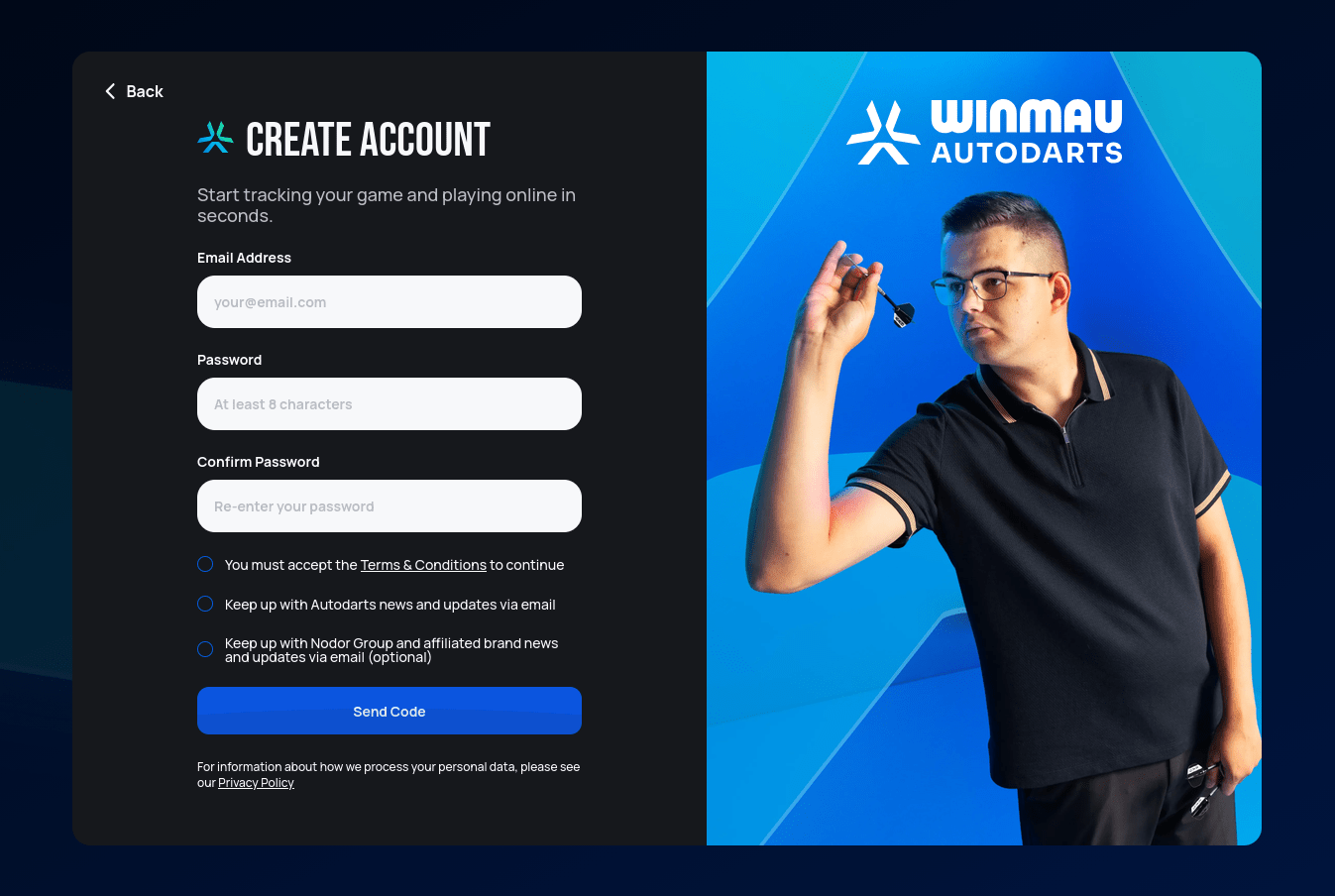
If you choose Create Account, enter your email address and pick a password. It has to be at least 8 characters long and include at least one upper-case letter, one lower-case letter and one digit. Then accept the Terms & Conditions — the two email-update checkboxes are optional — and select Send Code to receive a verification code by email.
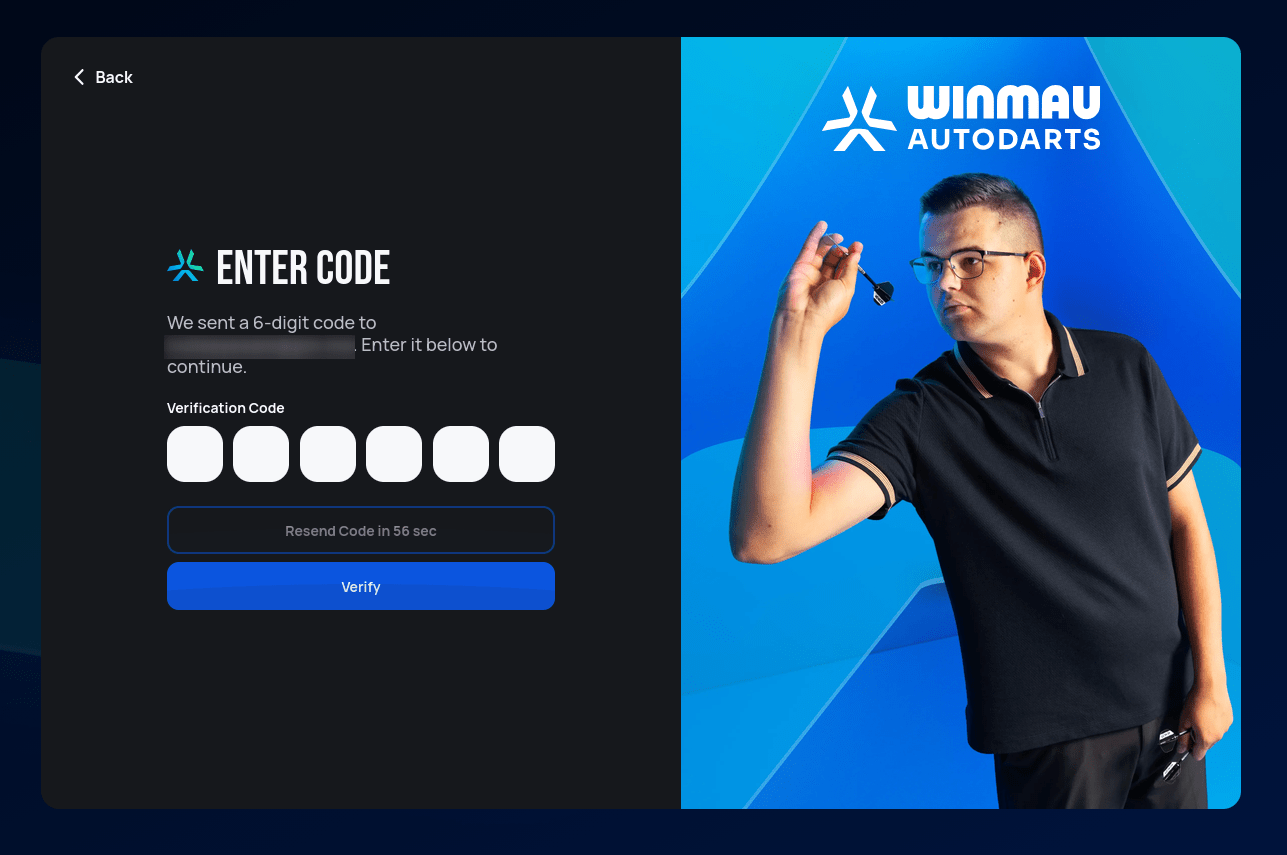
A 6-digit code arrives by email — enter it and choose Verify to confirm your address and complete sign-up.
Complete your profile
Right after creating a new account, a short 4-step setup wizard collects a few basics. You can always change any of these later — see Account below.
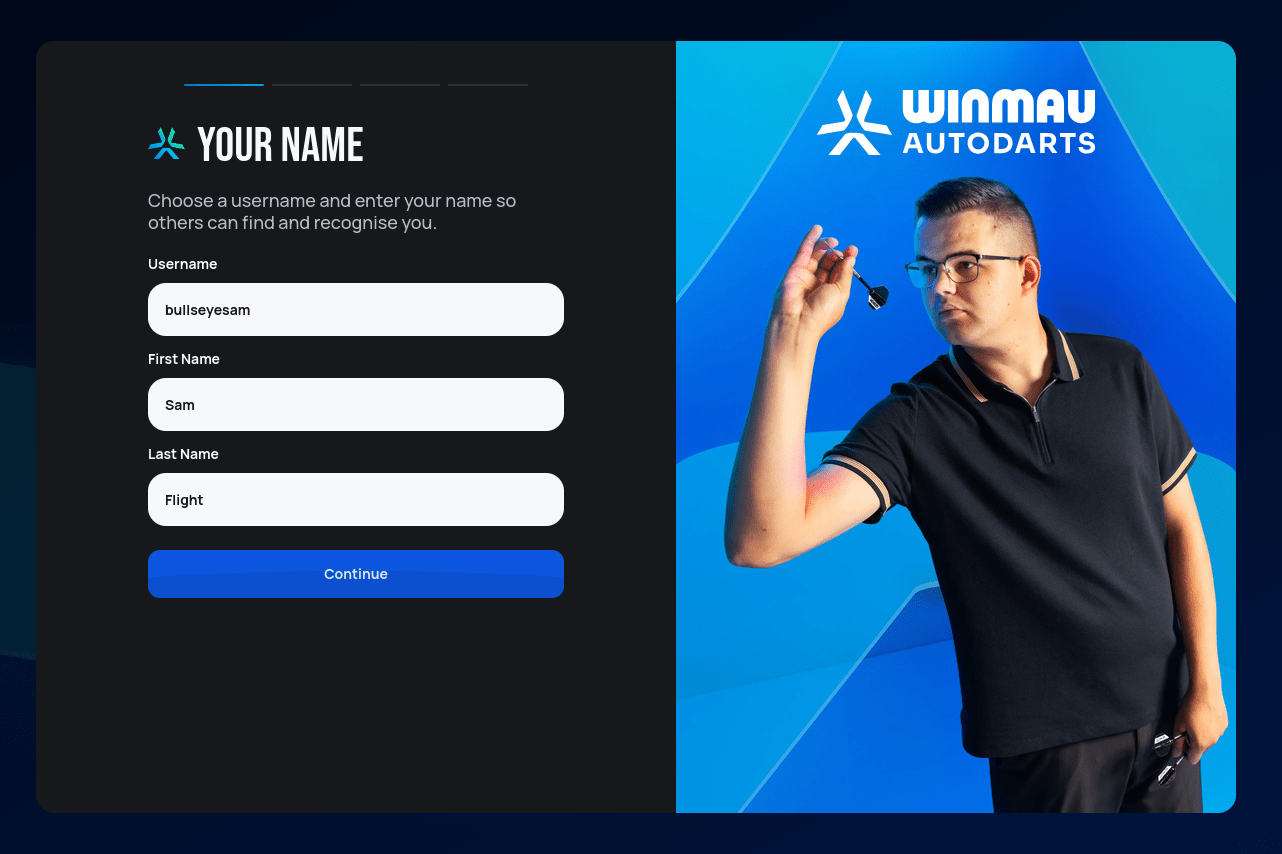
1. Your name — pick a username (how other players see and find you) plus a first and last name. A username has to:
- be between 3 and 30 characters long,
- start with a letter, and
- use only letters (accented and non-Latin ones are fine), numbers,
_,-, or single spaces — no two spaces in a row, and it can't end with a space.
Capitalisation is the one thing you don't need to think about: Autodarts
displays usernames in capitals everywhere, so bullseyesam and
BullseyeSam end up looking identical in a match or on your
player card.
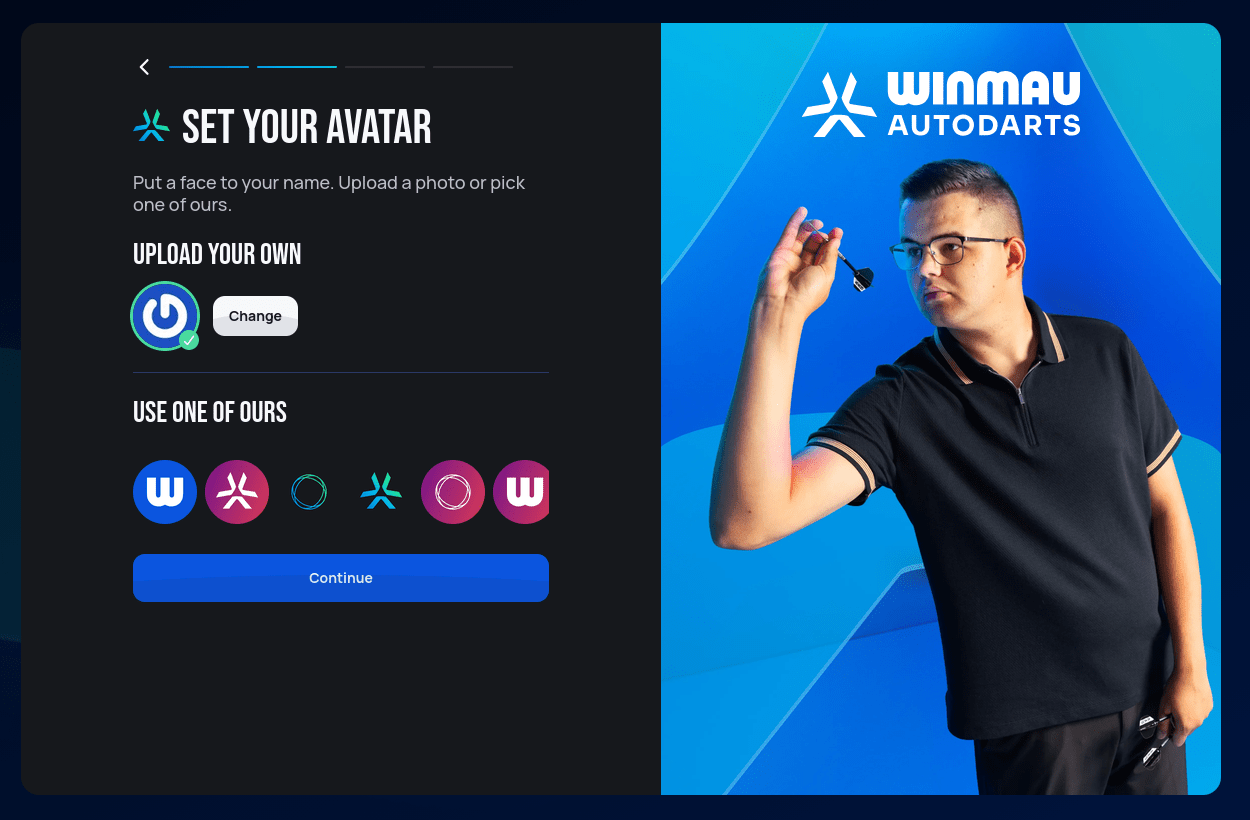
2. Your avatar — upload your own photo, or pick one of the built-in presets.
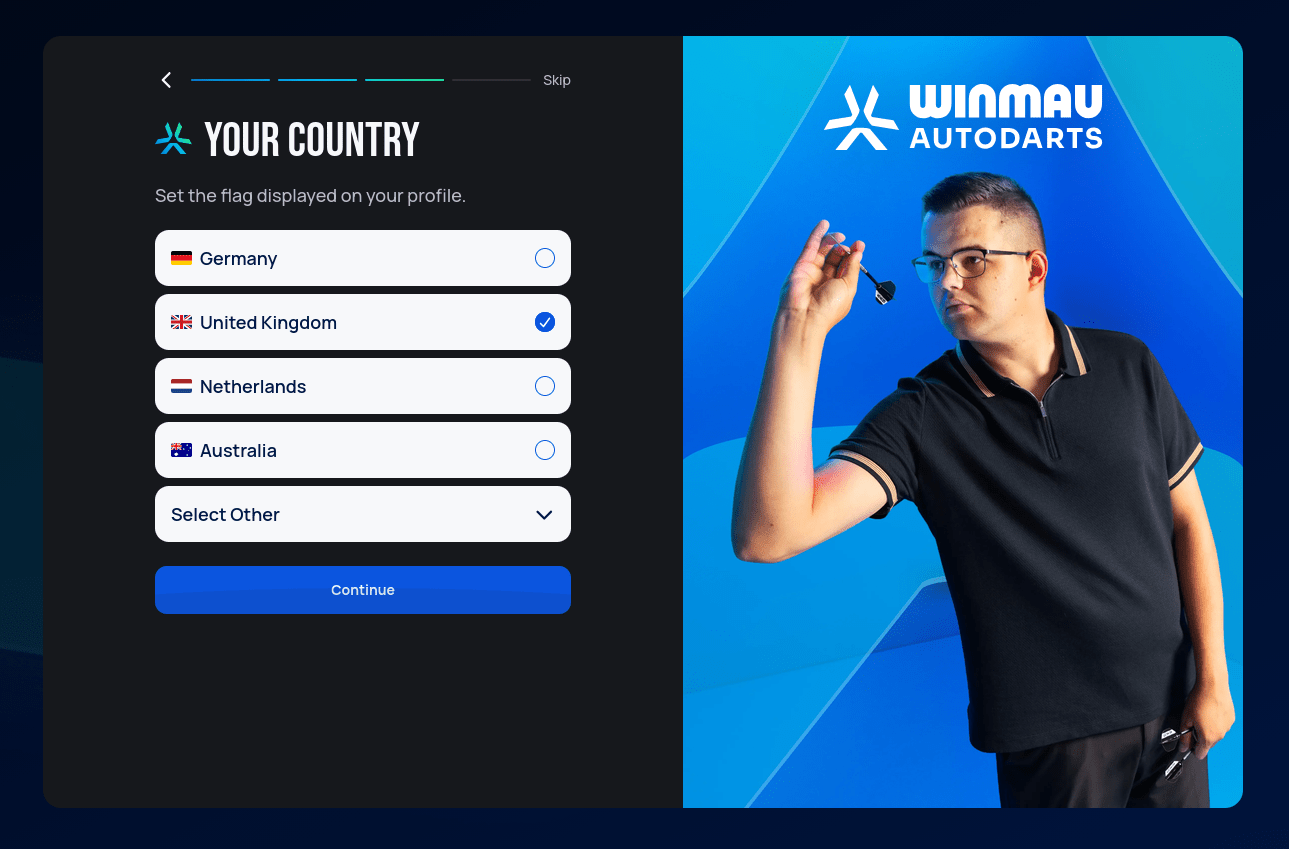
3. Your country — sets the flag shown on your profile. This step can be skipped if you'd rather not share it.
4. Experience level — used to personalize your experience. "I'm new to darts" is a completely normal answer here — Autodarts is built to work for total beginners just as well as competitive players.
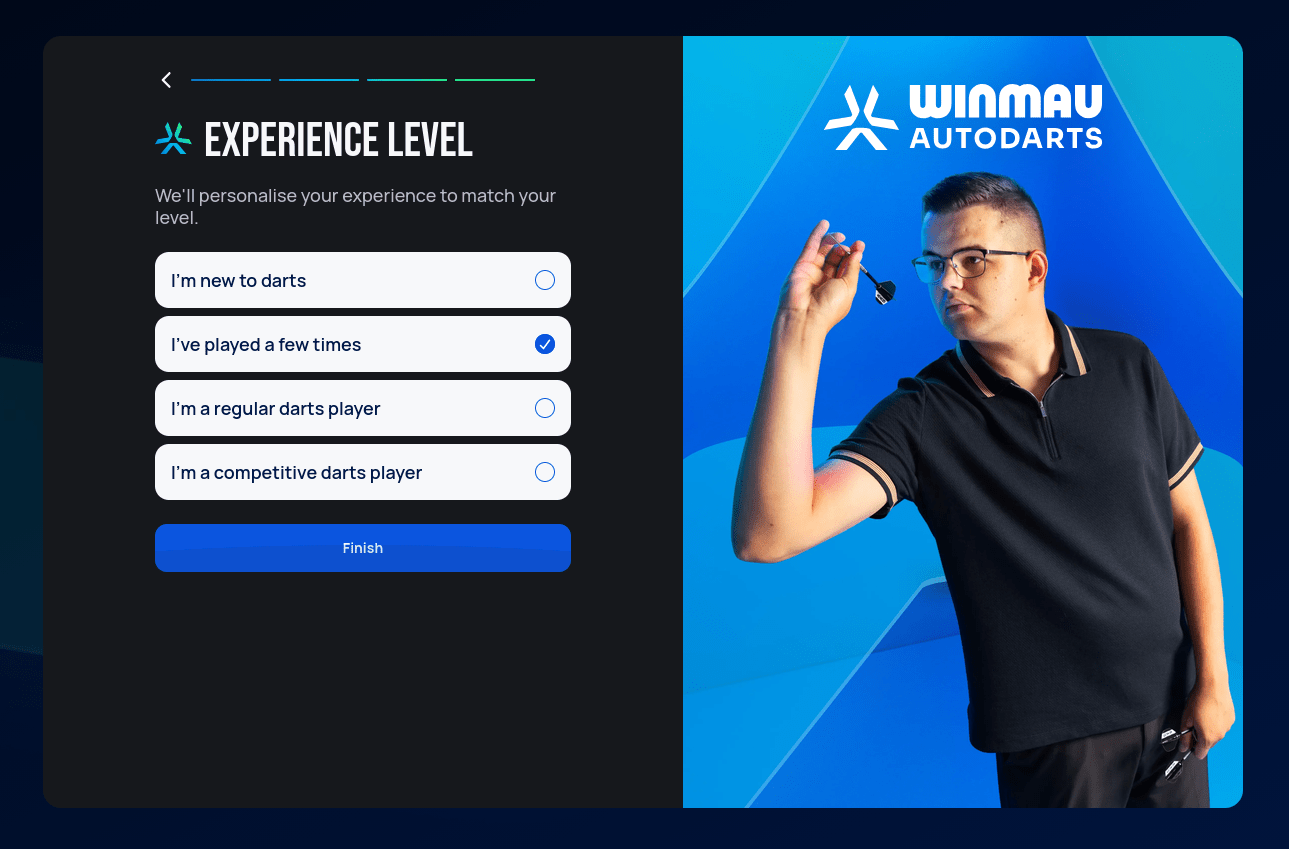
Selecting Finish takes you to the Home page — see After logging in below.
Log In
If you already have an account, choose Log in from the landing page and enter your email (or username) and password.
If you signed up with Google or Apple, use that same Continue with Google or Continue with Apple button on the landing page instead of Log in — it takes you straight in through the account you connected, with no password to type. The Log In screen itself only offers the email-and-password route.
Autodarts recognises a Google or Apple login by email address. If the address behind your Google or Apple account is the same one you registered with, both routes lead into the same account — signing in either way is fine, and nothing gets split.
The exception is Apple's Hide My Email option, which gives Autodarts a randomly generated stand-in address rather than your real one. There's nothing to match that against, so it creates a second, separate account — a brand-new one, without your stats, boards or Autodarts Plus subscription.
So if you sign in and everything looks empty, you're most likely in that second account rather than having lost anything. Log out and sign back in the way you originally registered. The Linked accounts tab in your account settings lists the Google and Apple accounts you've used to log in, if you want to check which ones are attached.
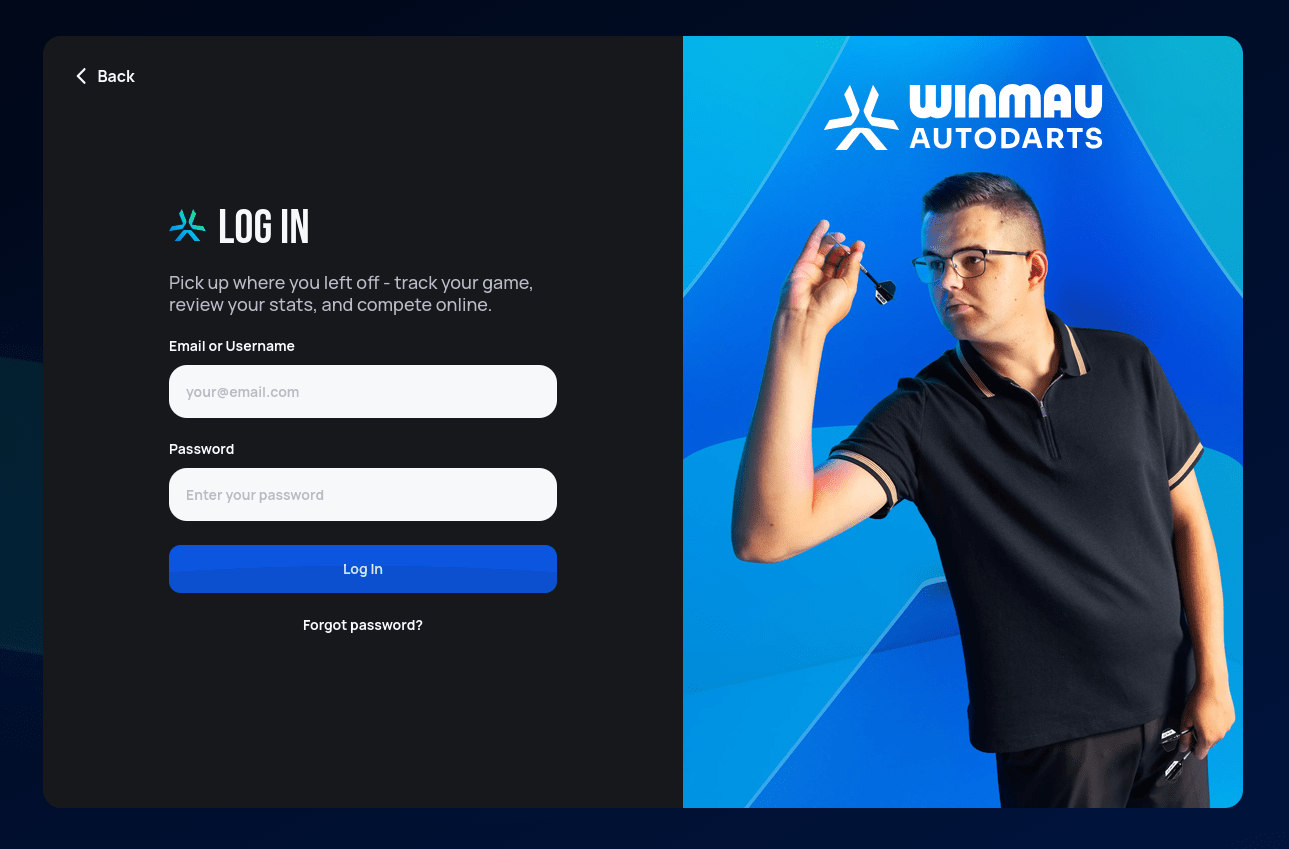
Use Forgot password? on this screen if you need to reset your password — Autodarts will guide you through resetting it by email.
After logging in
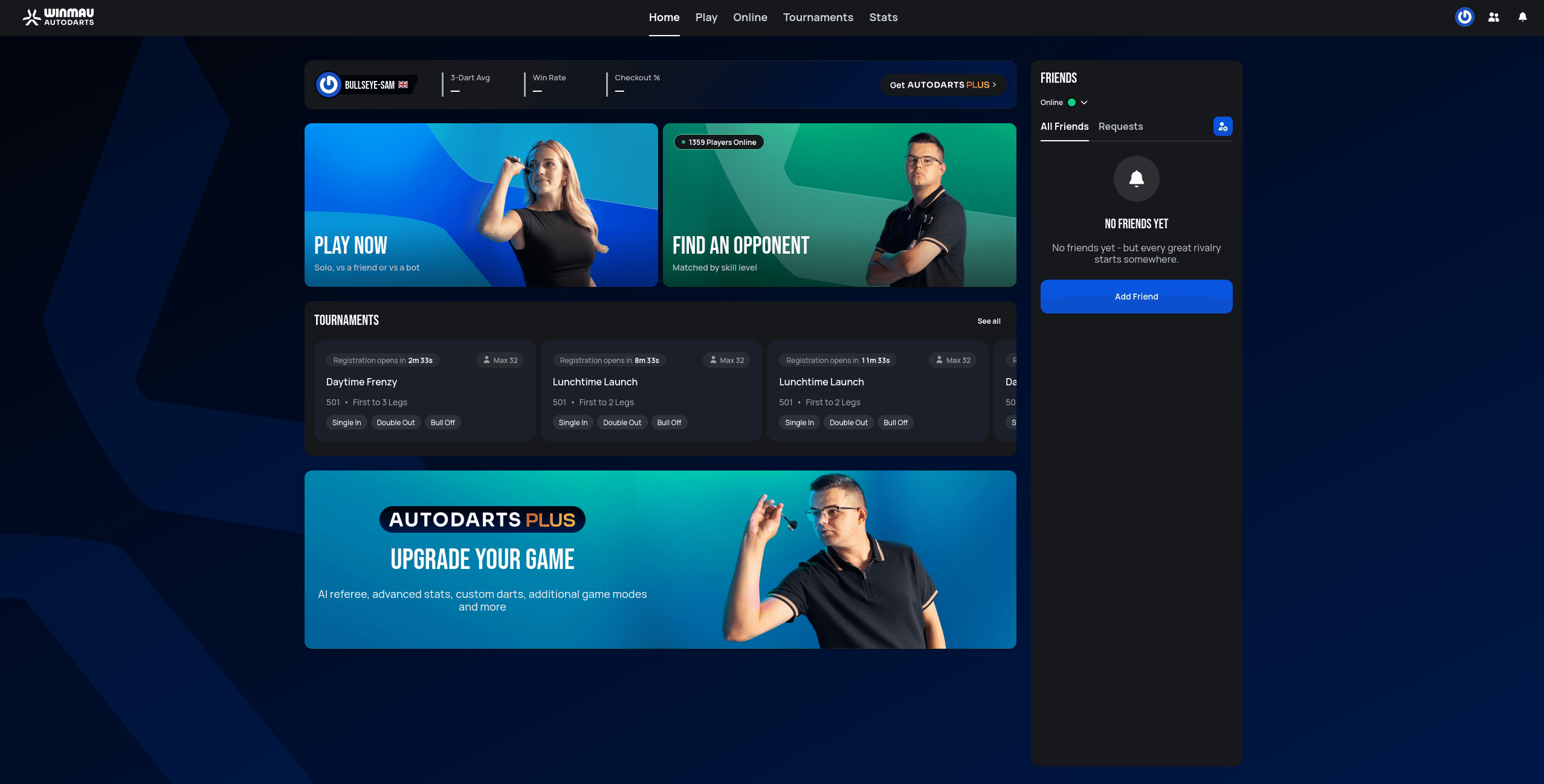
Once logged in, you land on the Home page. It shows your recent stats at the top, along with quick links to start a game, find an opponent, open tournaments, your friends list, and product news.
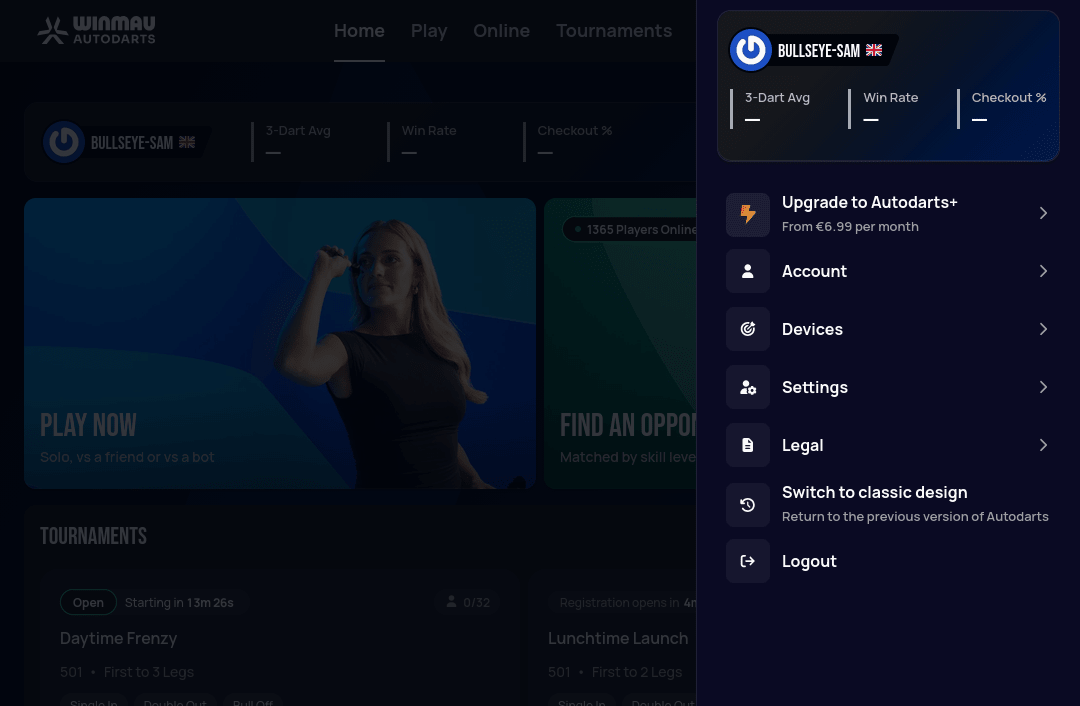
Account and profile settings are reached from the icon in the top-right corner. Selecting it opens a menu with Account, Devices, Settings, Legal, and Logout — Devices is covered below, while Autodarts Plus and Settings/Legal have pages of their own.
Account
Account in the user menu opens your profile settings. The Personal tab holds the same fields as the setup wizard above (username, first/last name, profile flag, avatar) plus a Save settings button — it's where you go to change any of them later.
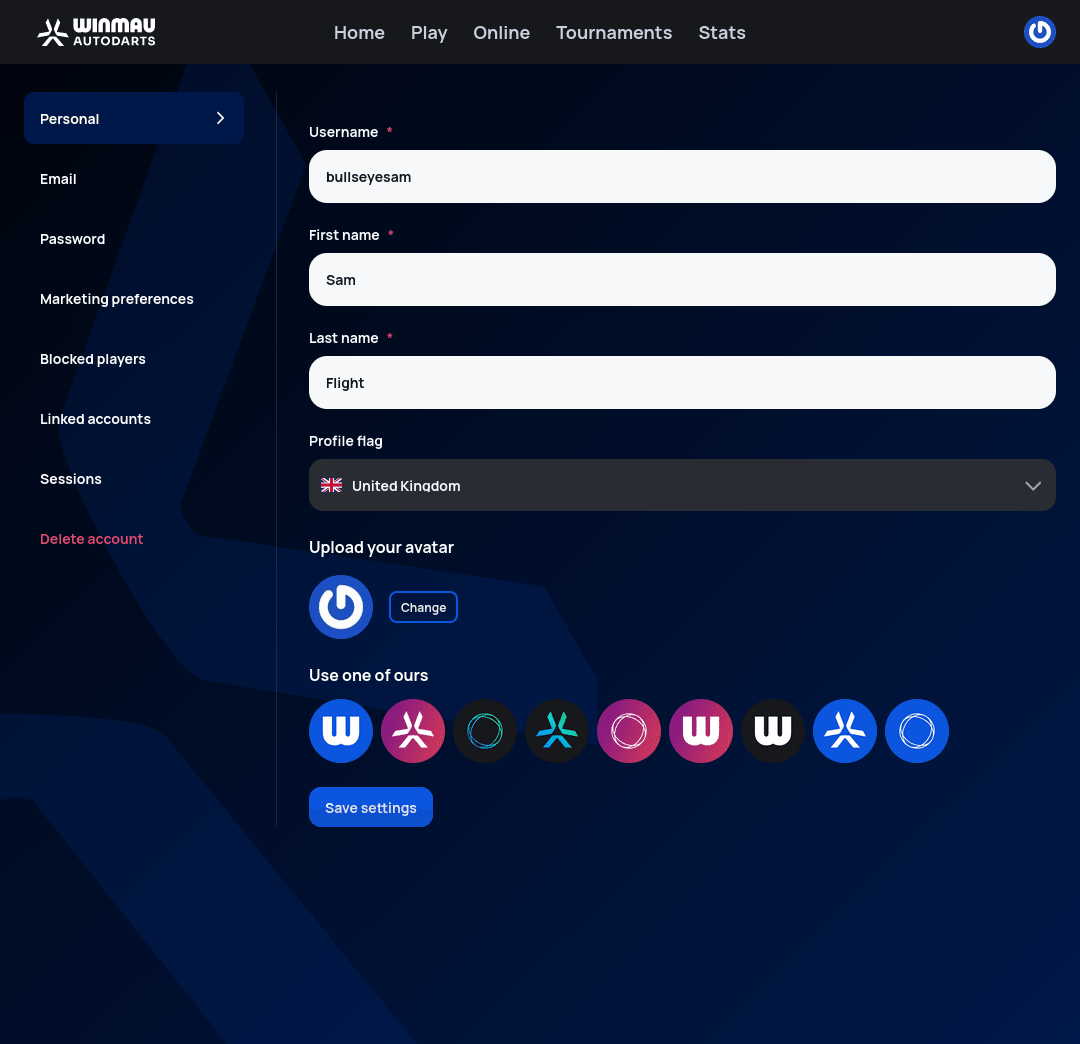
The other tabs handle everything else account-related: Email, Password, Marketing preferences, Blocked players, Linked accounts, Sessions, and Delete account. Linked accounts lists the Google or Apple accounts you've used to log in.
If you've scheduled your account for deletion
Delete account doesn't delete anything straight away — it schedules the account to be deleted permanently 30 days later, and tells you the exact date. Logging back in before then does not call the deletion off by itself. Instead, signing in shows this message:
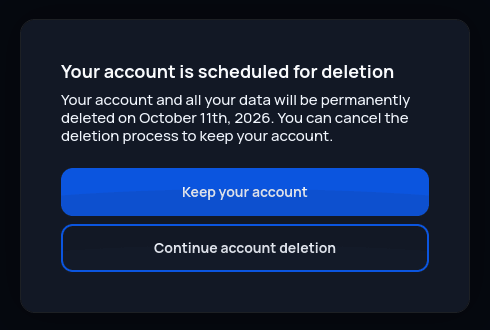
You have to answer it before you can go any further:
- Keep your account cancels the deletion. Your account and everything in it stay exactly as they were.
- Continue account deletion leaves the deletion scheduled and logs you straight back out again.
Devices (optional)
Setting up a device is optional. You can play Autodarts entirely by entering your own scores by hand — a scoring device only enables autoscoring (having your throws detected and scored automatically), which is recommended for the smoothest experience but not required to play. See the Autoscoring toggle for how that choice shows up in the lobby.
Devices in the user menu opens My Devices, which lists the hardware (dartboard cameras, etc.) connected to your account — up to five. A new account starts here with none connected.
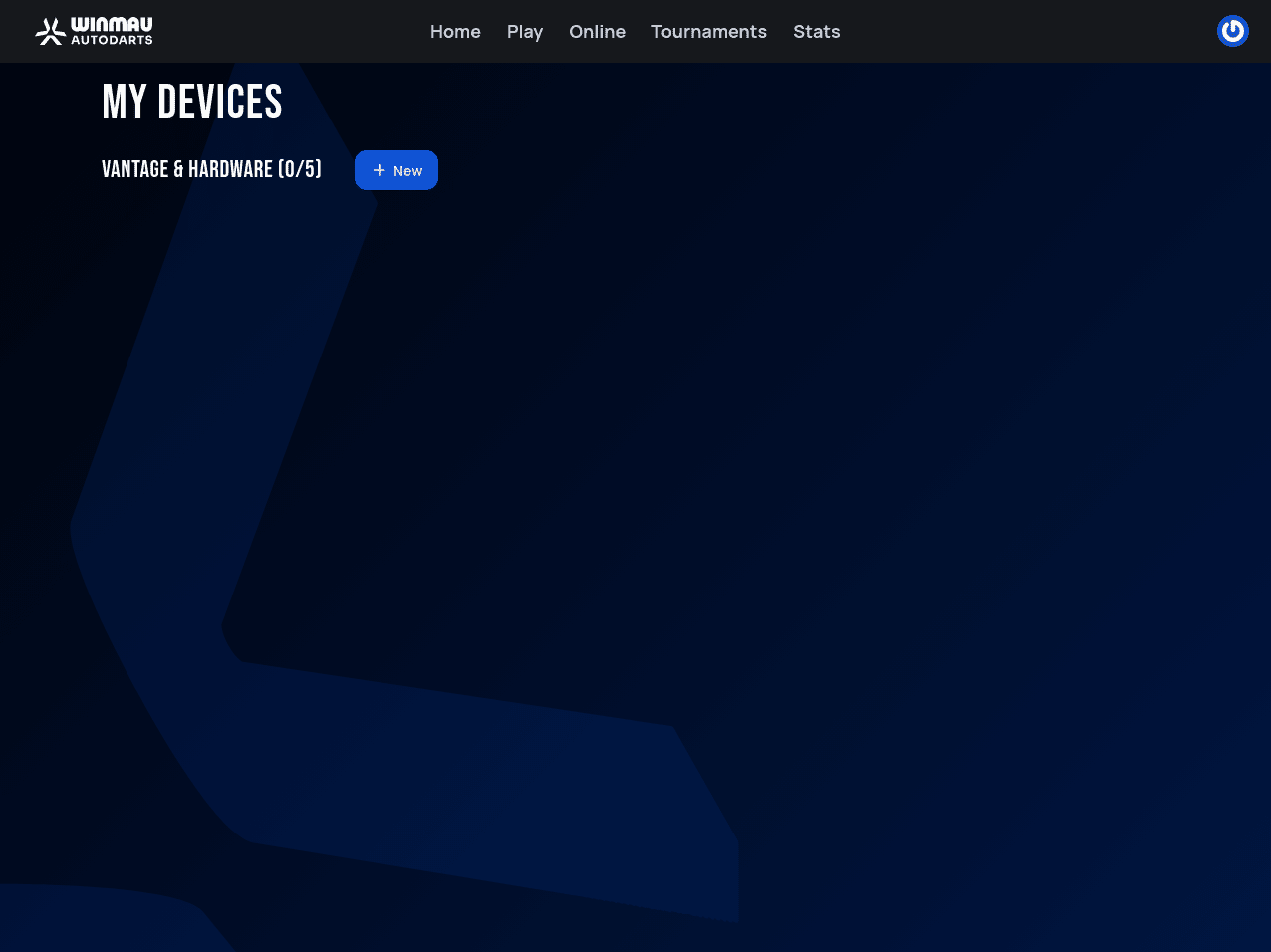
Connecting and calibrating a physical board itself — teaching the system exactly where your board and its segments are — happens in a separate companion application, Autodarts Desktop, not on play.autodarts.com. Once a board is set up through it, it'll appear here in My Devices and become selectable in the lobby's Autoscoring panel.
You don't need a camera rig to get autoscoring, though — and here the app and the browser genuinely differ. Lens, which scores using the device's own camera rather than dedicated hardware, is a feature of the Autodarts app: on a phone or tablet, My Devices shows a Start Lens Detection Mode button above the hardware list. The browser version shown above has no such button.
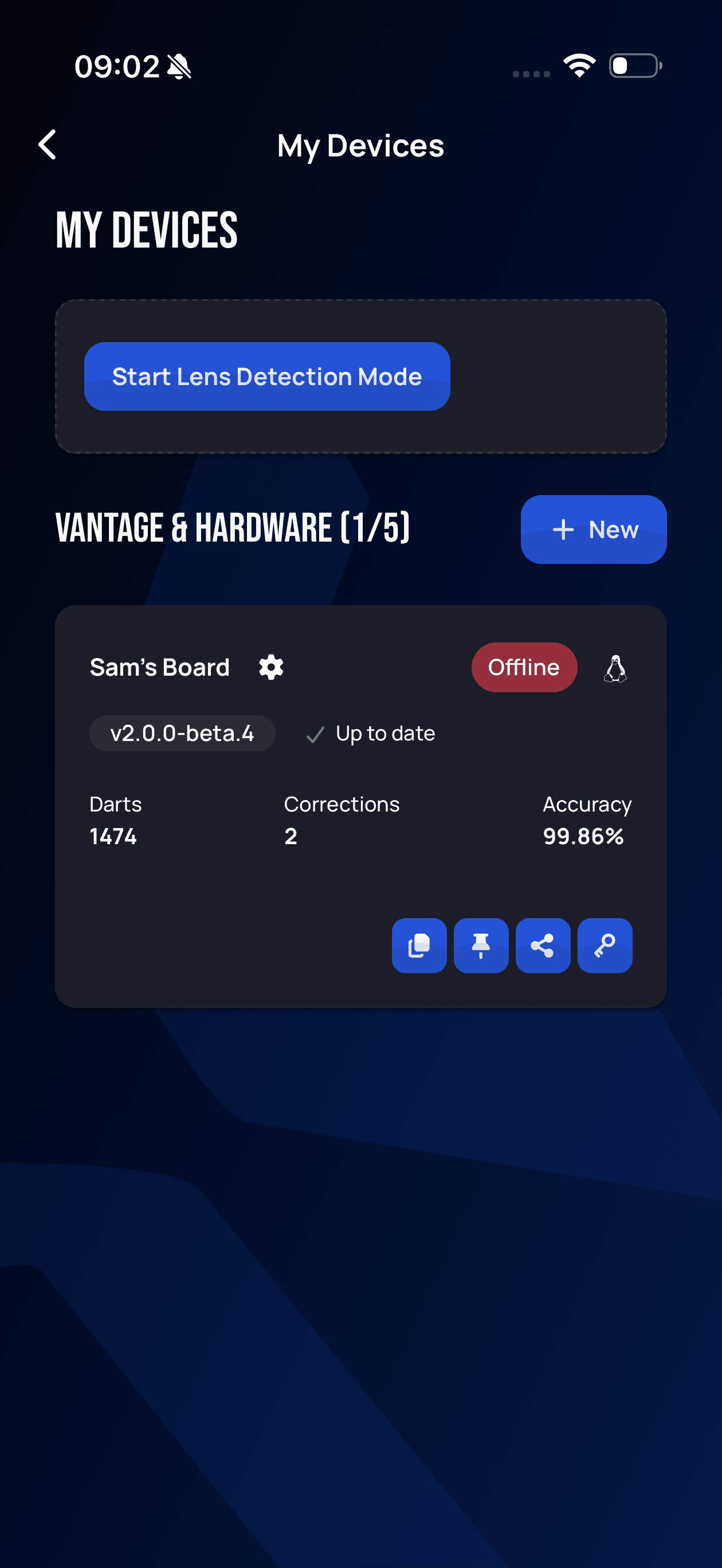
Lens requires no new scoring hardware and no calibration to work — just something to hold the phone steady. Free accounts get 5 Lens matches per 30-day period; Autodarts Plus makes it unlimited.
Next step
Continue to Playing Your First Game to start and play a match. Autodarts Plus covers the optional paid upgrade, and the voucher and promo codes that also unlock it.