Autoscoring
This page covers what you'll see in the lobby itself once a scoring device is already set up: the Autoscoring toggle, and picking which device to use when you have more than one. Setting the device up in the first place happens separately, in the Detection section — either Lens, which uses a phone or tablet camera, or Autodarts Desktop, which uses multiple fixed cameras.
The Autoscoring toggle
Every lobby has an Autoscoring panel with an on/off toggle:
- Off — type your scores in yourself.
- On — a camera handles the scoring for you, using whichever device is selected below: an Autodarts board, or a phone or tablet running Lens.
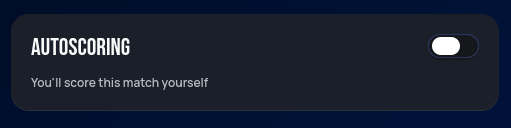
This toggle lives directly in the lobby. Autodarts remembers its on/off state and the device you used last as the default for your next lobby.
Selecting your device
Toggling Autoscoring on lists your scoring devices as selectable cards — but only the ones currently online. Register five boards and only run one through Autodarts Desktop or a headless install, and that's the only card you'll see; the other four simply don't appear until they're running too. The one exception is the device you used last, covered below.
A phone or tablet running Lens shows up here as its own card too, labelled LENS, listed right alongside your boards — see Two ways to use Lens for how it gets there.
The selected device gets a checkmark and a highlighted border. Select a different card to use that device for this lobby instead.
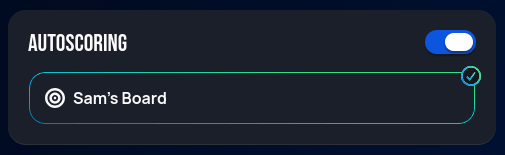
Which device starts out selected:
- The device you used last stays selected in your next lobby.
- If nothing is selected yet — on a new account, for instance — Autodarts picks an online device for you, so you don't end up typing in scores by mistake.
That memory belongs to the browser or app you play in, not to your account. Another browser, or the Autodarts app, keeps its own, and clearing your browser's saved data resets it. For Lens, that means a PC only remembers it if you picked the Lens card on that PC, with the phone in Detection Mode. Playing on the phone itself doesn't change what your PC remembers.
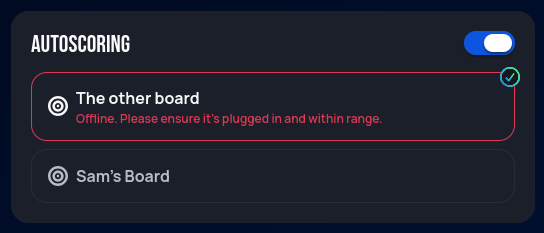
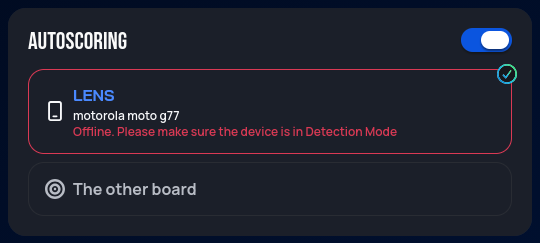
The device you used last stays selected even when it's offline. It's then still listed, with a red border and a message saying what to do:
- A board — "Offline. Please ensure it's plugged in and within range." Start it up again, or select another card. If it stays offline after you've started it, see My board isn't in the list.
- Lens — "Offline. Please make sure the device is in Detection Mode." Put the phone back into Detection Mode, or select another card.
In the Autodarts app
On a phone or tablet, the list offers a little more than in a browser:
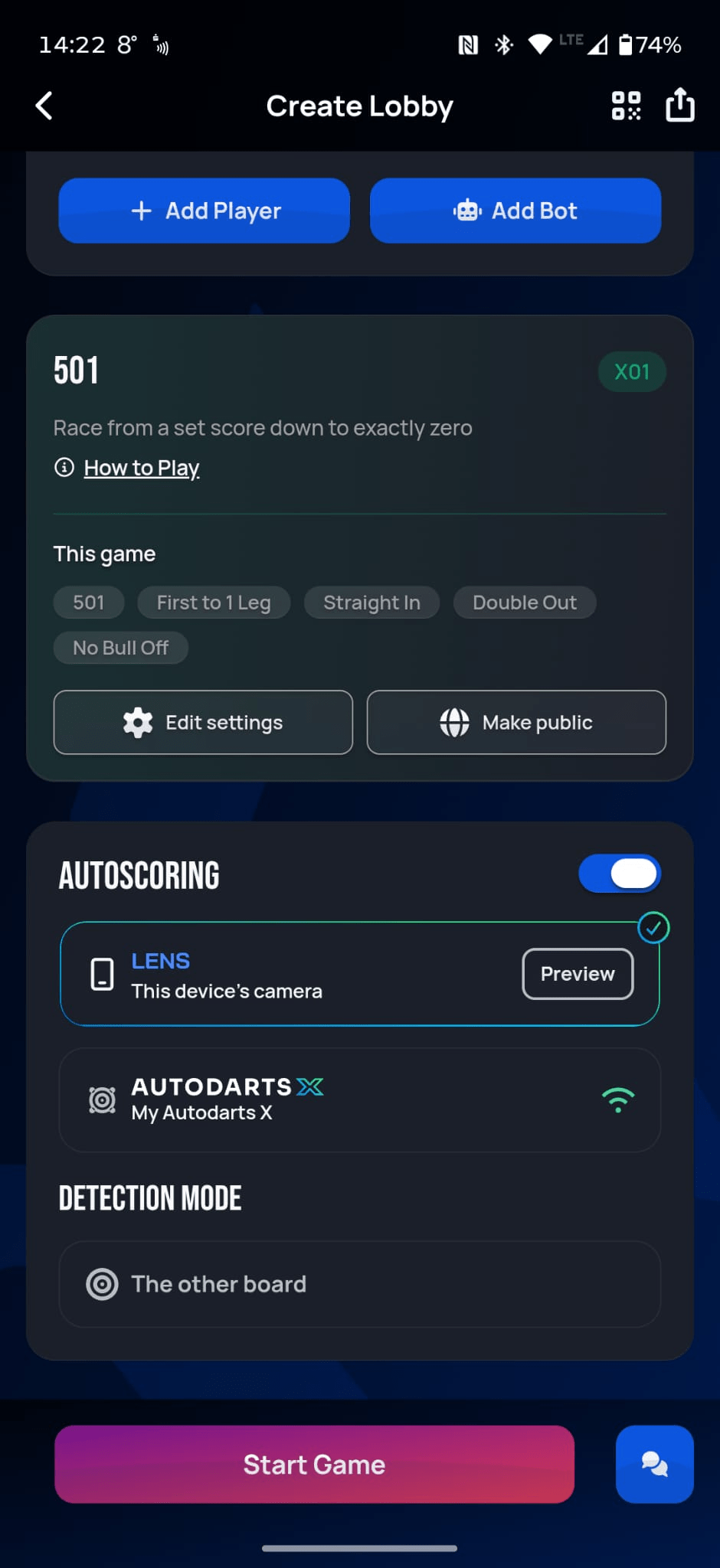
- LENS — This device's camera — the phone or tablet you're holding, with a Preview button to check what the camera sees.
- A Winmau Autodarts X connected to that phone or tablet, by cable or on your Wi-Fi, selectable directly.
- Under Detection Mode, everything that scores from somewhere else: your boards running through Autodarts Desktop or a headless install, and any other phone or tablet in Lens Detection Mode.
In a browser, an Autodarts X doesn't show up on its own. It needs Autodarts Desktop on a computer, with the X picked as the camera source for a board on your account; that board is then what you select here.
Next step
Continue to Playing Your First Game for the full walkthrough, starting from this same lobby screen.