Lens
Lens turns a phone or tablet you already own into an Autodarts scoring camera. Aim the device at your board and the app guides you into position, telling you on screen what to change until it can see the whole board at a workable angle — then it scores your darts. No camera rig to buy and nothing to install beyond the Autodarts app. You will want a tripod or phone mount to hold the device steady, and a free account covers 5 Lens matches every 30 days, which Autodarts Plus lifts to unlimited.
That makes it the easiest way to try autoscoring (having your throws detected and scored automatically, instead of typing the numbers in yourself): a good first taste of it if you're new to darts, and a good way to keep scoring when you're playing somewhere other than your usual board.
The difference from a dedicated setup is the number of viewpoints. That setup watches the board from several angles at once, so a dart hidden from one camera is still visible to another. Lens works from one angle, so now and then a dart lands directly behind another and stays out of sight. Pull the front dart out and Lens picks up the one behind it on its own, mid-turn — nothing to restart, no score to enter by hand (see Lens missed a dart). If Lens becomes how you play most of the time, a dedicated multi-camera setup is the natural next step.
- Lens (this page) — a phone or tablet camera, plus something to hold it steady. Set up in under a minute, positioned fresh each time you play. One camera, so one angle.
- Autodarts Desktop — multiple cameras mounted around the board, so no dart is hidden from all of them at once. More work to set up, but they stay where they are between sessions.
- Headless Installation — the same multi-camera setup as Autodarts Desktop, run from the command line on a dedicated Linux machine or Mac. For advanced users.
All three are optional. You can play Autodarts perfectly well by entering your own scores by hand — see the Autoscoring toggle.
What you need
-
The Autodarts app on a phone or tablet — listed as Autodarts: Darts Scorer in the App Store and on Google Play. Lens recognises the darts on the device itself, so for the best results the device wants a chip built for that kind of work:
- iOS 18 or newer, ideally one with Apple's Neural Engine.
- Android 7.1 or newer, ideally one with an NPU (a dedicated AI accelerator), the Android counterpart to the Neural Engine.
Those version numbers are the floor for installing the app. Because detection runs on the device's own chip, newer devices give the best experience.
-
Something to hold the device steady. A tripod or phone holder is strongly recommended: consistent detection depends on the camera not moving. A device that shifts mid-match has to find the board again.
-
Reasonable lighting. A light ring around the board gives the best results. Lens works without one, but accuracy can drop noticeably, so at minimum minimise shadows and close the curtains so the light doesn't change while you play.
-
A clear view of the board from off to one side — see Positioning your device below.
Free matches, and what Autodarts Plus changes
Lens is included with a free account, up to a set number of matches:
- Free accounts get 5 Lens matches every 30 days. The counter sits right on the Lens card in the lobby, so you can always see how many you have left.
- The 30-day period runs from the date you first signed in, not from the 1st of the month — so your allowance resets on its own schedule, on whatever day of the month that happens to be.
- Unused matches don't roll over. Each reset puts you back at 5, rather than adding to what you had left.
- A match counts against the allowance once 9 or more darts have been thrown, whether or not you play it to the end. Abandoning a match after that point still uses one up; abandoning it before doesn't.
- Autodarts Plus members get unlimited Lens matches — no counter, no allowance to keep an eye on.
When you run out
At zero the card reads No matches remaining in red, above an offer to upgrade. Start Game then stops working while Lens is the selected device — the button is still there, but tapping it won't start the match.
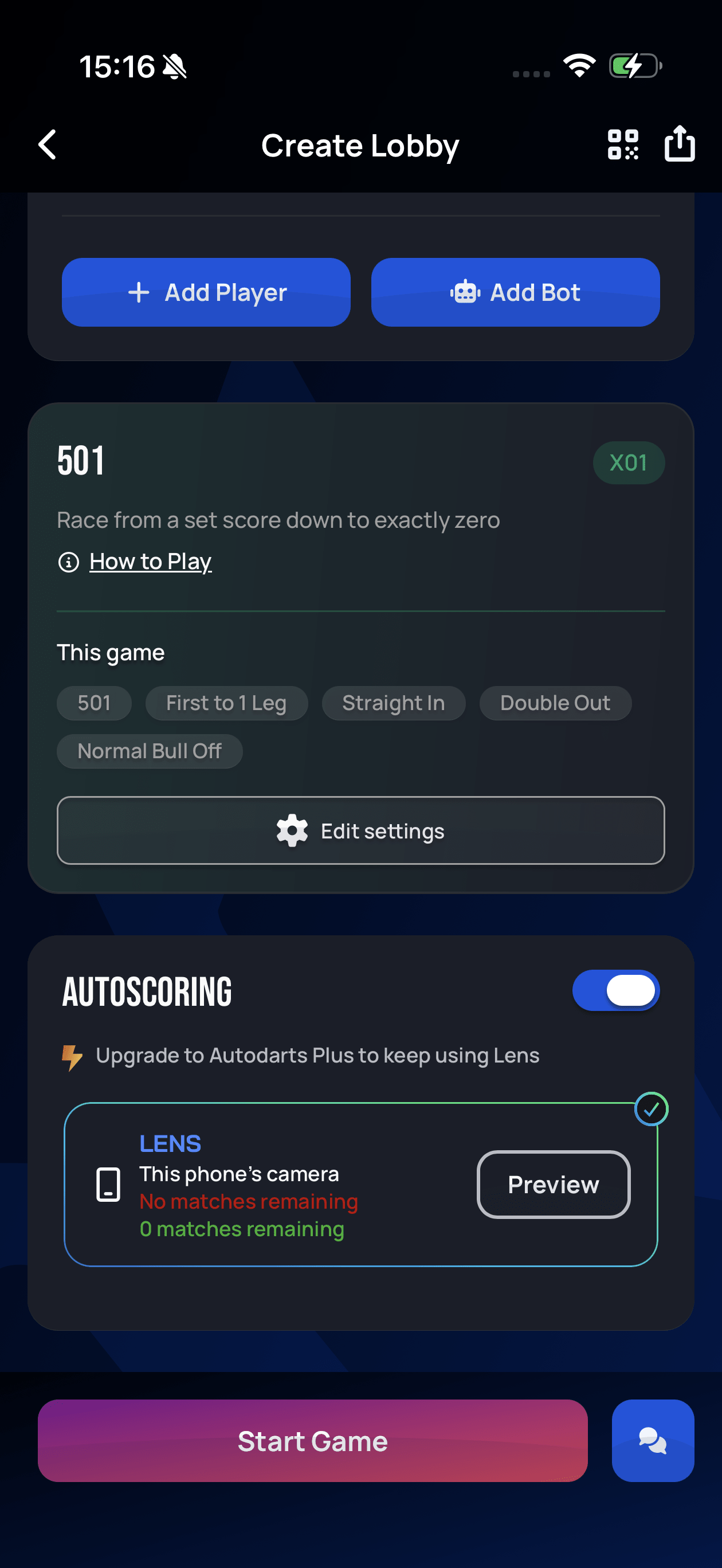
Only that choice is blocked. Upgrade to Autodarts Plus, select another scoring device if you have one online, or switch Autoscoring off and score the match by hand.
What Lens can't do
Two Autodarts Plus features need a dedicated autoscoring setup with multiple cameras, and aren't available when Lens is doing the scoring:
- AI Referee — the robot button that calls in the AI to review the darts thrown so far in a turn.
- Plus-exclusive tournaments.
Everything else — every game mode, ordinary multiplayer, your statistics — works the same way with Lens.
Two ways to use Lens
Lens can either score the game you're playing on that same device, or act as a dedicated scoring camera for a game running somewhere else.
Scoring on the device you're playing on
The simplest case: you create the lobby in the Autodarts app on your phone, and the same phone does the scoring.
Turn Autoscoring on in the lobby and Lens shows up as a selectable device, labelled This phone's camera, with your remaining match count underneath. Preview opens the camera view so you can check and adjust where the device is pointing before you start.
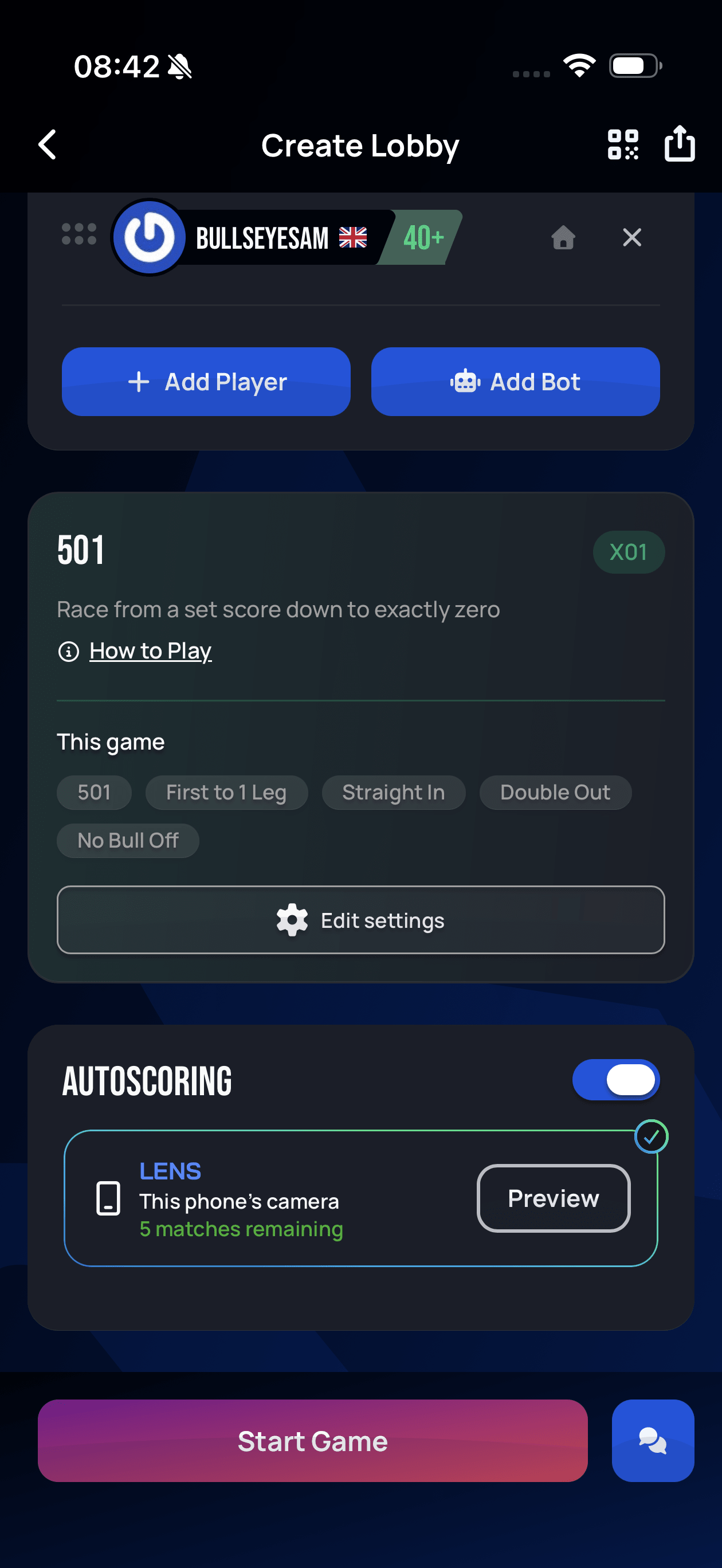
The catch is that the phone has to sit in front of the board, roughly a metre away — which is exactly where you can't easily read it. If squinting at your scores across the room gets old, use the second method instead.
Using a phone as a dedicated scoring camera
You can also park a phone in front of the board purely as a camera, and play the actual game somewhere more comfortable — a PC, a tablet, a TV browser. Autodarts calls this remote scoring. The phone handles the detection; the other device shows the scoreboard and runs the match.
Set the phone up first:
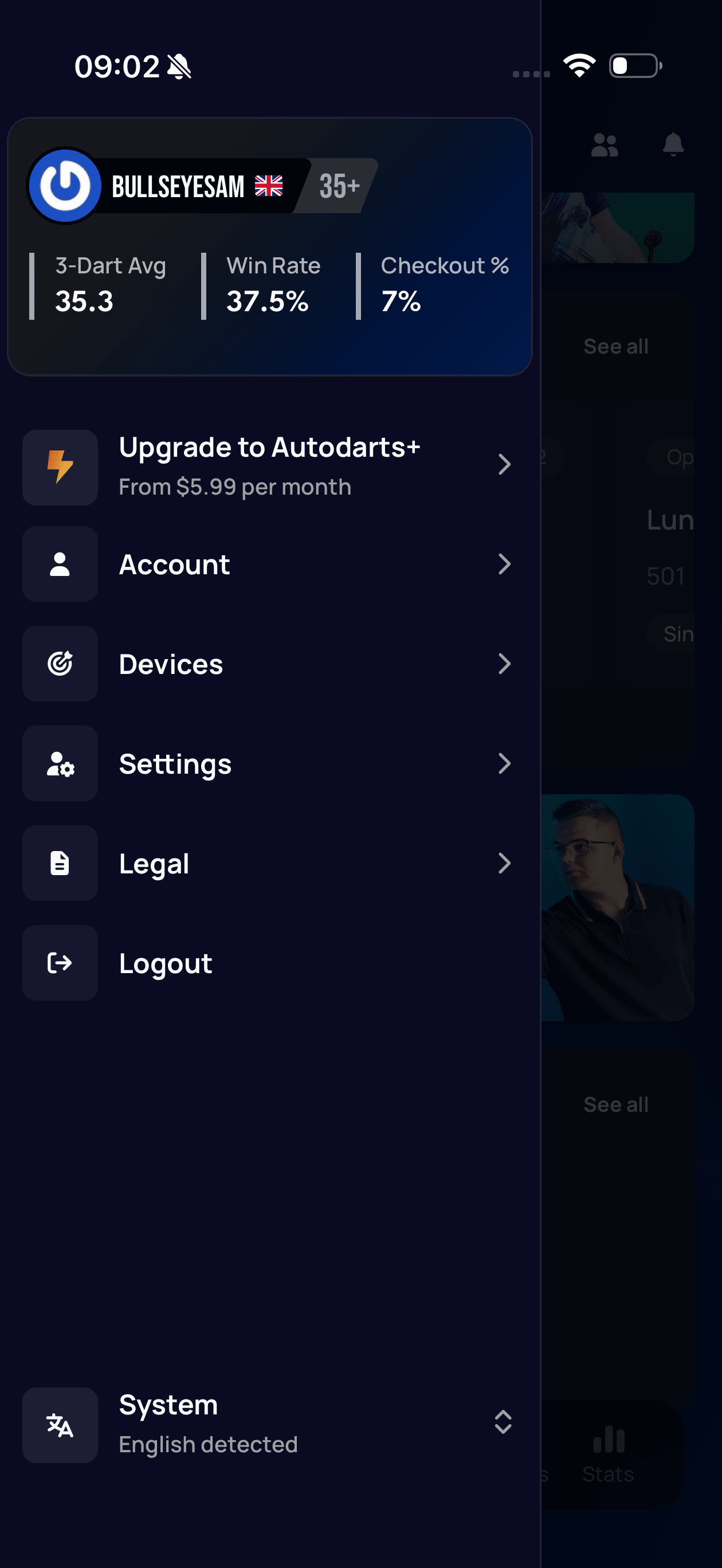
- Tap your avatar in the Autodarts app to open the menu, then tap Devices to open My Devices.
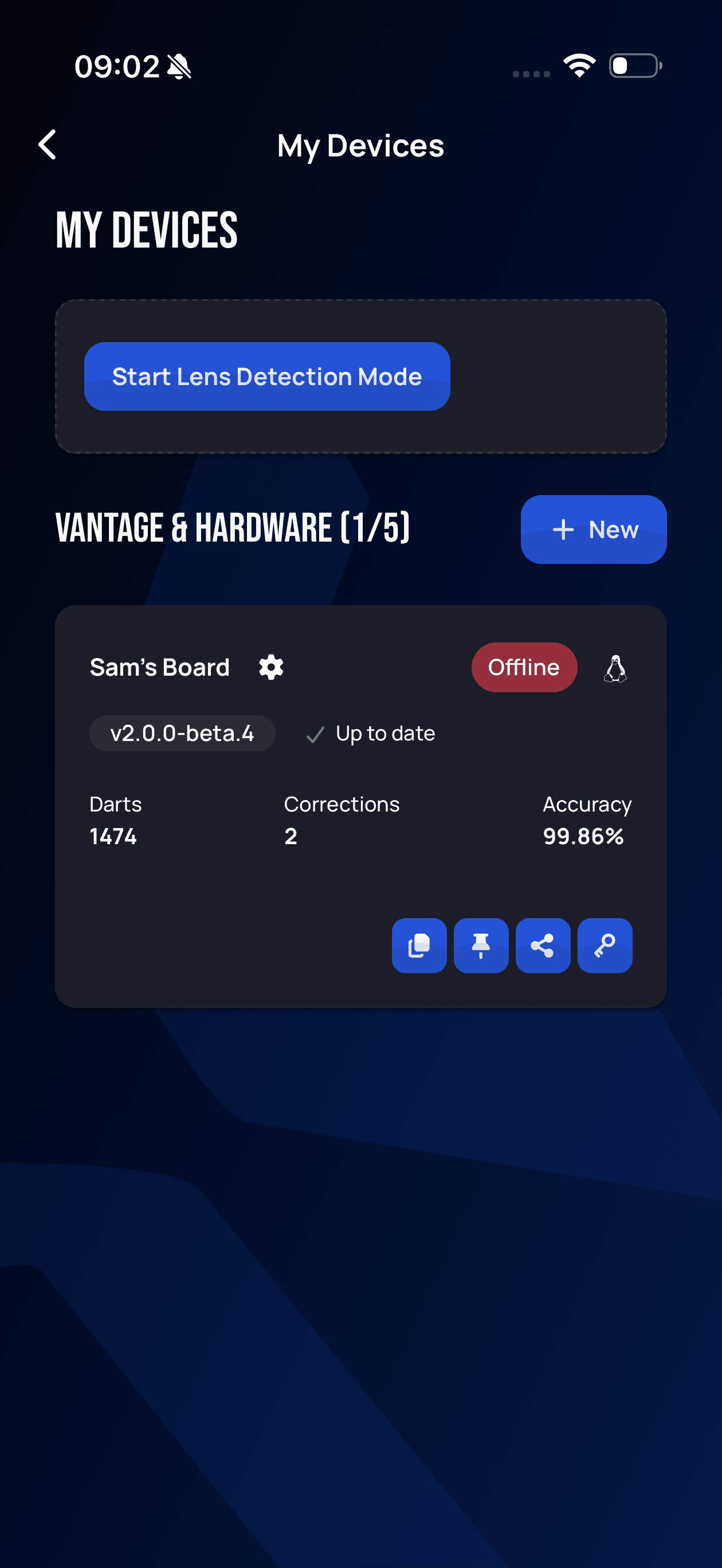
- Tap Start Lens Detection Mode at the top of the page.
Aim the phone at the board — see Positioning your device for where to put it — then leave detection mode open and running. On whatever device you're actually playing on, turn Autoscoring on in the lobby and the phone appears in the device list as LENS, named after the device itself (here, iPhone) — pick it the same way you'd pick a board.
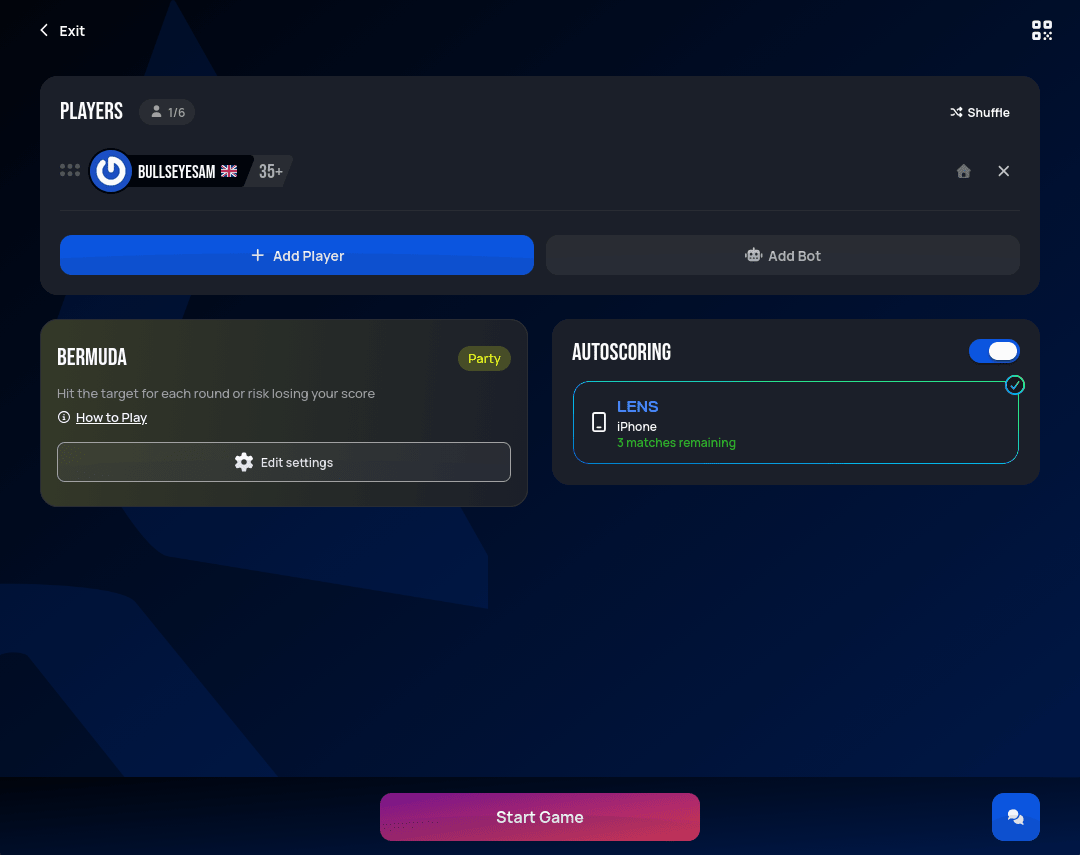
Done in the top right closes the detection session. Once it's closed, the phone stops being selectable from your other device. Leave the detection screen open for as long as you want to use the phone as a scoring camera — only tap Done when you're finished playing.
Turning Lens on doesn't replace anything. In My Devices, Start Lens Detection Mode sits above your Vantage & Hardware list, and in the lobby a Lens device is listed alongside any boards that are online — so you can pick whichever suits the session. See Autoscoring for how that picker works.
Positioning your device
Because the device moves, aiming it is something you do every time you play, not once. As a starting point, put it about a metre from the board and off to one side — either side works equally well. Lens wants to see the board at an angle: not flat-on from the front, and not so far around to the side that the board becomes a thin ellipse.
You go through the same flow in both places — Preview in the lobby opens the Position your device screen on the phone you're playing on, and detection mode runs it too. Either way it's a live camera view with a message telling you what to fix. The messages nudge you towards the right spot from either direction, and the screen turns green when you've found it.
"Ensure the entire board is visible" — part of the board is out of frame. Move back or re-aim until the whole board, including the outer number ring, fits in the picture. Nothing should be blocking the view of any segment.
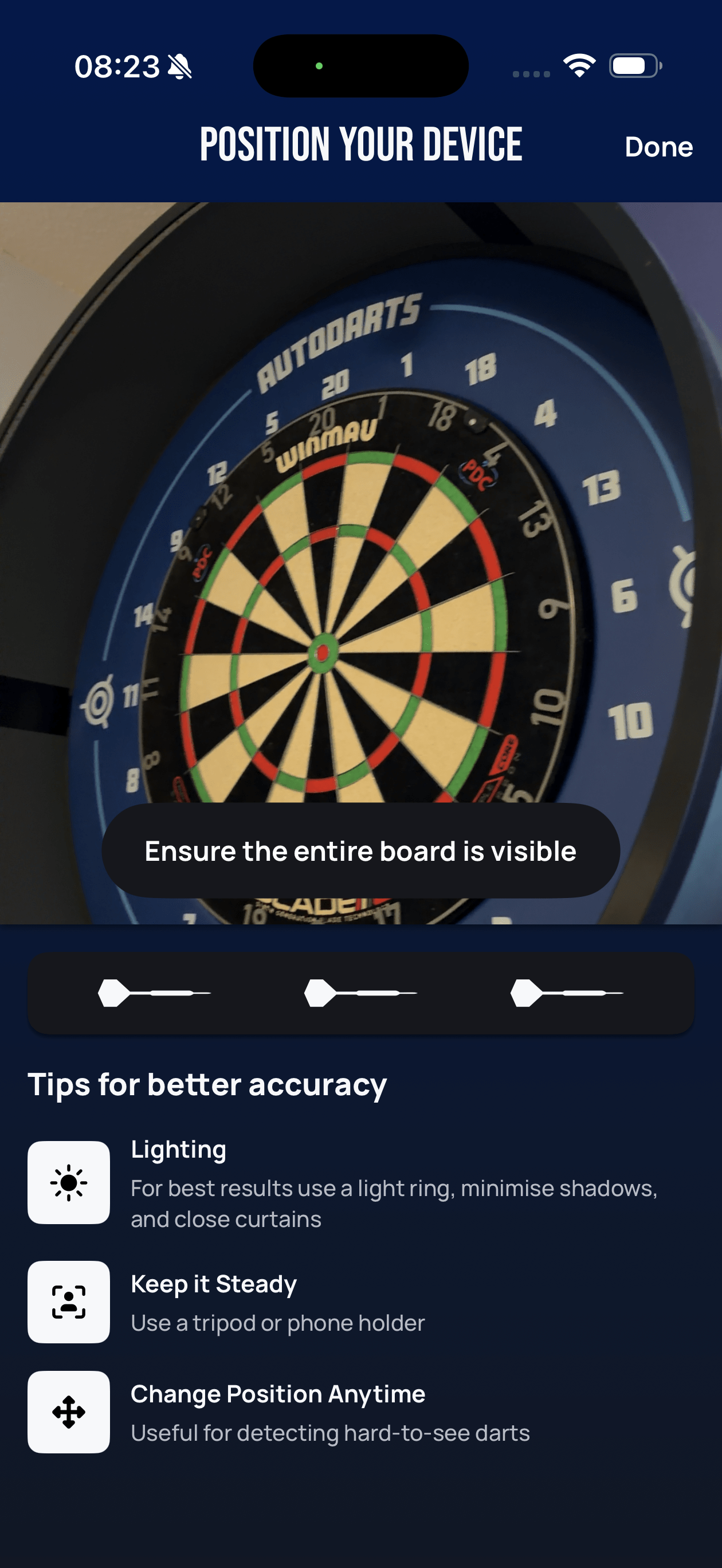
"View more from the front" — you're too far around to the side, and the board has flattened into a narrow oval. Move around towards the front of the board.
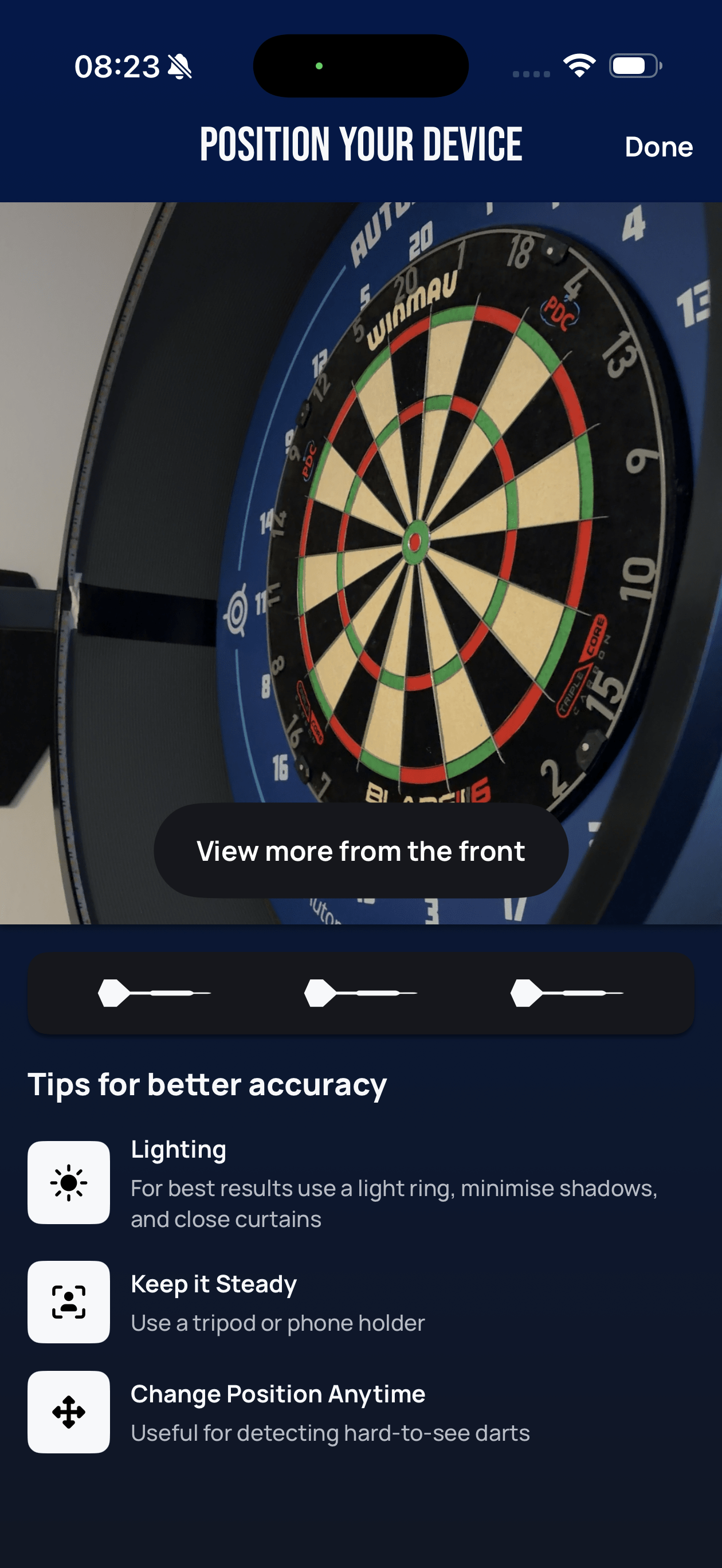
"View from the side" — the opposite problem. You're almost straight-on to the board, which makes it hard to tell how far a dart sticks out. Move off to one side.
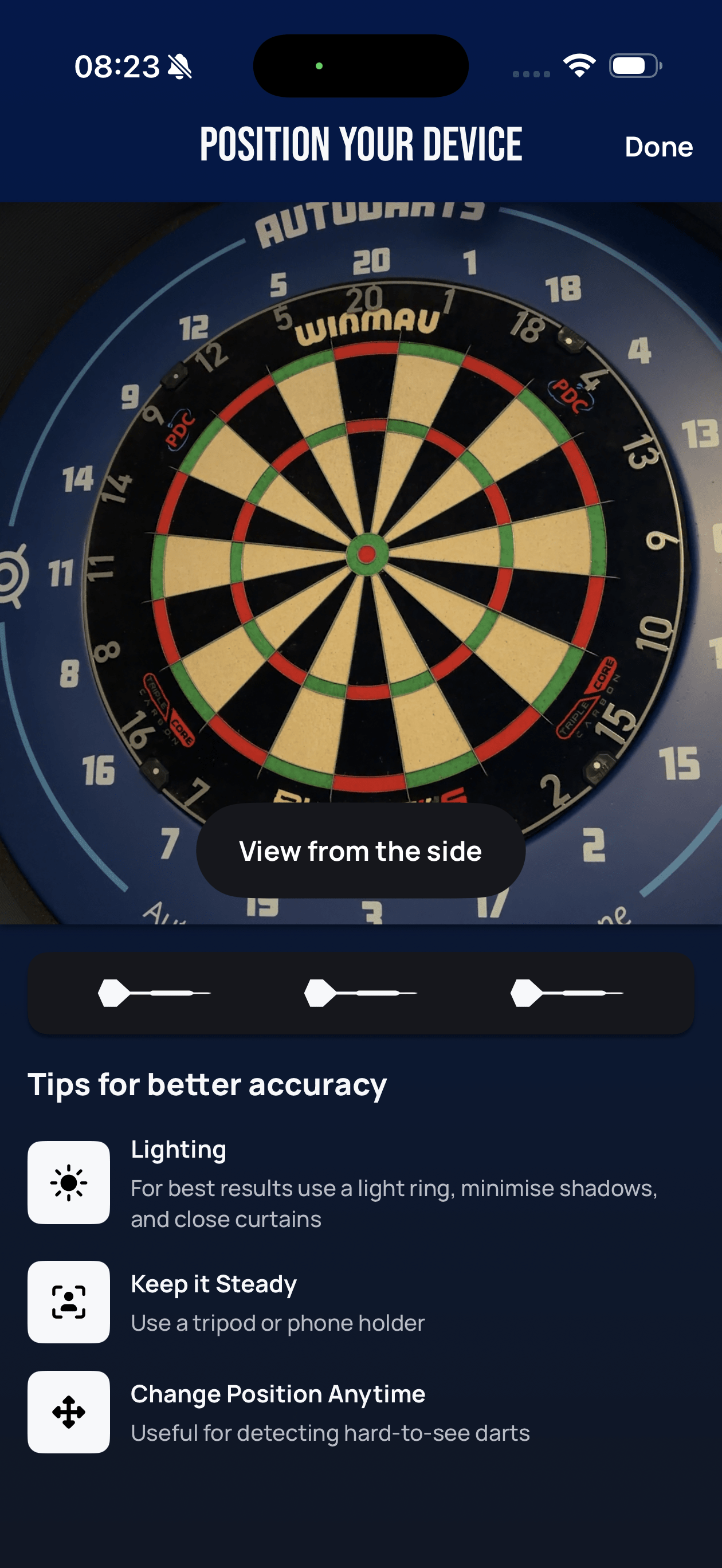
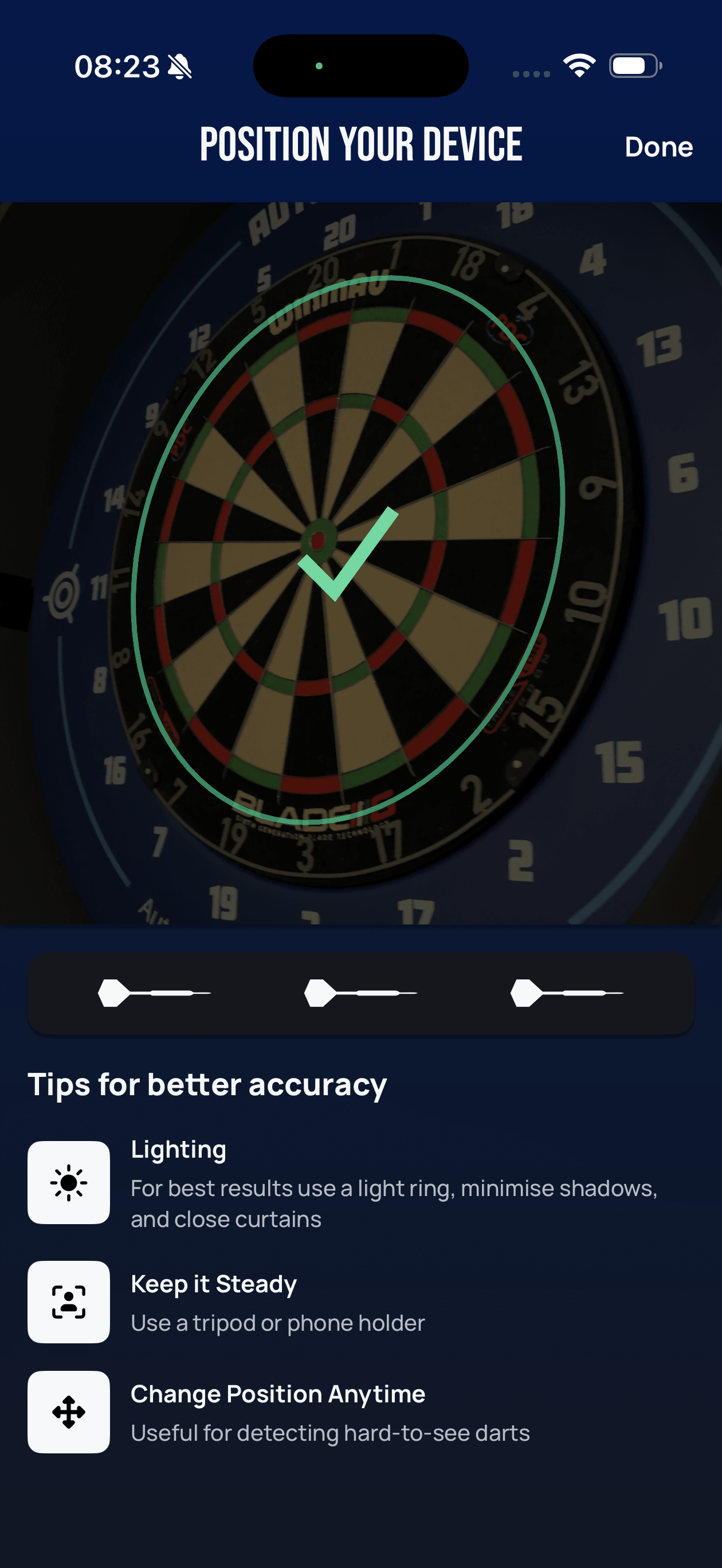
When Lens has locked onto the board, it traces a green outline around it and confirms with a checkmark. On devices with haptics you'll feel a short vibration at the same moment:
The message then reads "Ready to play" with a green checkmark, and you can tap Done:
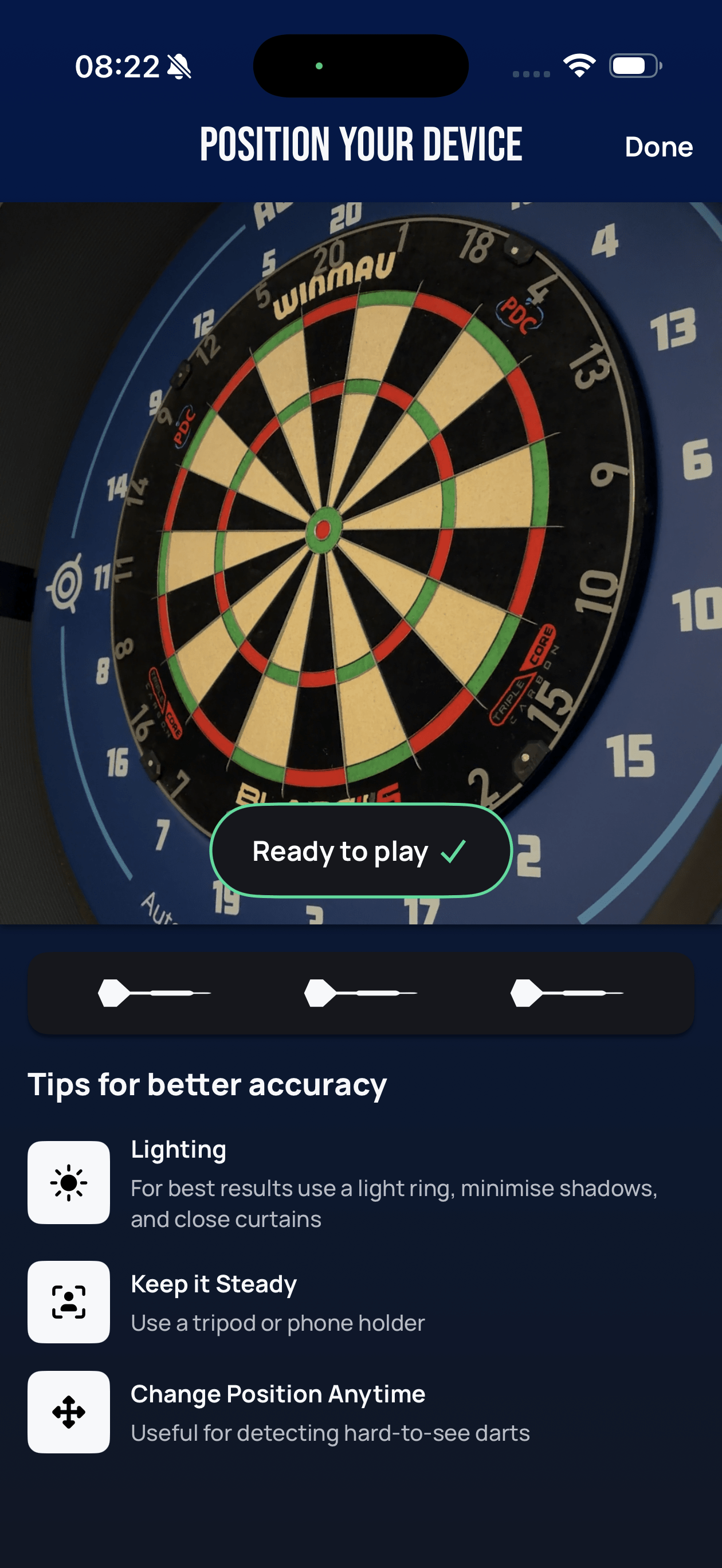
Lighting — a light ring gives the most consistent results; otherwise minimise shadows and close the curtains. Keep it steady — use a tripod or phone holder rather than propping the device against something. Change position anytime — you're not locked into the spot you started from, and moving the device can help when a dart is landing somewhere awkward to see.
Detection mode
Detection mode is the screen you get from Devices → Start Lens Detection Mode. It runs the same positioning flow described above, then settles into a status pill reading "Detecting" with a green checkmark whenever Lens can see the board properly. A row of three dart icons below the camera view tracks the darts in the current turn.
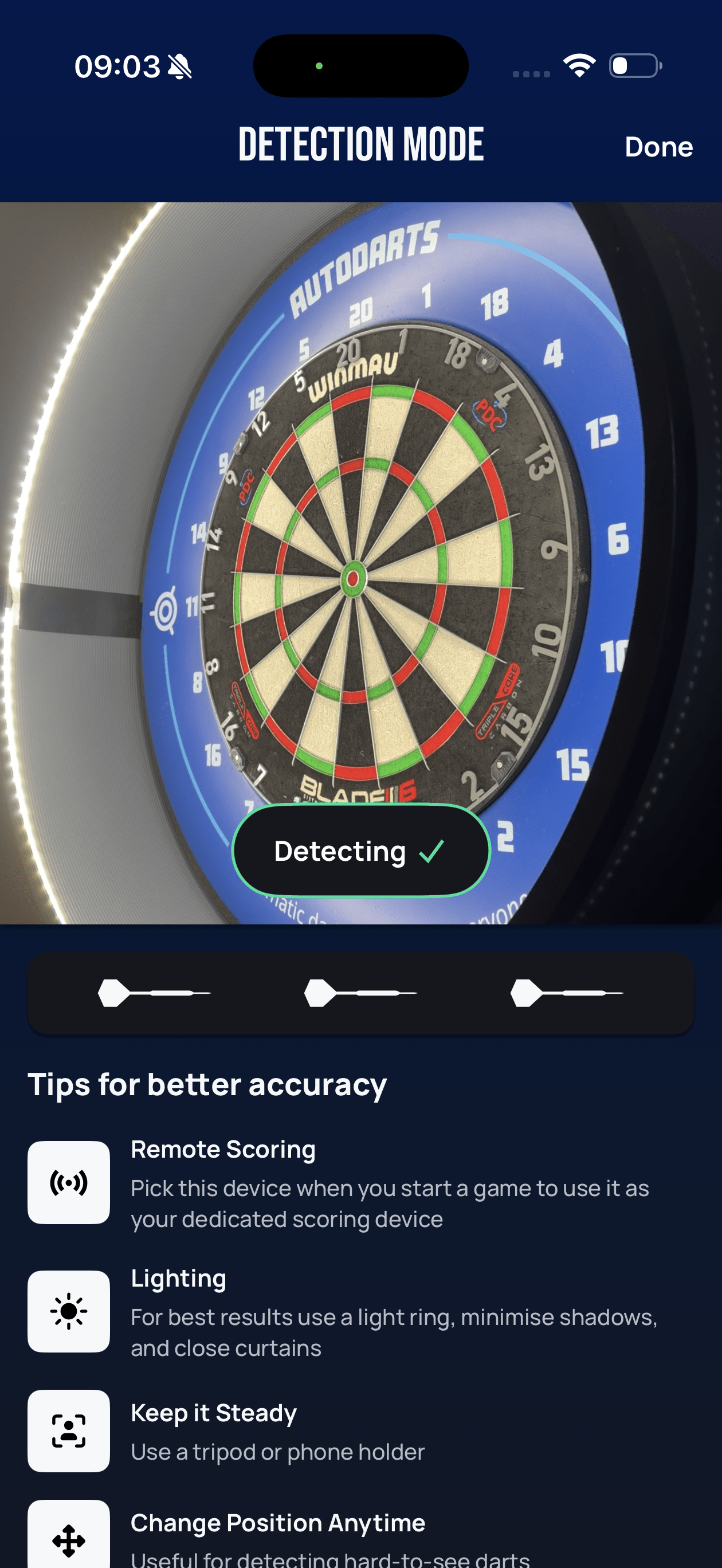
Lens keeps checking its own view as you play, so if the device gets knocked or the light changes, the status tells you as much and you can re-aim on the spot. You don't have to stop the match and start over — just move the device until it's happy again.
Detection only runs while the Autodarts app is open and on screen. Switching to another app or locking the phone stops it.
Tap Done in the top right when you've finished playing, to leave detection mode.
Common problems
Lens missed a dart
Lens can only score darts it can actually see. The usual cause is one dart sitting directly behind another from the camera's point of view. Two ways to fix it, and either works mid-turn:
- Pull out the dart that's in the way. The one behind it becomes visible.
- Move the phone to a different angle until the hidden dart comes into view.
Either way, detection triggers on its own and picks up the dart it missed — you don't need to restart anything or enter the score by hand.
My light ring is causing glare
From some angles the ring's light reflects into the lens and washes out the board. Shift the phone's position or angle slightly until the glare is out of shot.
The scores are hard to read on my phone
The phone has to sit near the board for detection, which isn't a great place to read a scoreboard from. Two options:
- Sign in to your Autodarts account on a second device — a tablet or PC — and watch the active match there.
- Use remote scoring: put the phone in detection mode, and run the whole match from the second device.
My phone isn't showing up as an available device
Almost always this means the detection session closed. If you tapped Done after starting detection mode, that ended it — reopen Devices → Start Lens Detection Mode and leave the screen open this time. The detection screen has to stay open for the phone to be selectable elsewhere.
My phone is getting hot
That's expected. Running the camera and detection together is demanding, and devices warm up during use. Built-in protection stops the device overheating, so there's no risk of damage.
Next step
Continue to Autoscoring for how the lobby's Autoscoring panel and device picker work, or straight on to Playing Your First Game.