Playing Your First Game
This page walks through starting a custom lobby and playing a first X01 match with autoscoring hardware, from the lobby through to correcting a misdetected dart mid-game and finishing the match.
Start a lobby
A lobby is just the setup screen you sit in before a match starts — where you add players or a bot, pick a game mode, and adjust settings. Nothing counts as gameplay until someone selects Start Game.
There are two ways in, and they don't do the same thing:
- Play Now, the tile on the Home page, drops you straight into the lobby, set up with whatever you last played on that device. On a new account that's a solo 501 (X01) game.
- Play in the top navigation opens Select Game Mode first. Picking a mode there takes you on to the lobby.
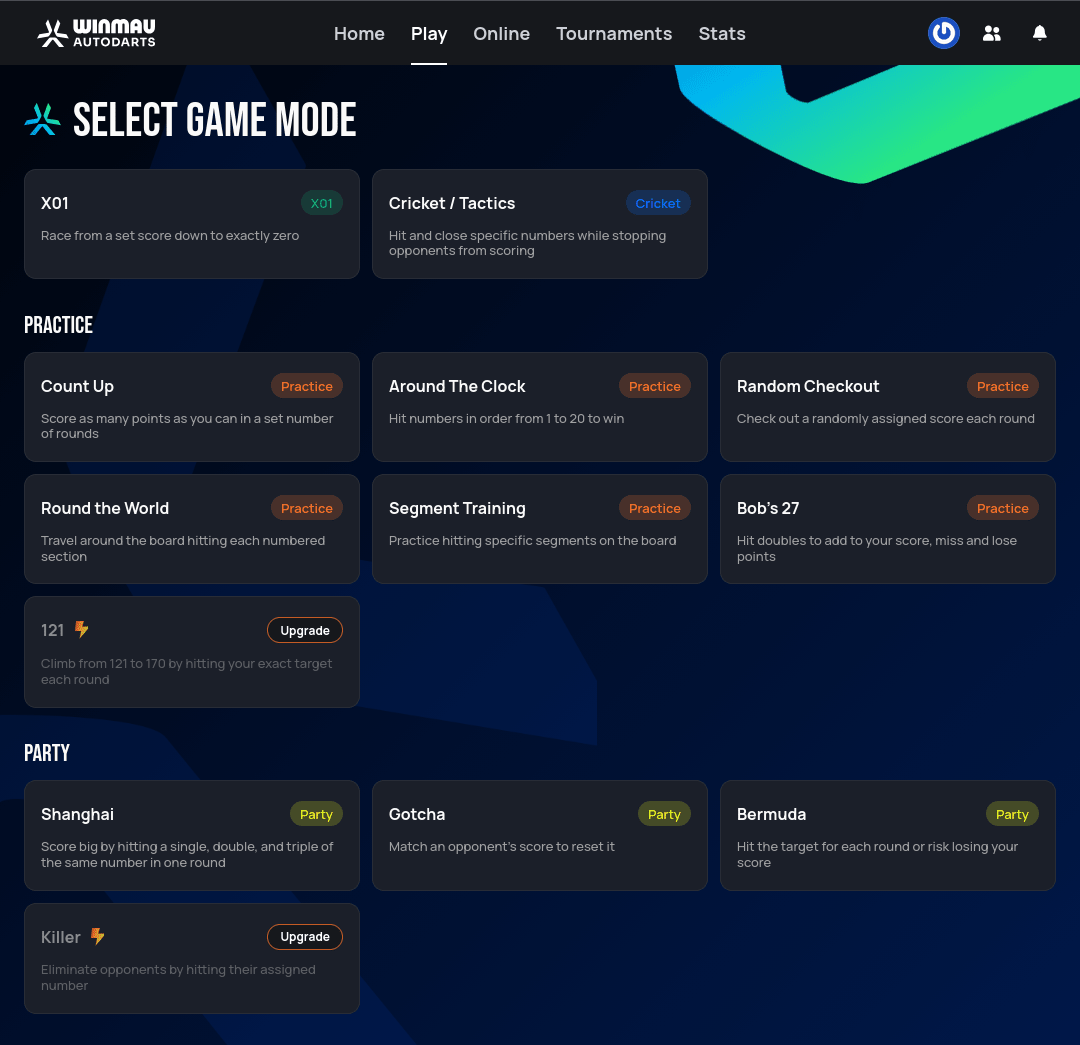
Either way you end up in the same lobby.
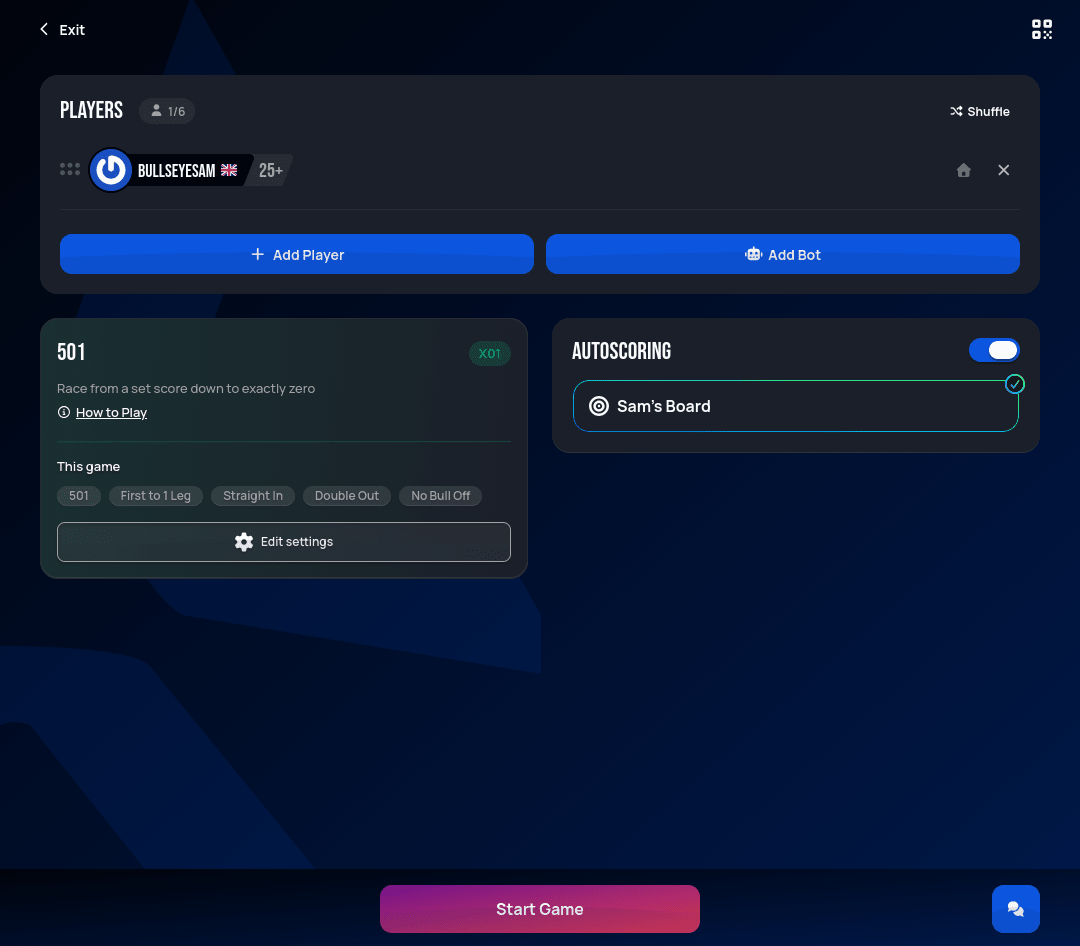
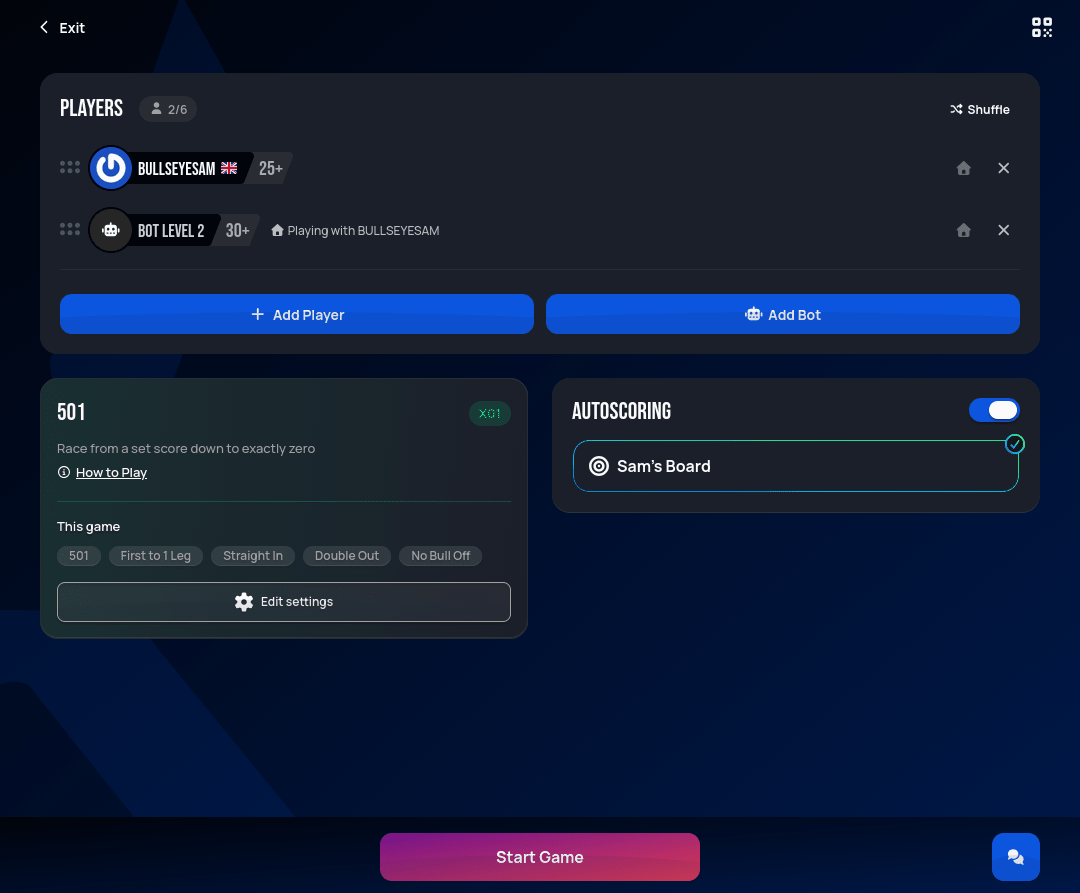
The Autoscoring panel controls how darts are tracked. Toggling it on lists whichever scoring devices are currently online — boards set up through Autodarts Desktop, and any phone or tablet running Lens. The board above is selected because it's both online and the one used last; see Autoscoring for when a device is (and isn't) preselected for you. Toggling Autoscoring off switches to typing scores in manually instead. Autodarts remembers this on/off state and device choice as the default for your next lobby.
The lobby
From the same screen shown above, you can add players or bots, change the game mode and settings, or start the game right away. With more than one board registered, every board that's currently online — not necessarily every board you own — shows up in the Autoscoring panel as its own selectable card, as does a phone or tablet running Lens; see Autoscoring for the full behavior.
Game settings
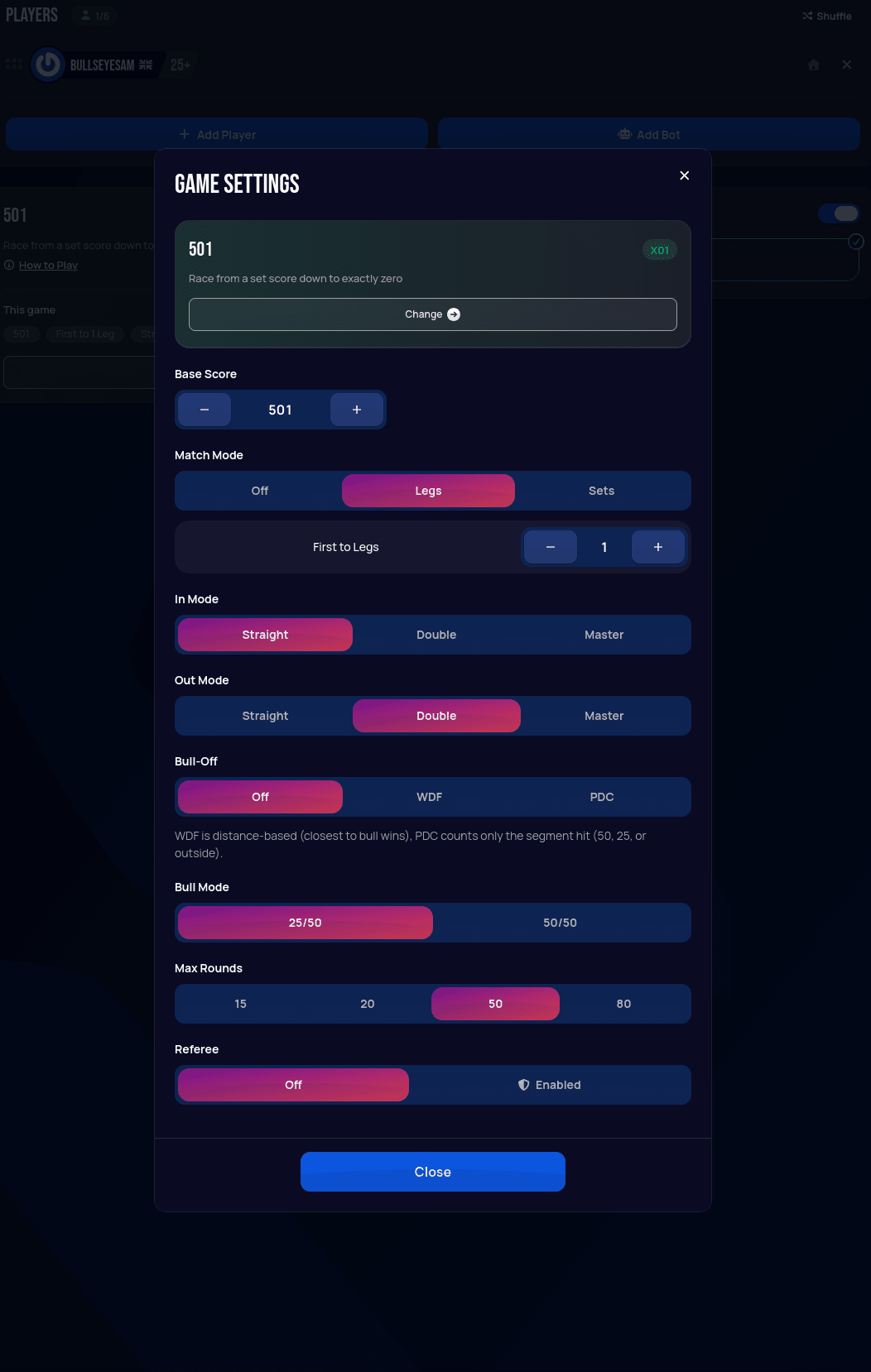
Selecting Edit settings opens the full settings panel for the current game mode: base score, match mode (legs/sets), in/out mode, bull-off rules, bull mode, max rounds, and referee. The defaults shown here (501, first to 1 leg, straight in, double out) are a good starting point for a first game.
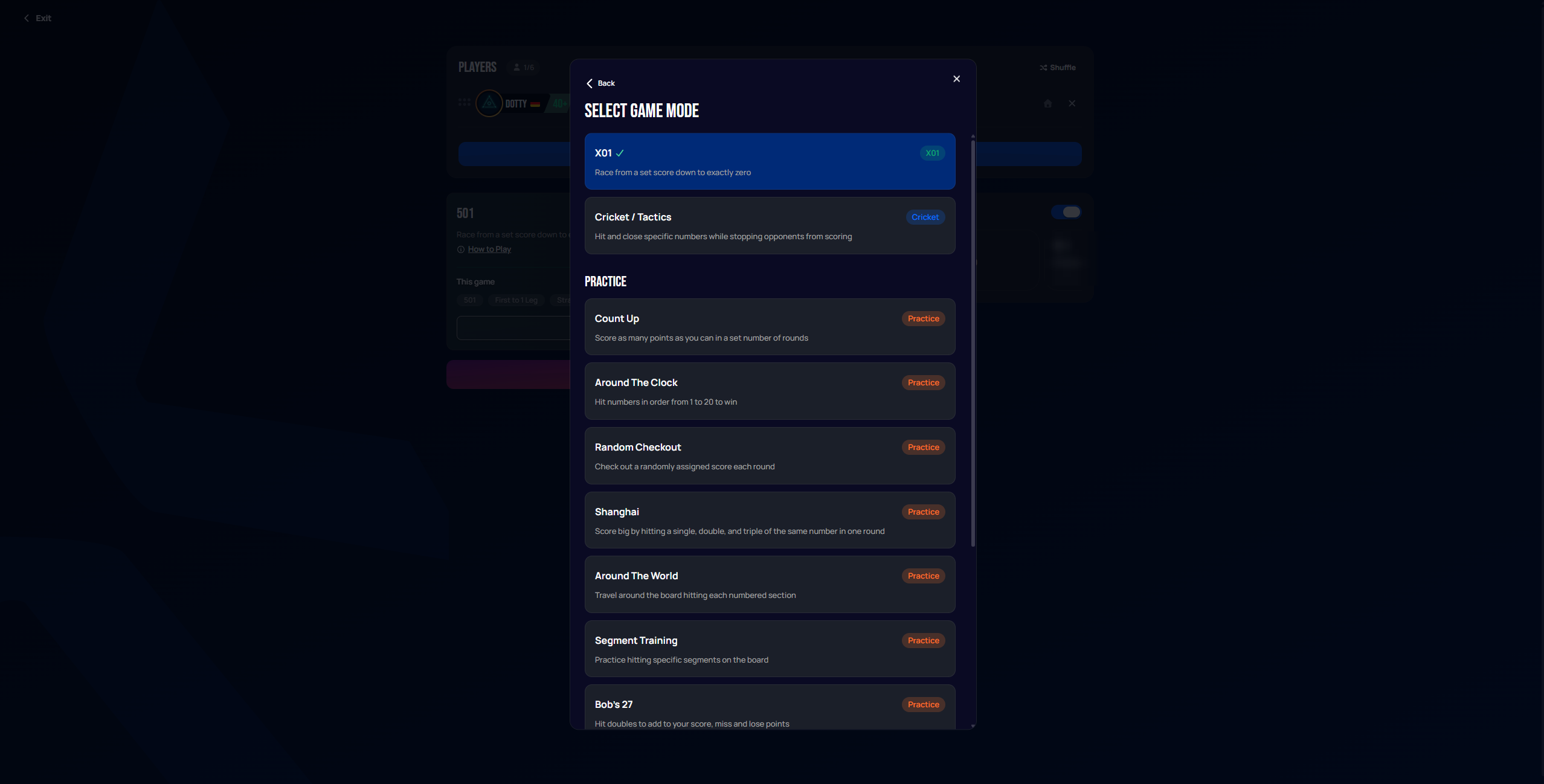
Selecting Change on the game mode card opens the full list of competitive modes (X01, Cricket/Tactics), practice modes (Count Up, Around the Clock, Random Checkout, Round the World, Segment Training, Bob's 27), and party modes (Shanghai, Gotcha, Bermuda, Killer). X01 is the recommended default for a first game.
Adding players
Selecting Add Player lists your friends, each with an Invite button. The Search or create player field only filters that friends list — it's not a search across all Autodarts users — but typing a name that isn't a friend lets you add them instead as a local guest player. A guest is someone playing on your board in person, who doesn't need their own Autodarts account, as opposed to inviting a friend who joins remotely with their own account.
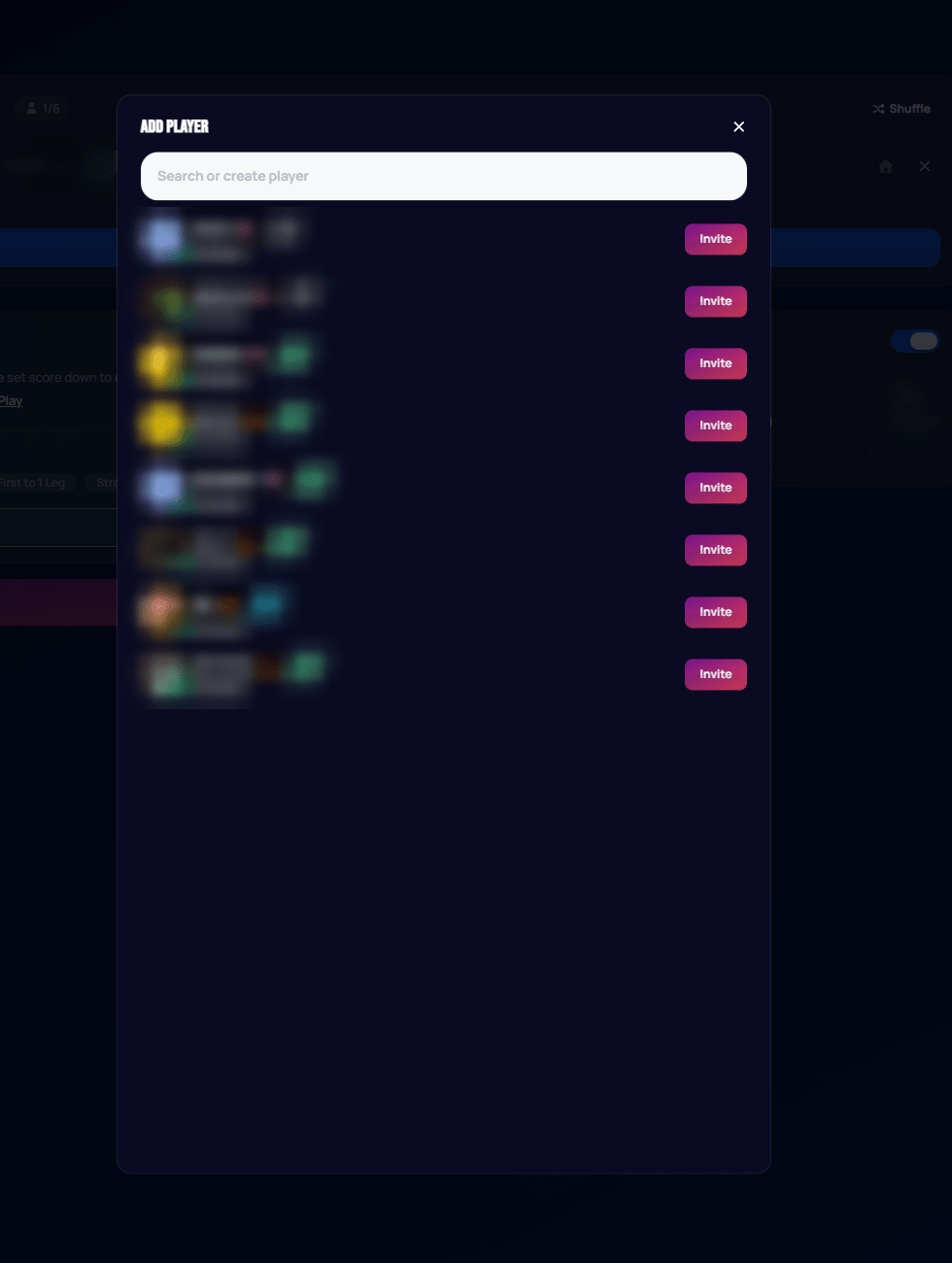 Personal data redacted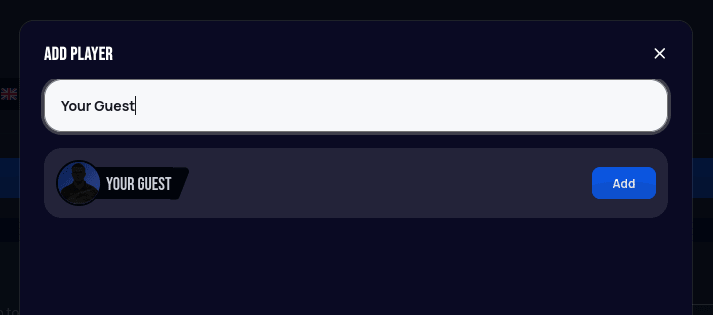
Adding a bot
For a first game without another player on hand, selecting Add Bot lets you add a computer-controlled opponent at one of eleven skill levels (roughly indicating their average score).
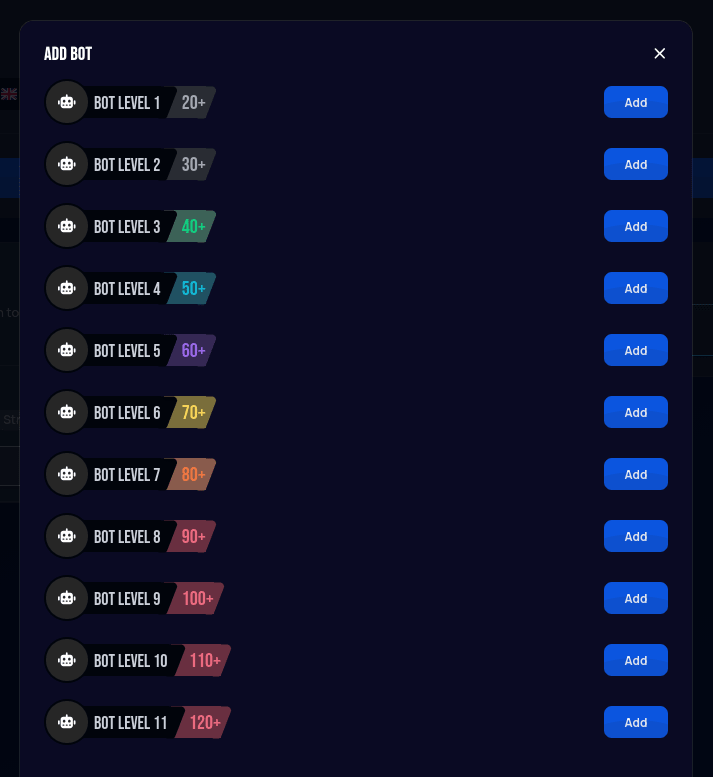
Once added, the bot appears in the players list alongside you, and the lobby is ready to start.
Playing the game
Selecting Start Game moves to the live match view: the dartboard camera feed in the center, each player's remaining score and leg/match average on either side (your average is your points scored per dart — a common way darts players compare skill). Both players start at the base score set earlier (501 here).
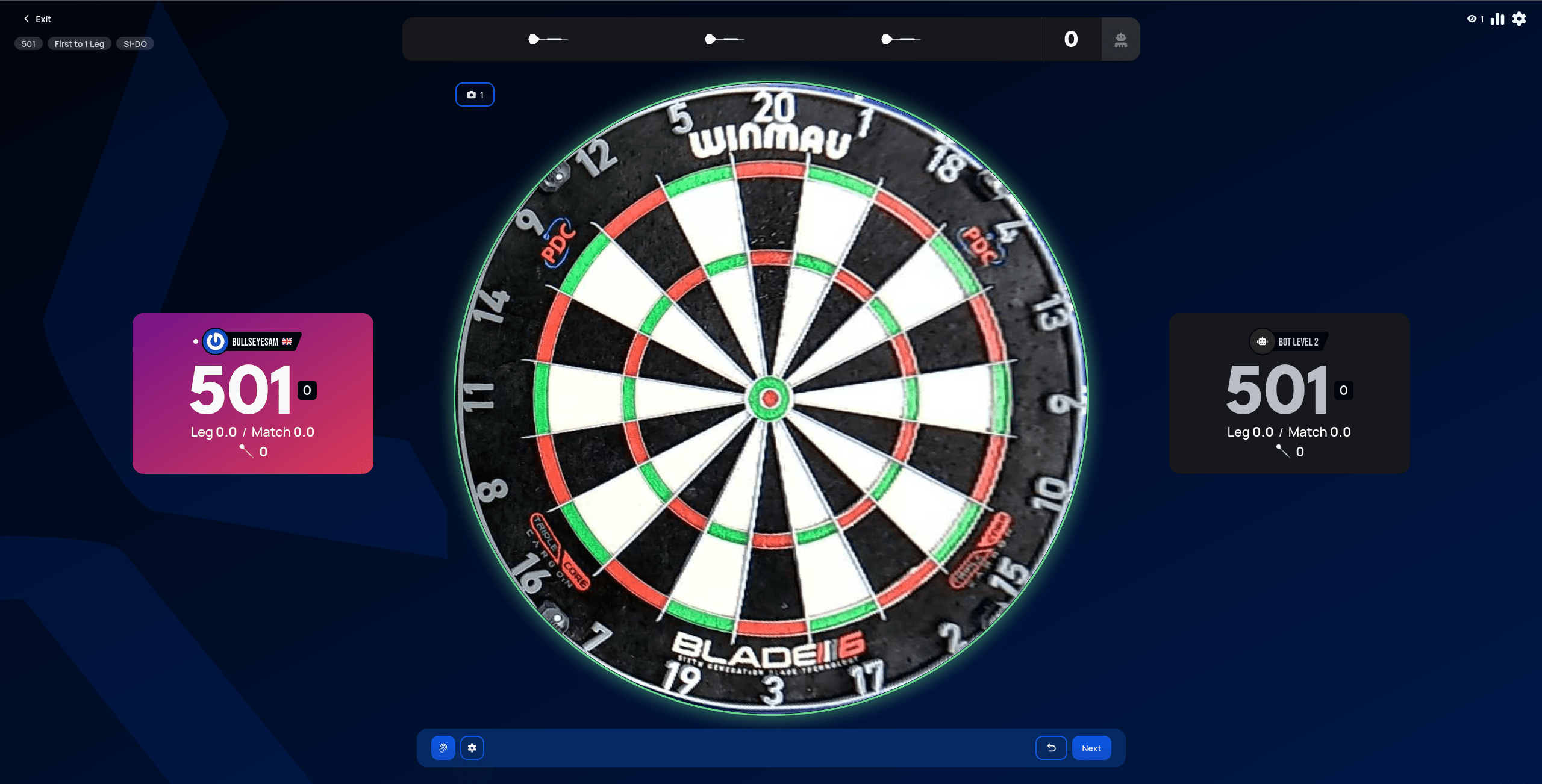
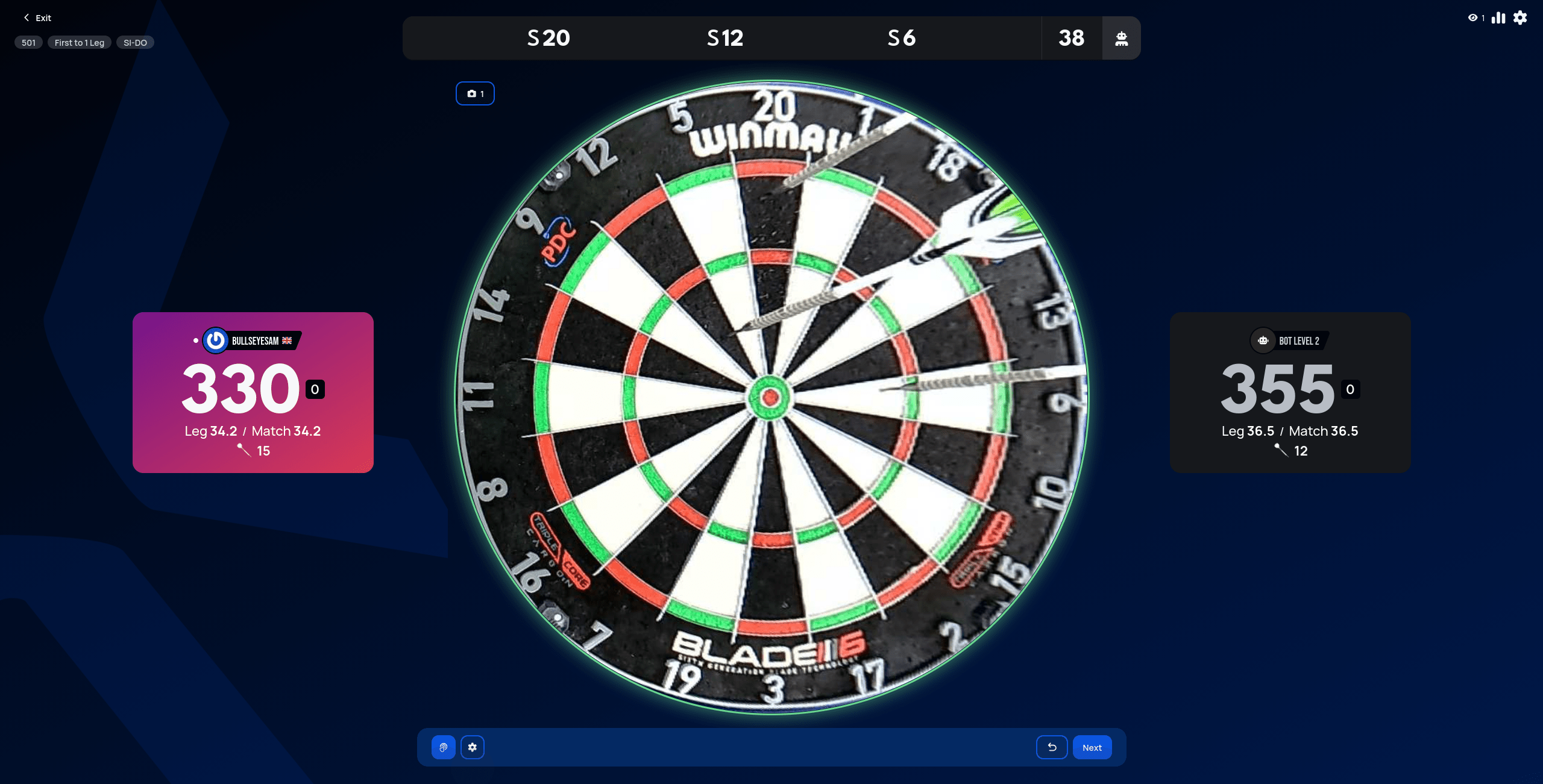
As darts are thrown, autoscoring detects each dart from the camera feed and updates the running score and turn history automatically.
The bottom bar
A bar along the bottom of the match view holds four controls, from left to right: an input method switcher, board controls, Undo, and Next.
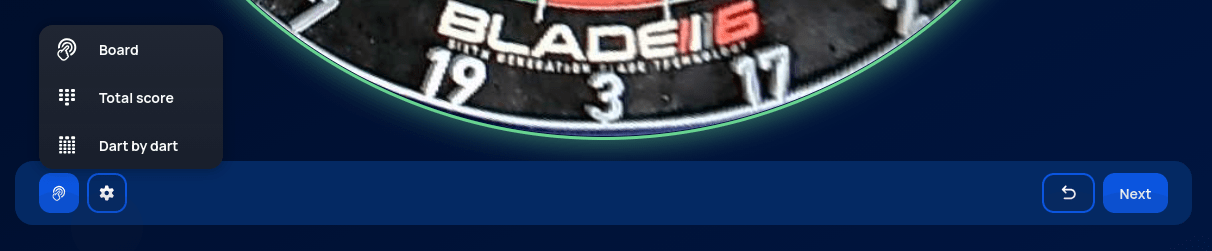
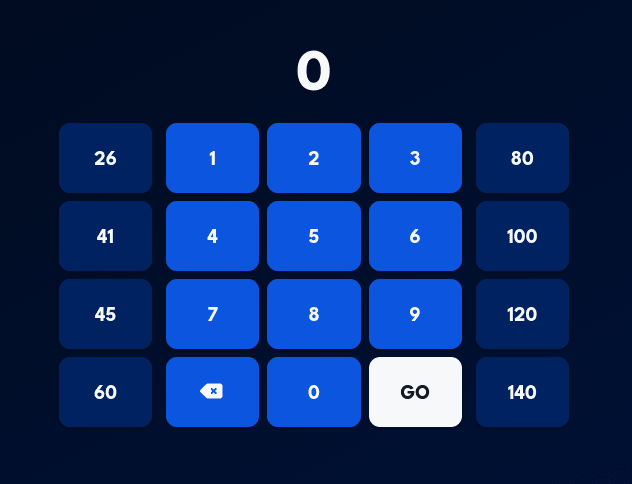
The leftmost icon switches which input method is currently shown — it doesn't turn autoscoring on or off. If autoscoring is enabled, it keeps running in the background no matter which method is showing; switching away from it is mainly useful as a workaround if autoscoring is having trouble reading a dart. The same three methods are offered whether or not autoscoring is enabled for the match:
- Board — mark where each dart landed on a board: the live camera feed when autoscoring is connected, or a virtual board to tap otherwise.
- Total score — type the total value of a whole visit (all darts thrown that turn) at once, on a numbers pad.
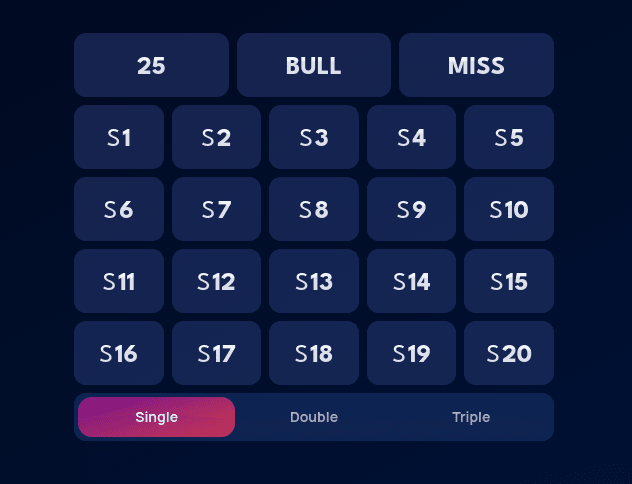
- Dart by dart — enter each dart's segment individually on a score pad (a number plus Single/Double/Triple, or Bull/25/Miss).
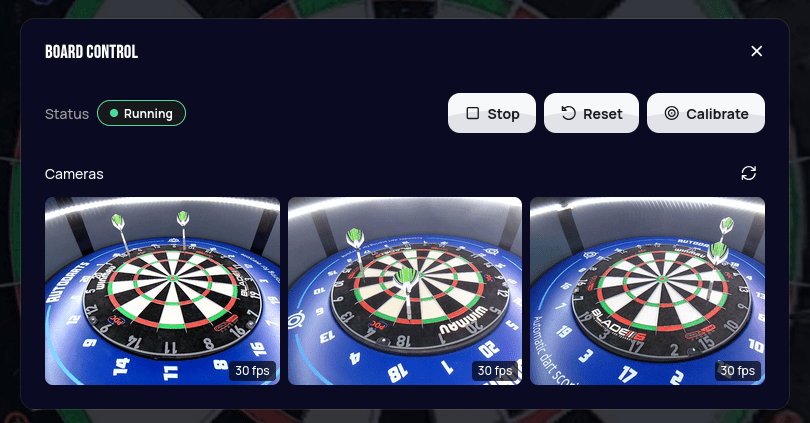
The second icon opens Board Control — the connected board's status (Running/Stopped), buttons to Stop, Reset, or Calibrate it, and a live thumbnail from each of its cameras.
On the right, Undo reverts the last confirmed turn — useful if a whole turn needs to be taken back. It's not the right tool for a single misdetected dart though; see Correcting a misdetected dart below for that instead. Next manually advances to the next player or turn — a manual fallback for the rare case where autoscoring doesn't pick up that the darts were taken out of the board and move on by itself.
Board status
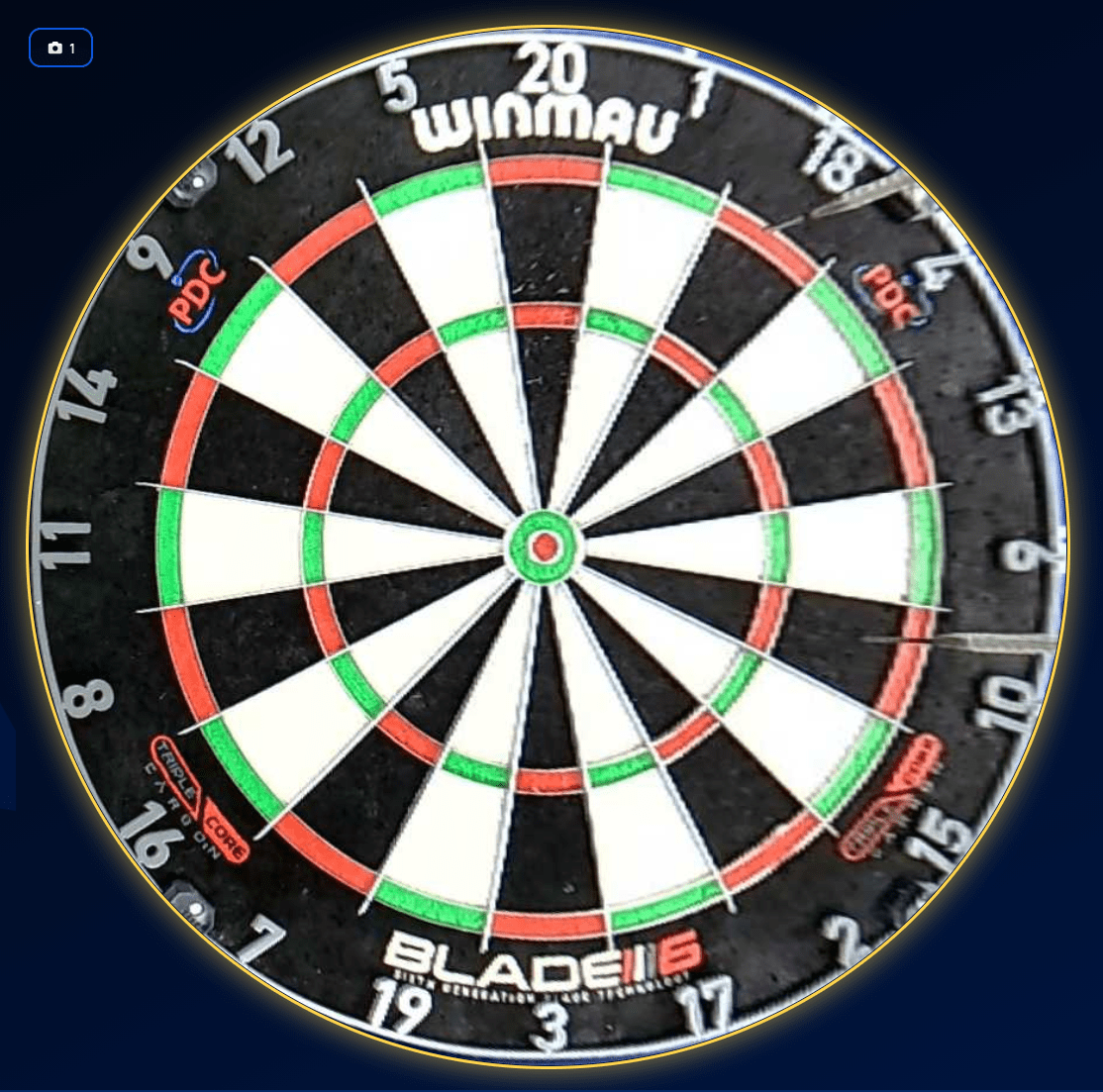
A colored glow around the camera feed shows the connected board's status at a glance:
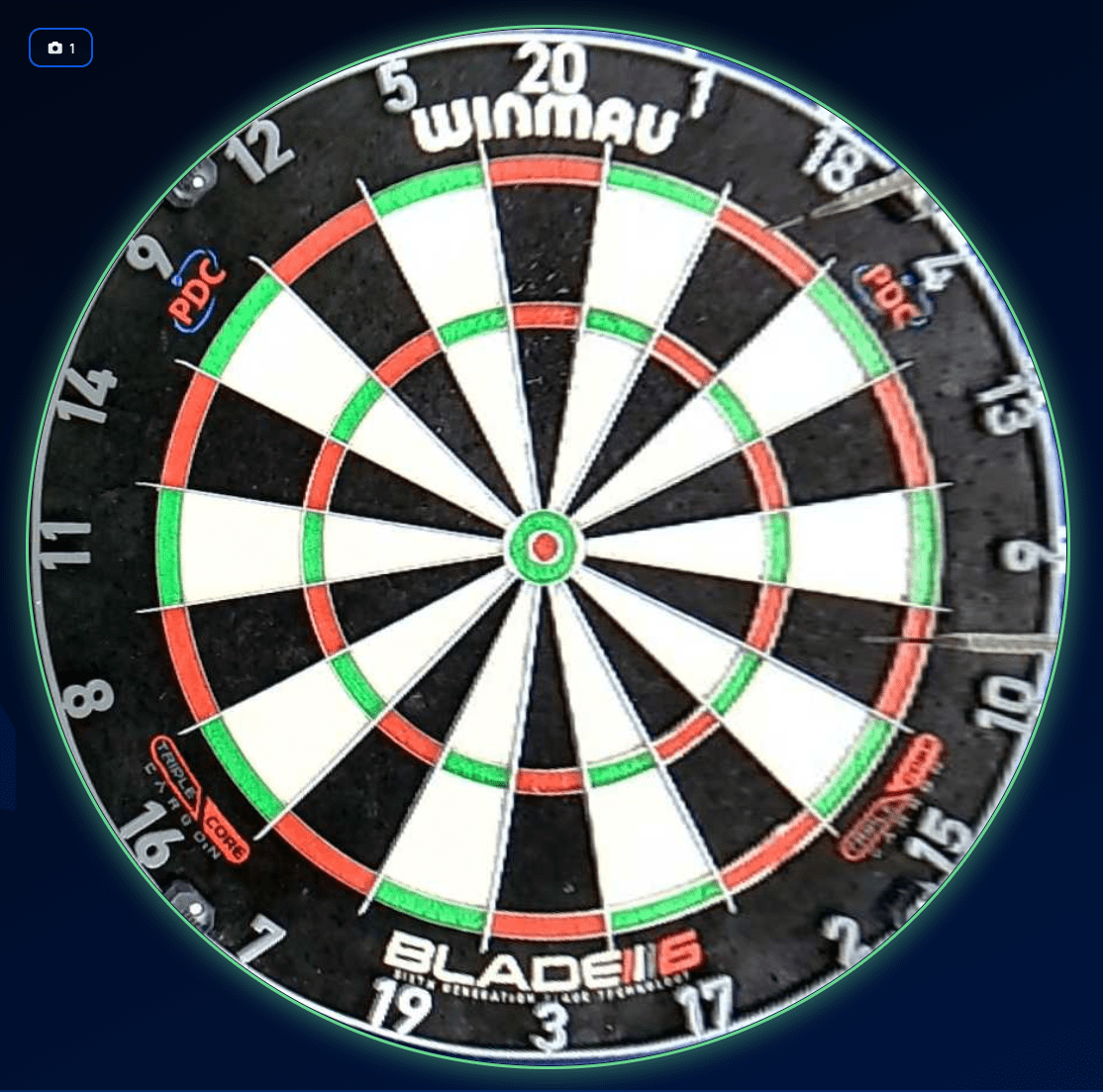
- Green — connected and tracking normally, as in every screenshot on this page so far.
- Yellow — the board has gone into takeout mode, waiting for darts to be removed. This is normal for a moment right after a turn ends, but if it stays yellow, takeout is stuck — usually caused by a bounce-out the system didn't register correctly, or other movement in front of one of the cameras that shouldn't be there.
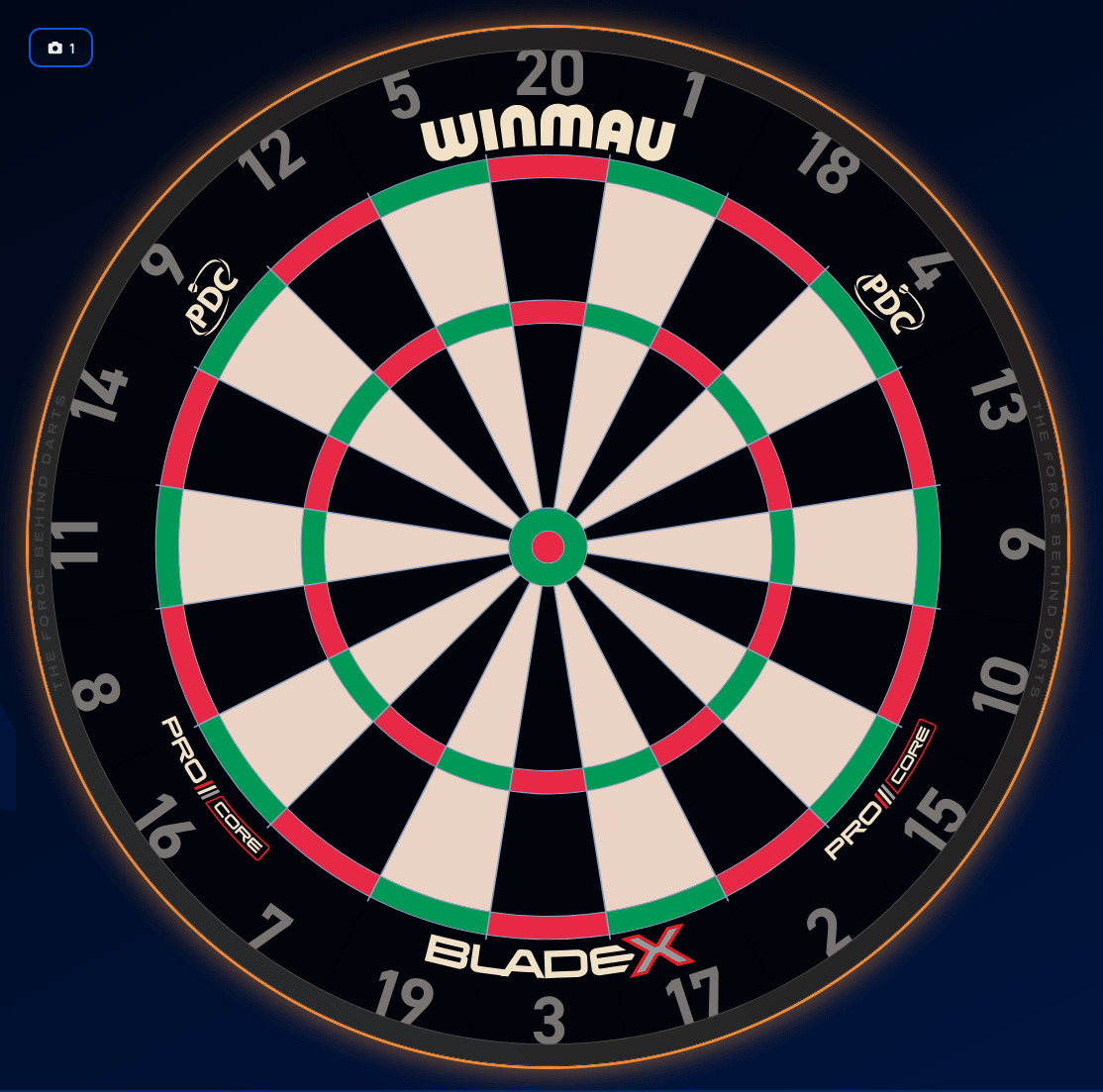
- Orange/red — the board is offline. A generic board illustration takes the camera feed's place until it reconnects — check Board Control above, or Autodarts Desktop, to bring it back.
Chalkboard and checkout guide
The cogwheel in the top-right corner (next to the viewer count and stats icons) opens In Game Settings — caller settings (which scores get called out loud, and in which voice), sound effects, and match display options.
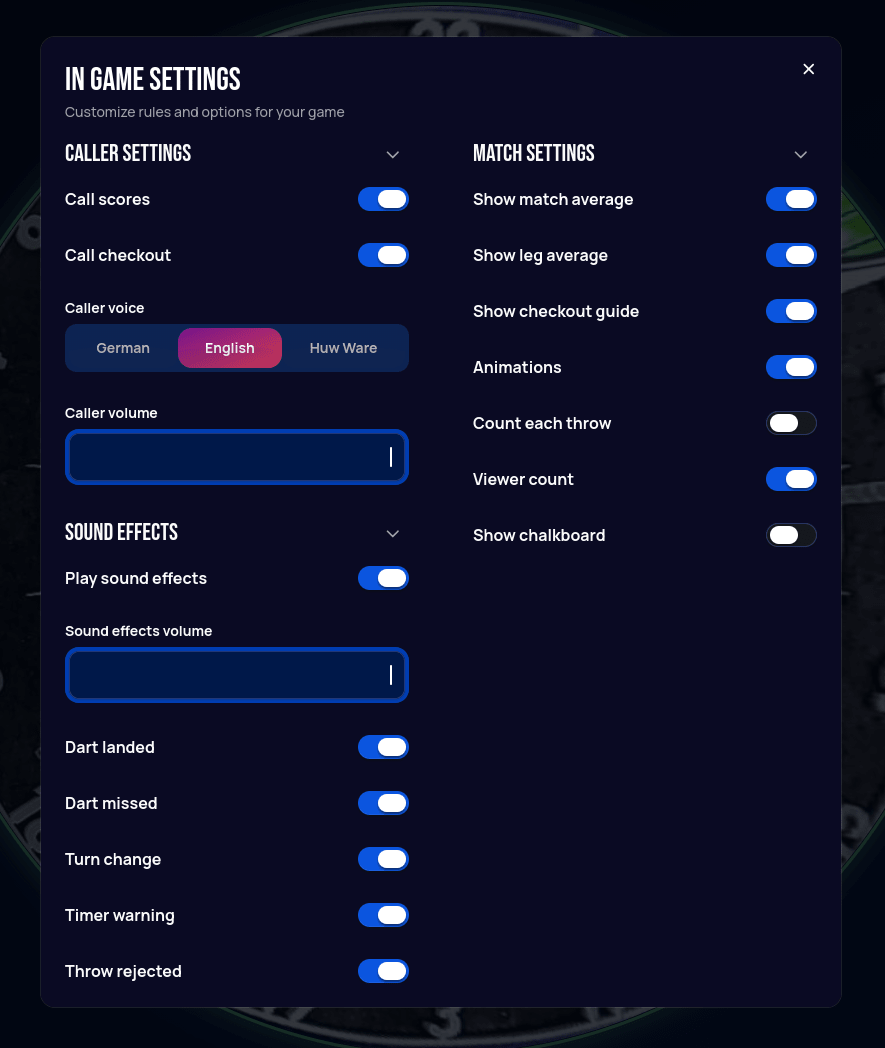
A few match display options are worth knowing about early on:
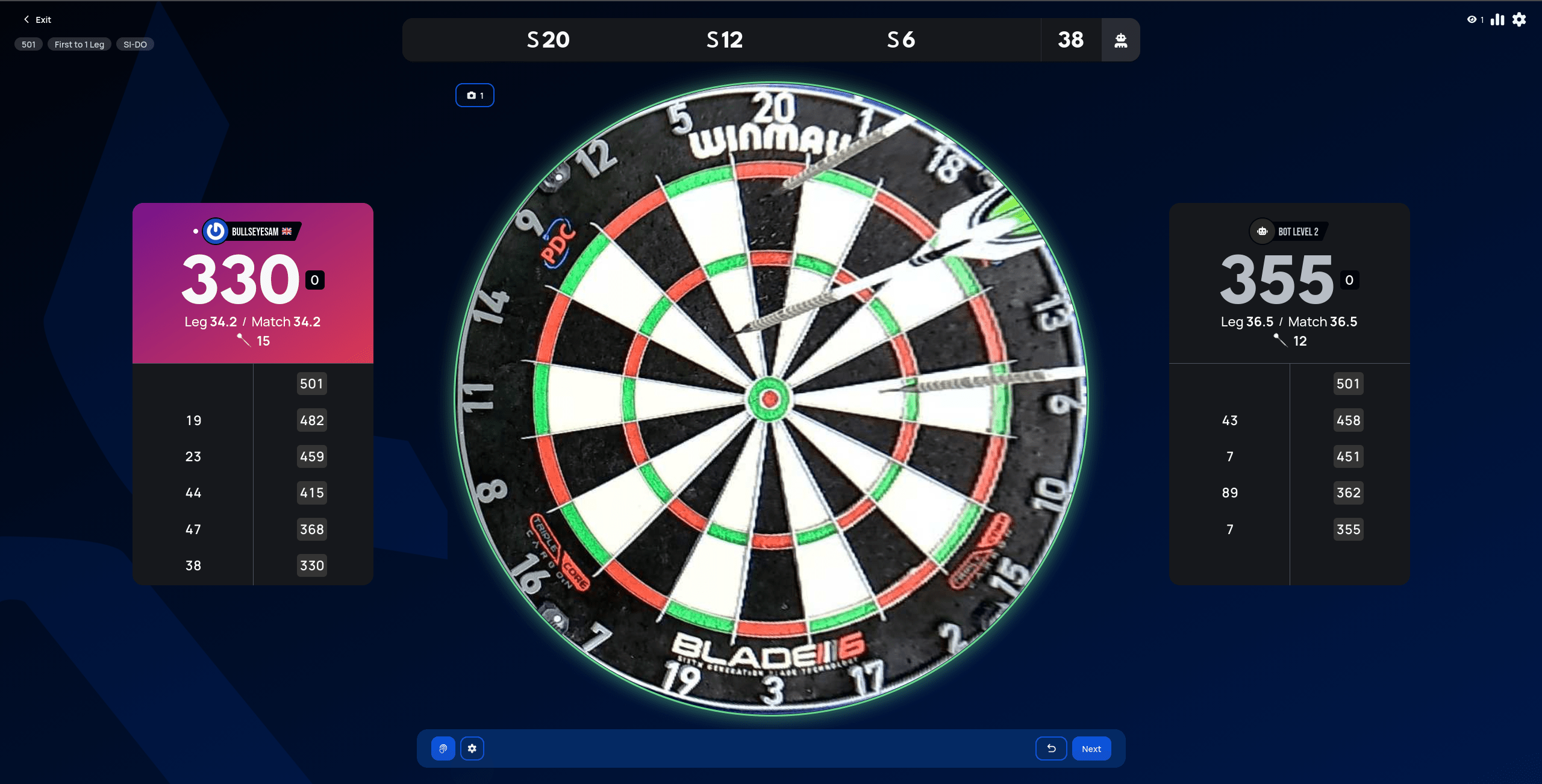
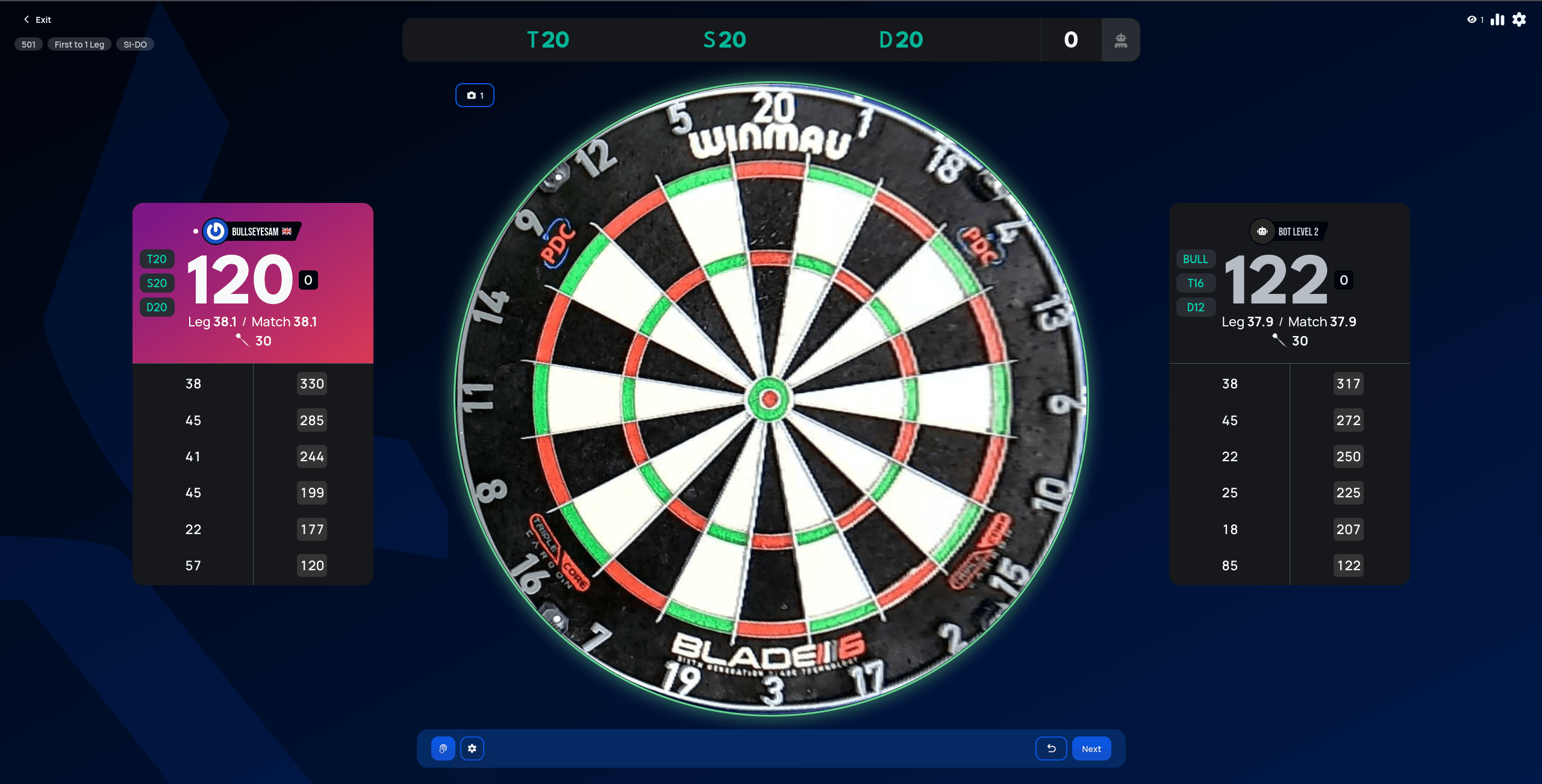
- Show chalkboard — adds a running, per-turn score history under each player's card, in the style of a traditional pub chalkboard.
- Show checkout guide — once a player is within finishing range, highlights a suggested combination of segments to check out with, both in the score bar and on their card.
- Count each throw — subtracts each dart from the score as it's thrown, instead of waiting for the full visit (all three darts) to finish. Handy if you want to see what's left after just one or two darts, without doing the math yourself from your last standing score.
Correcting a misdetected dart
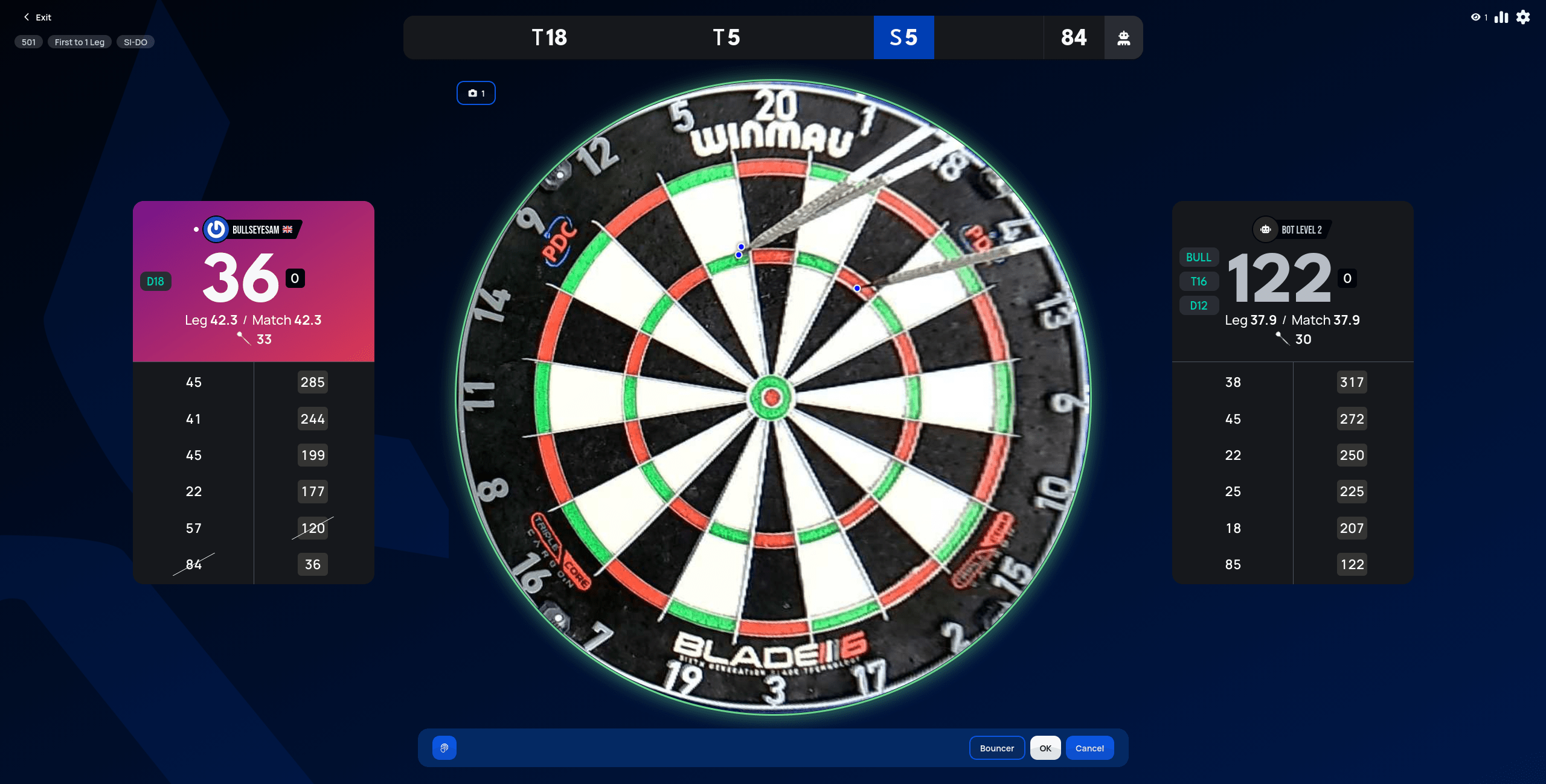
Autoscoring can occasionally misread a dart. If a detected segment is wrong, select it in the score bar at the top (highlighted in blue below) to correct it — you can then move the point to the correct segment and confirm with OK, mark it as a Bouncer (a dart that didn't stick), or Cancel to leave it as detected. (This only applies with Referee Off, this lobby's default — enabling it turns off manual correction entirely in favor of calling in the AI referee on the turn, see the Referee setting. Separately, Autodarts Plus members also see a robot button here even with Referee off, as an optional one-tap auto-correct — if it gets a dart wrong, you can still just correct it manually yourself, no challenge needed.)
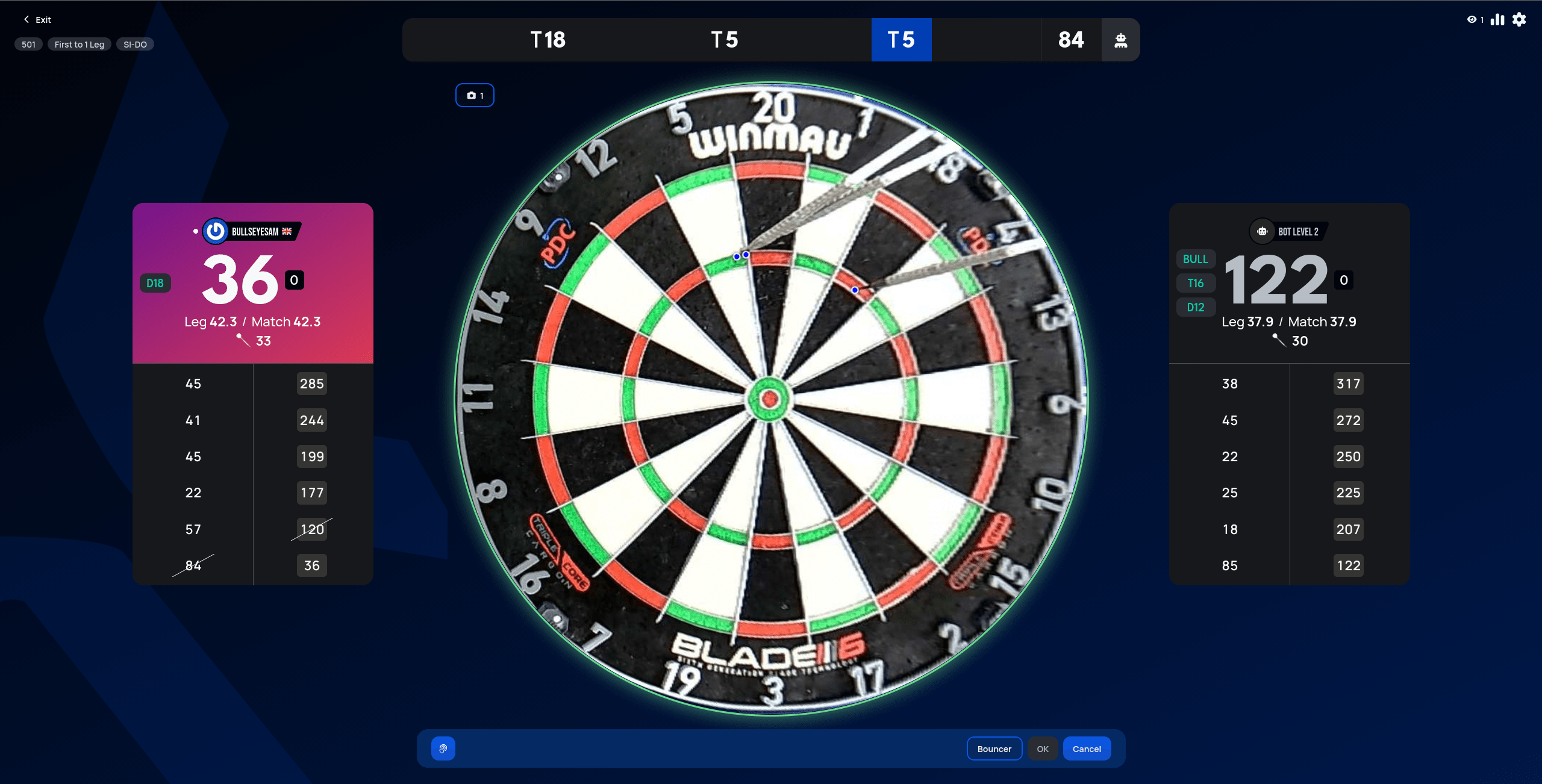
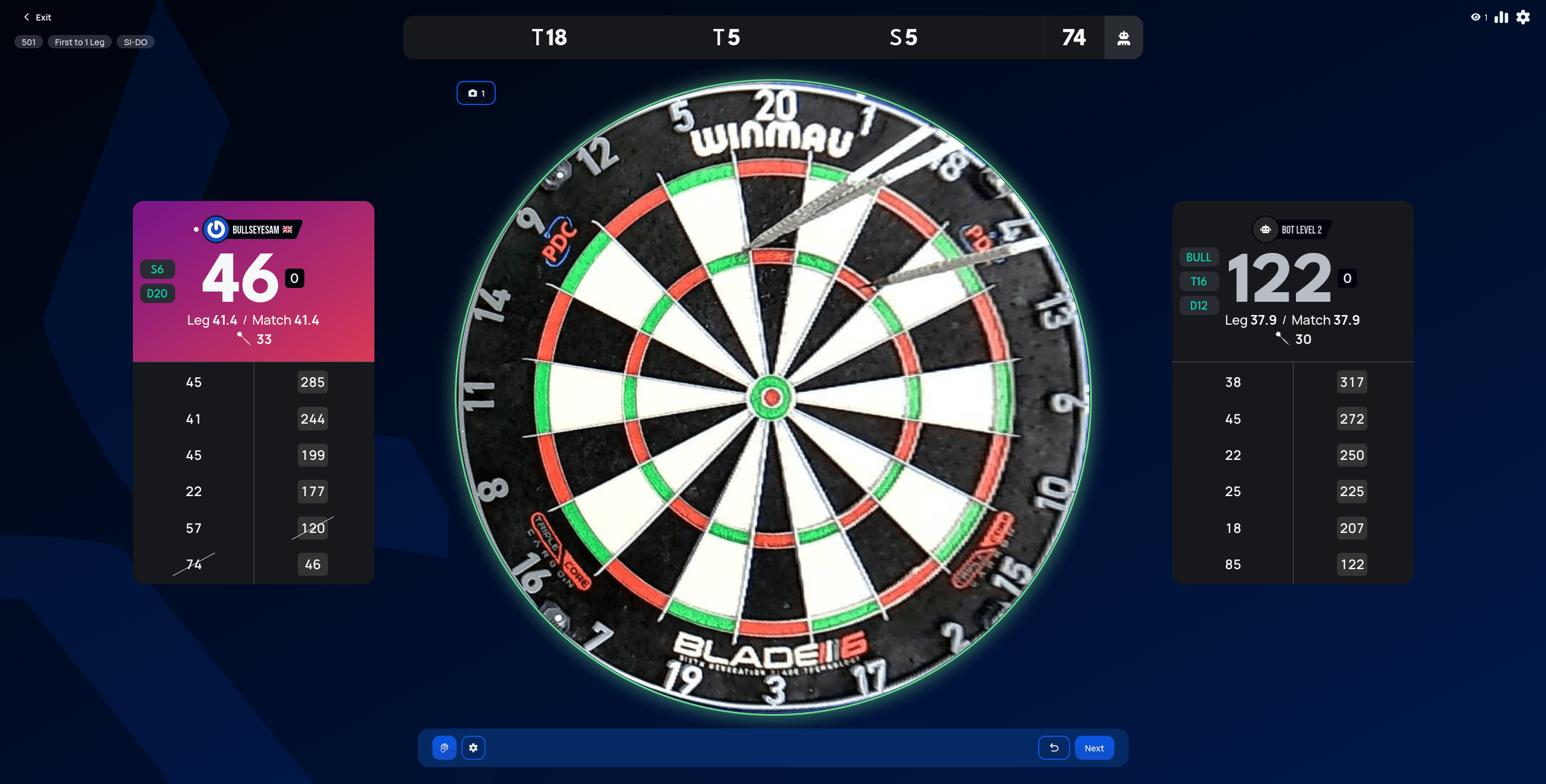
Moving the point updates the highlighted segment (here, from the incorrectly detected T5 to the correct S5). Selecting OK confirms the corrected value and continues the game.
Finishing the game
When a player hits a valid checkout — the finishing dart that brings their score down to exactly zero and wins the leg — a Game Shot banner appears on their card right away, before the full results screen. It's a quick confirmation of the win with a Finish button to move on.
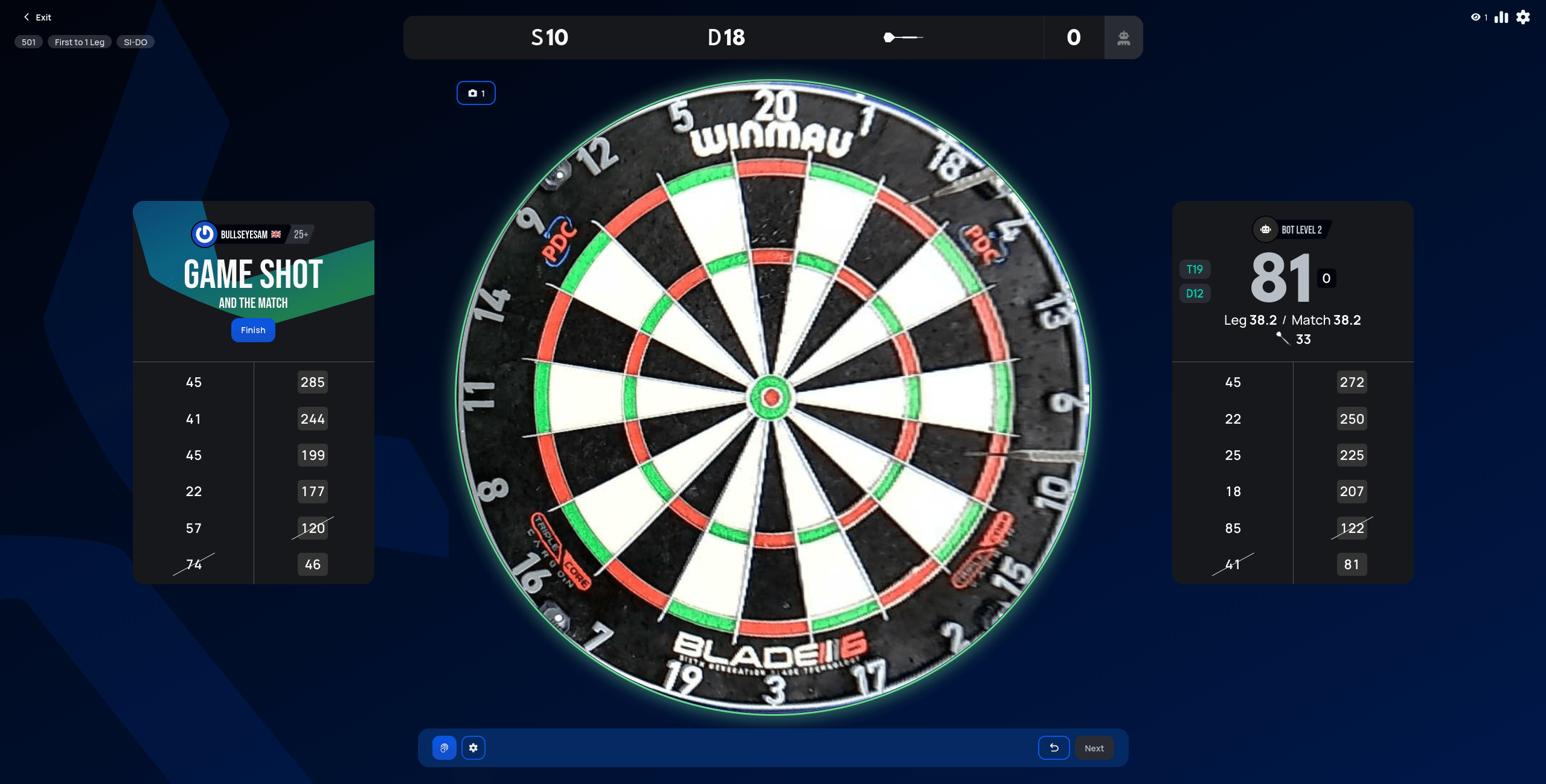
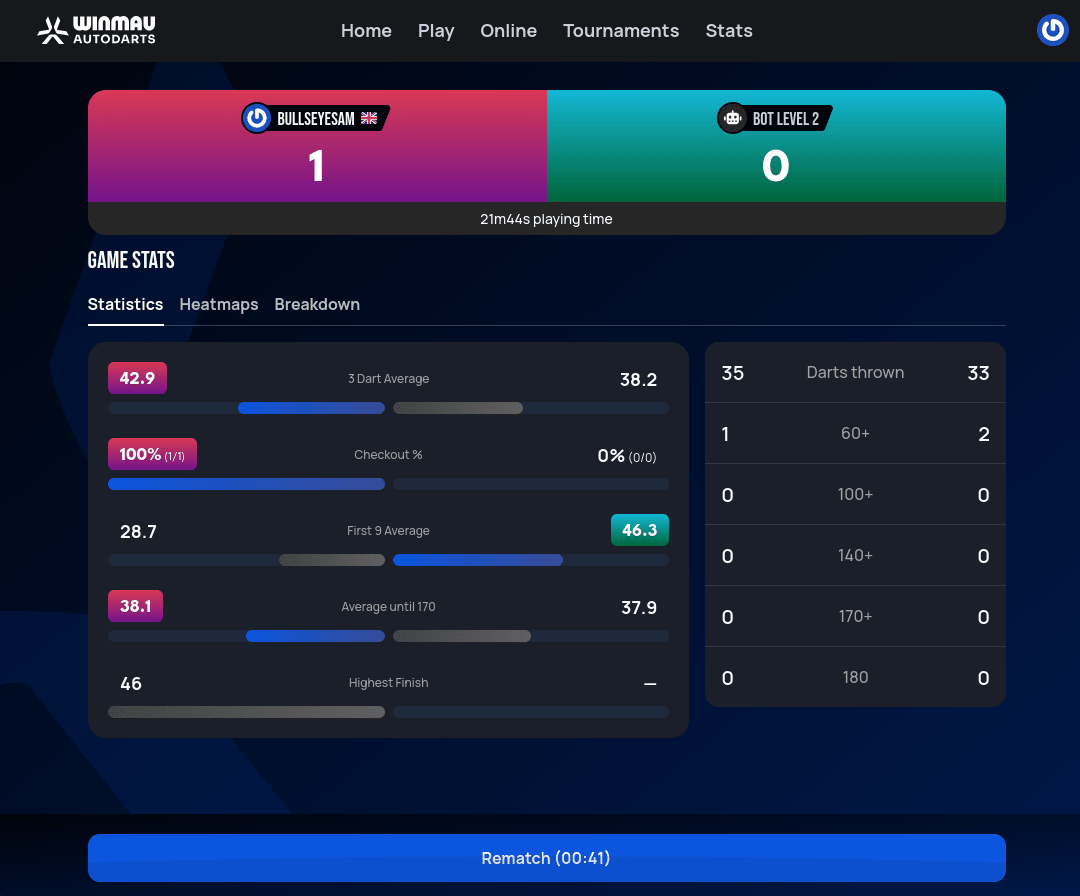
Selecting Finish ends the match and shows the full result along with detailed game stats: 3-dart average, checkout percentage, first-9 average, and a breakdown of scoring rounds (60+, 100+, 140+, 170+, and 180s). From here you can start a Rematch or head back to the menu.
What's next
You've created an account, decided on autoscoring, and played your first game. From here:
- Multiplayer & Tournaments — play other people via matchmaking or tournaments, instead of a custom lobby.
- Game Modes — rules and settings for every mode beyond X01.
- Statistics — where your match results and stats end up.