Matchmaking
Matchmaking pairs you automatically with an opponent close to your skill level. Reach it either by selecting Online in the top navigation, or the Find an opponent-style tile in the Quickplay row on the Home page (labeled "Matched by skill level").
Matchmaking is currently limited to 501, Straight In, Double Out — you start from 501 and can begin scoring with any dart (Straight In), but your last dart must land in a double ring or the bullseye to finish (Double Out). The only choices you get are match length and referee — that will likely expand over time.
Starting a match
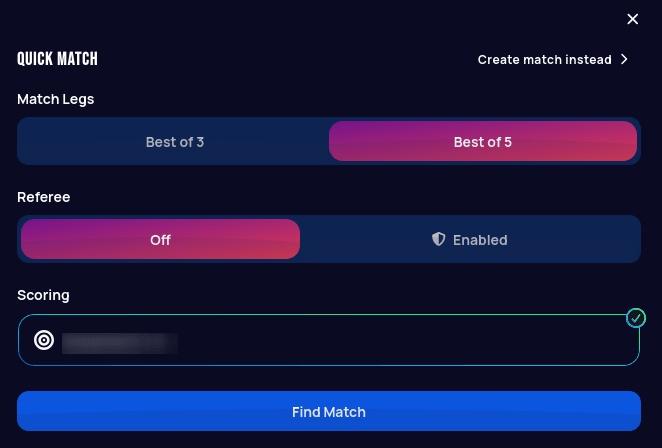
Opening Matchmaking shows the Quick Match panel:
 Personal data redacted
- Match Legs — Best of 3 or Best of 5. A leg is a single game down to zero; win enough legs and you win the match.
- Referee — Off or Enabled. Turning it on needs Autodarts Plus — on a free account it stays Off. When enabled, Autodarts' AI reviews and can correct detected darts during the match, the same as the X01 Referee setting; when off, there's simply no referee.
- Scoring — which board to play on, same board picker as a custom lobby.
Referee on and Referee off are two separate queues, so you're only ever paired with an opponent who made the same choice. Both players in a referee match are therefore Plus members, and a free account only ever plays matchmaking with the referee off.
With Referee Enabled, manual score entry is turned off completely for
that match. It doesn't watch every dart on its own, though — either
player calls it in using the robot button on the score row, and the call
reviews every dart thrown so far that turn. The one exception is a
checkout dart: any dart that would bring a player's score to exactly
zero gets reviewed automatically, no call needed, since a wrong call
there would wrongly decide the leg.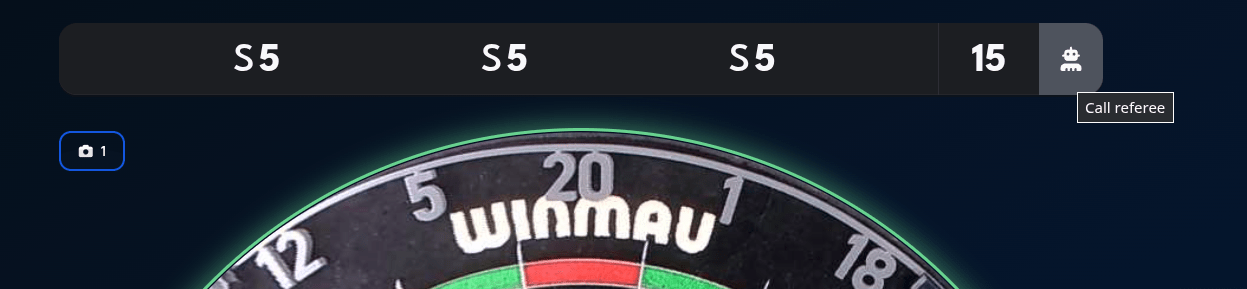
If you disagree with its ruling, you can challenge it, but the challenge only overturns the call if your opponent confirms the same correction; if they don't (or don't respond), the referee's original call stands. (The same robot button also shows up for Autodarts Plus members in matches with Referee off — there it's just a quick one-tap auto-correct with no challenge involved, since you can fix the score yourself if it gets something wrong.)
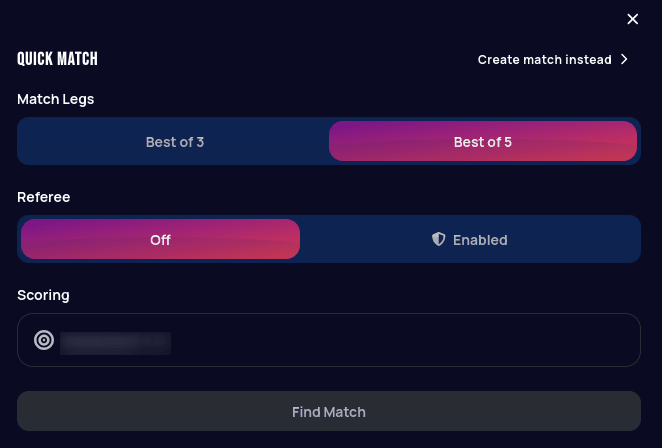
Until a board is actually picked in Scoring, it's shown without the green checkmark and Find Match stays disabled:
 Personal data redacted
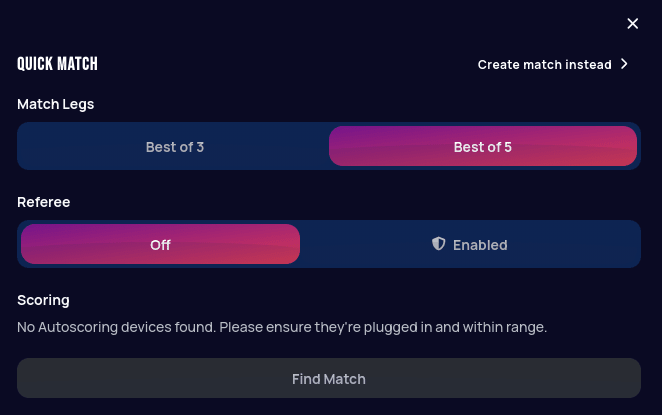
If no Autoscoring board on your account is online, Scoring shows an error message instead of a picker, and Find Match stays disabled until one is:
 Personal data redacted
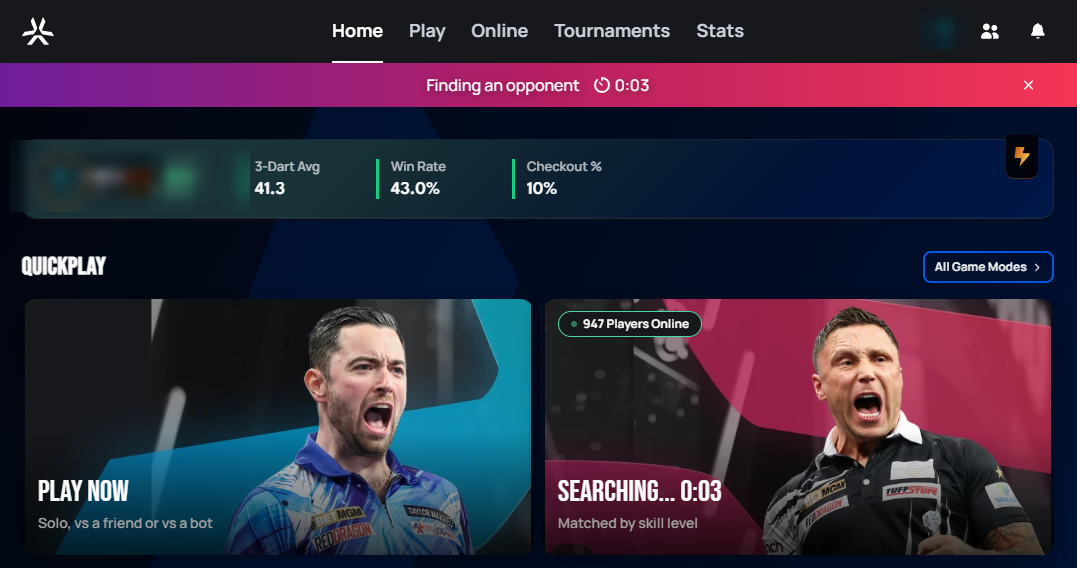
Selecting Find Match adds you to the queue — a waiting list that looks for a suitable opponent — and shows a Finding an opponent banner with a running timer at the top of the screen:
 Personal data redacted
Matchmaking tries to find an opponent within your skill range; the longer you stay queued, the wider that range gradually becomes. You can leave the queue at any time by clicking the X on the right of the banner.
Accepting a match
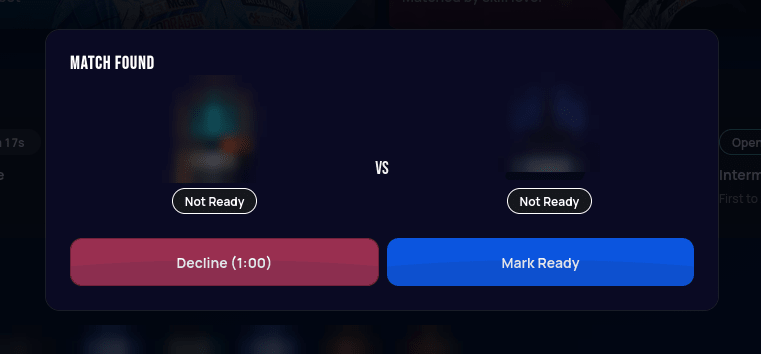
Once an opponent is found, you must actively confirm you'll join:
 Personal data redacted
If you don't respond, or you decline, that counts as the same offense and carries a penalty (see below) — the system is designed to discourage queuing up when you don't actually intend to play, since that wastes another player's time.
Match & turn timers
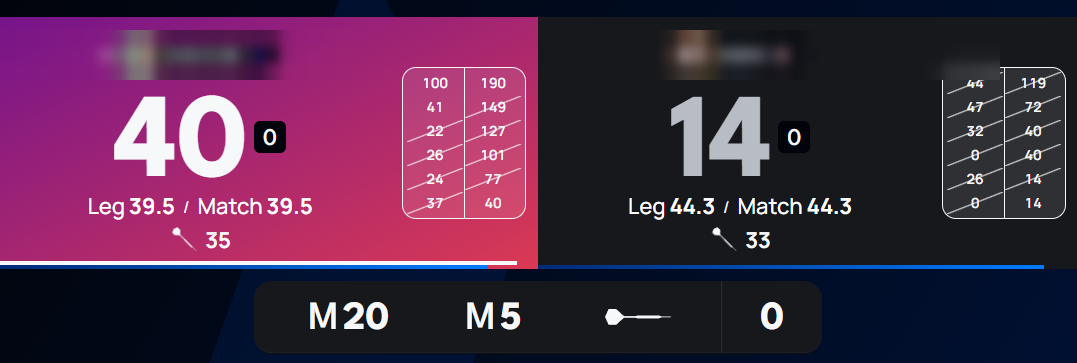
Once a matchmaking match starts, two clocks keep it moving:
- A match timer — 30 minutes per player for the whole match.
- A turn timer — 3 minutes per turn.
If either clock runs out, that player automatically forfeits. This keeps matches from being artificially dragged out — if you don't have time to focus on a match, matchmaking isn't the mode to queue for.
 Personal data redacted
A warning banner also appears once a timer reaches a critically low level.
Leaving a match early
Surrendering mid-match in a matchmaking game is treated the same way as declining an invite: it's penalized, for the same reason — it wastes the time your opponent already committed to the match.
Penalties
Two separate offenses are tracked, each on its own rolling 24-hour window:
- Declining or not responding to a match invite.
- Abandoning (surrendering) a match in progress.
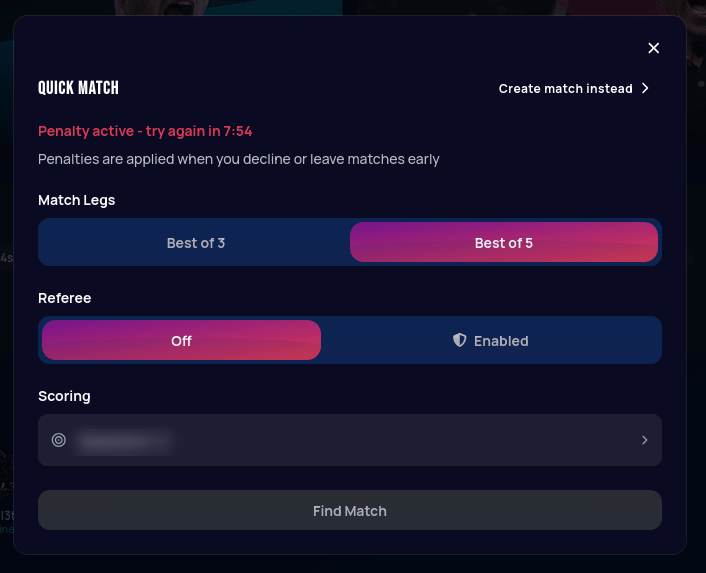
Each offense type escalates through its own fixed set of matchmaking lockout tiers. Your first offense in a 24-hour window gets the shortest lockout; each additional offense inside that same window bumps you to the next tier up. If 24 hours pass without another offense, the count resets and the next offense starts back at tier one.
| Offense | 1st | 2nd | 3rd | 4th |
|---|---|---|---|---|
| Decline / no response | 5 min | 15 min | 1 hour | 24 hours |
| Abandon mid-match | 15 min | 2 hours | 24 hours | — |
Abandoning starts at a harsher tier than declining, since an opponent has already invested real time into the match by that point. While a penalty is active, the Quick Match panel shows the lockout and disables queuing until it expires:
 Personal data redacted