Private Tournaments
Besides the scheduled tournaments that anyone can join, you can host a tournament of your own, open only to the people you invite.
Hosting a private tournament needs an Autodarts Plus membership. The players you invite don't need one to take part.
A private tournament isn't listed on the Tournaments page with the scheduled ones, however you set up invites. Players get to it through your invite, or through a link to its page (see Inviting players).
A private tournament is either:
- Online — every player throws at their own board, wherever they are.
- Local — everyone plays in the same place, on boards you provide: a darts night at home, for example. See Local tournaments.
In a local tournament, two kinds of board can't be picked as a board to play on yet: one scored by Lens, and an Autodarts X connected to the Autodarts app on a phone or tablet. An Autodarts X connected to Autodarts Desktop on a computer works. We're working on a fix.
Creating a tournament
On the Tournaments page, select Create Tournament at the top right.

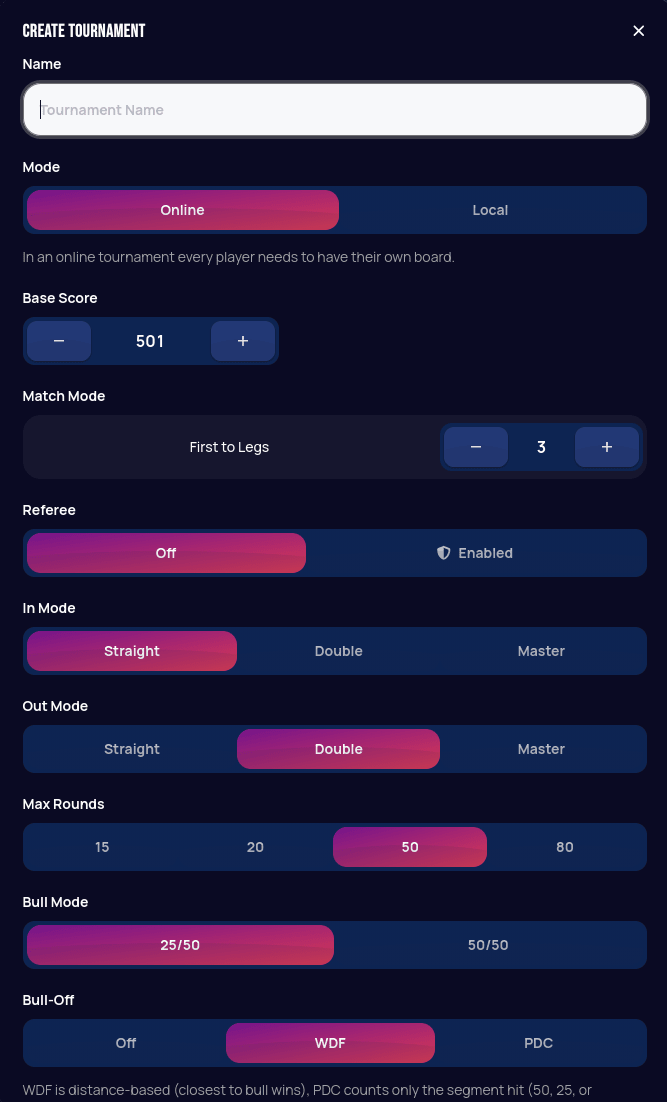
Give the tournament a Name and pick its Mode, Online or Local. The rest of the dialog sets up the matches, with the same settings as an X01 game: the starting score, how many legs (single games down to zero) a player needs to win a match, the in and out rules, and so on. Unlike the scheduled tournaments, which are always 501, you can pick any starting score here.
Referee turns on the AI referee for every match, the same one as in a Referee Protected Quick Match. A tournament with the referee on can't be played with Lens, since the referee needs a dedicated autoscoring setup with multiple cameras.
Further down are the timers and who can invite:
- Turn Timer and Match Timer — how long a player has for one turn, and for the whole match, in minutes. Set either to 0 to turn it off. They only apply to online tournaments.
- Invite Sharing — Locked means only you can invite players. Open lets everyone you've invited invite others too, and anyone you share the tournament's link with can join it (see Inviting players).
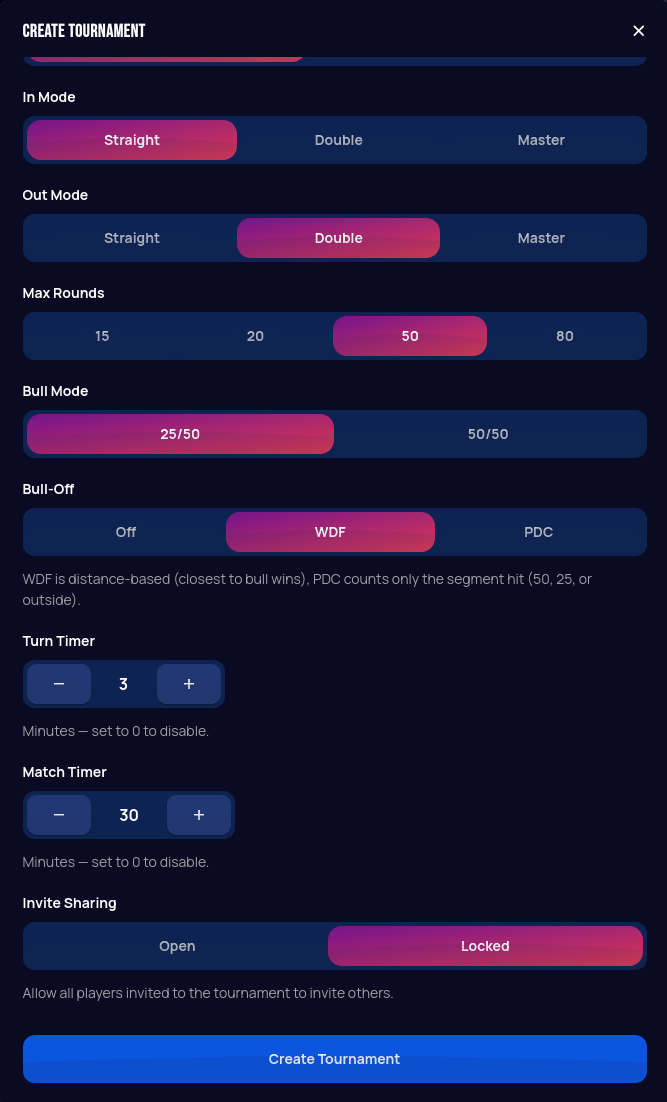
Select Create Tournament to open its page.
Your tournament page
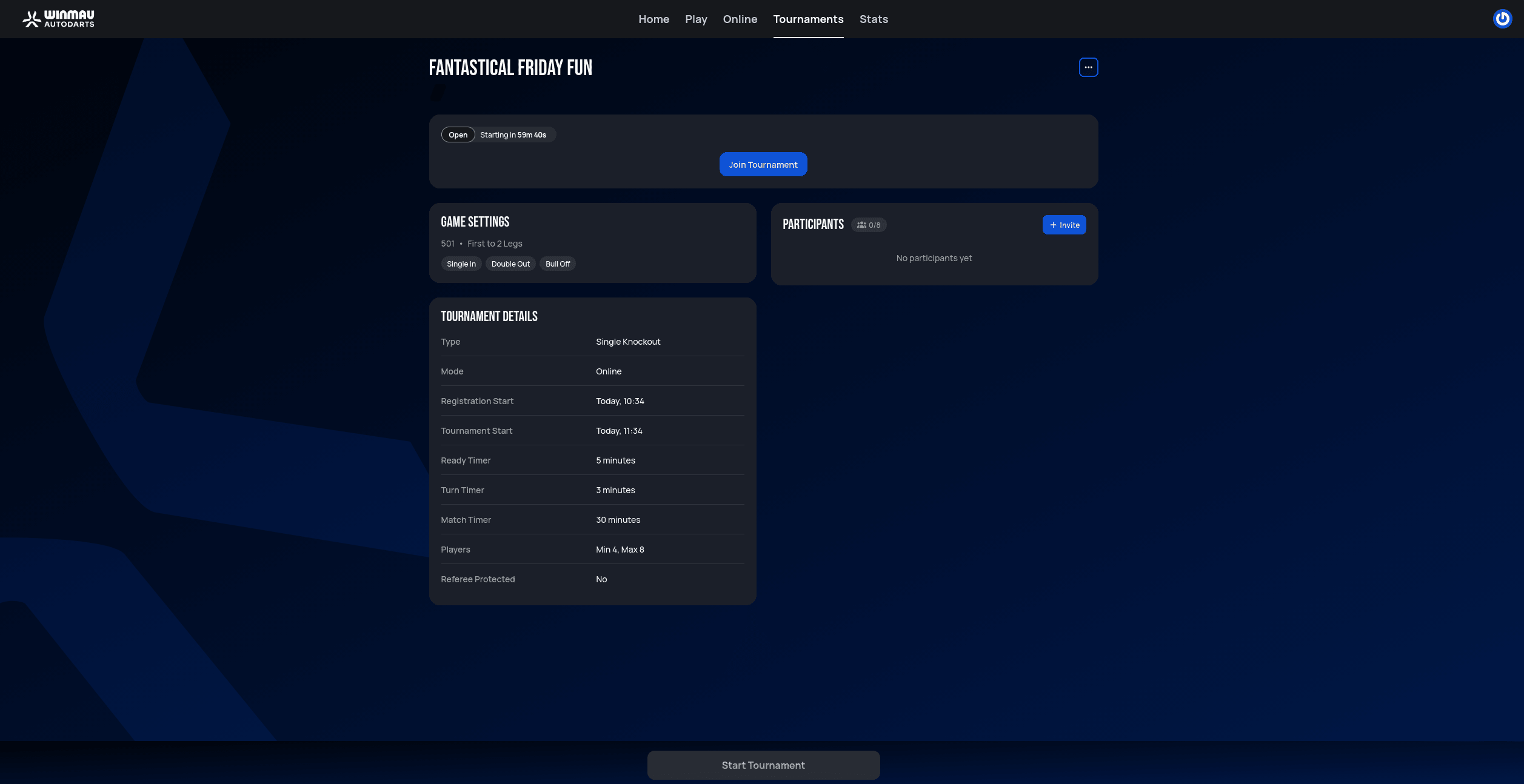
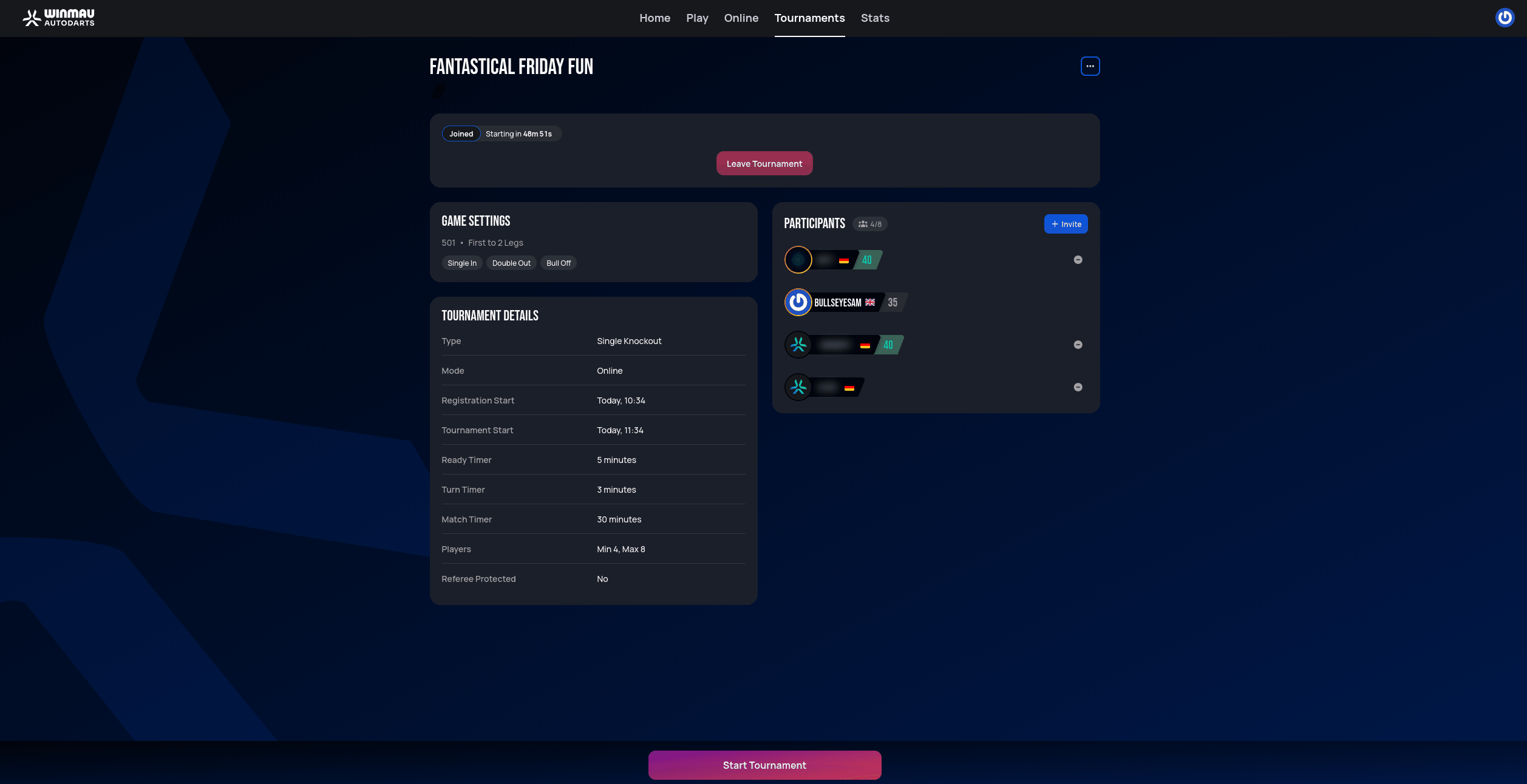
The page looks like that of any scheduled tournament: the Game Settings, the Tournament Details and the Participants. A private tournament takes 4 to 8 players, and starts at the latest one hour after you created it (see Starting the tournament).
Creating the tournament doesn't enter you into it. To play in it yourself, select Join Tournament, like everyone else.
Inviting players
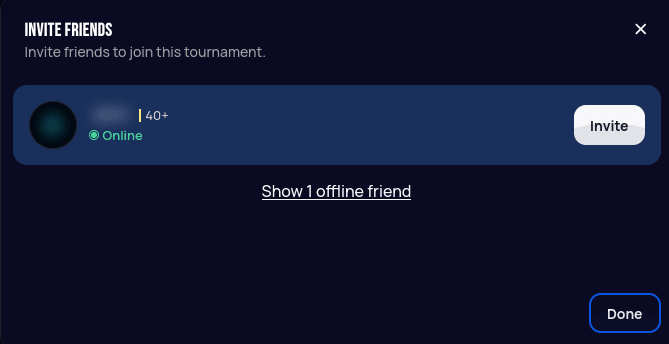
Select Invite next to Participants to see your friends, each with an Invite button. Friends who are offline are hidden behind the Show offline friend link at the bottom of the list. Each friend you invite gets a notification.
 Personal data redacted
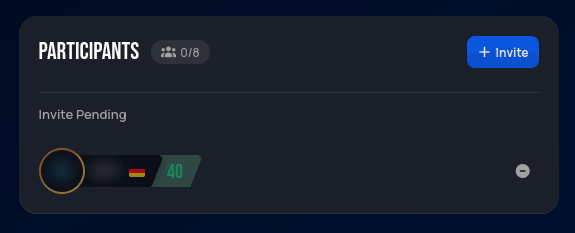
An invited friend is listed under Invite Pending until they accept, and then moves up into the participants. The minus button on a row removes that player, or takes back their invite.
With Invite Sharing set to Open, you can also share the link to the tournament's page. Anyone who opens it can join with Join Tournament, without an invite.
 Personal data redacted
Starting the tournament
Start Tournament stays greyed out until at least 4 players have joined; pending invites don't count. Once there are enough, select it to start the tournament.
If you don't, it starts by itself at the Tournament Start time in the details, one hour after you created it. If fewer than 4 players have joined by then, it's canceled.
 Personal data redacted
From there, an online private tournament runs like a scheduled one. The players are drawn into a bracket, with byes if there aren't exactly 4 or 8 of them, and each player gets 5 minutes to mark themselves ready for each match. See Bracket size and byes and Viewing a tournament.
Canceling a tournament
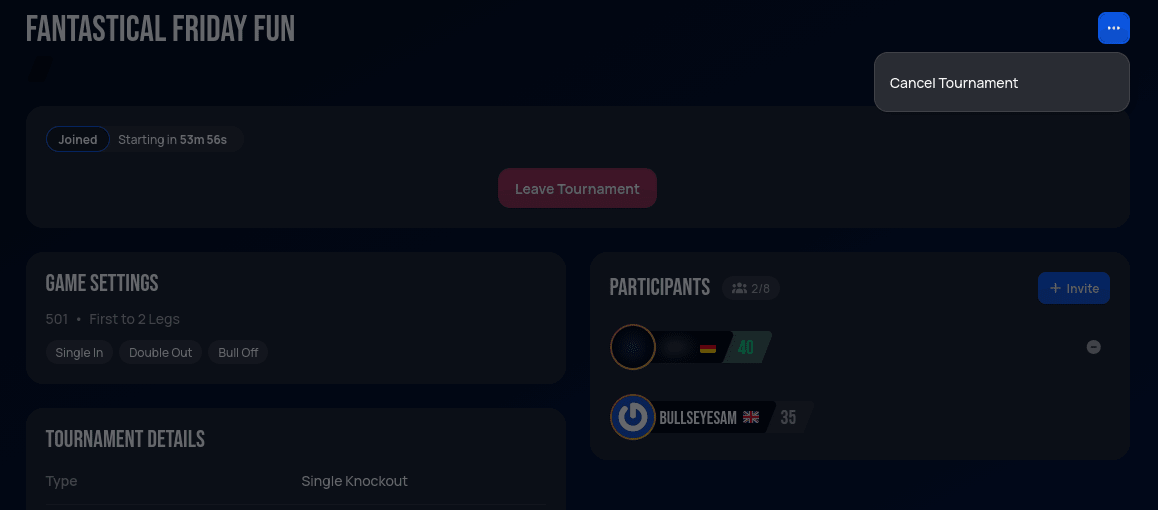
To call the tournament off, open the … menu at the top right of its page and select Cancel Tournament.
 Personal data redacted
Local tournaments
In a local tournament, everyone plays on boards you provide. Pick Local as the Mode when you create it.

The tournament page then has a Boards panel for the boards the matches are played on, up to 2. Your own board isn't added automatically: select the + to add each one.
Instead of Invite, the participants list has an Add button. It has two tabs:
- Friends — invite friends with an Autodarts account, as in an online tournament.
- Guest — add someone without an account: type their name and select Add. Guests you've added before are listed under Recently used.
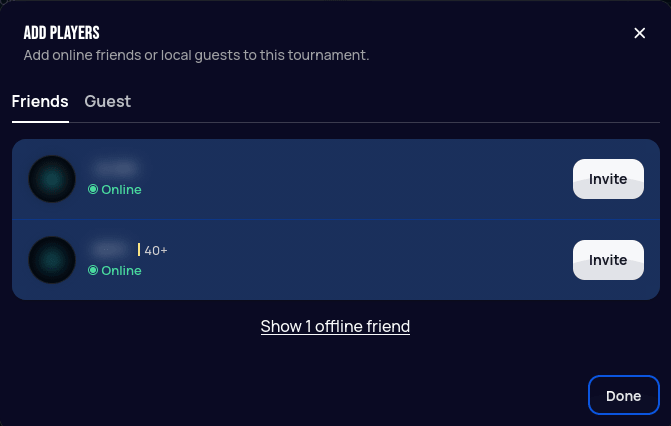 Personal data redacted
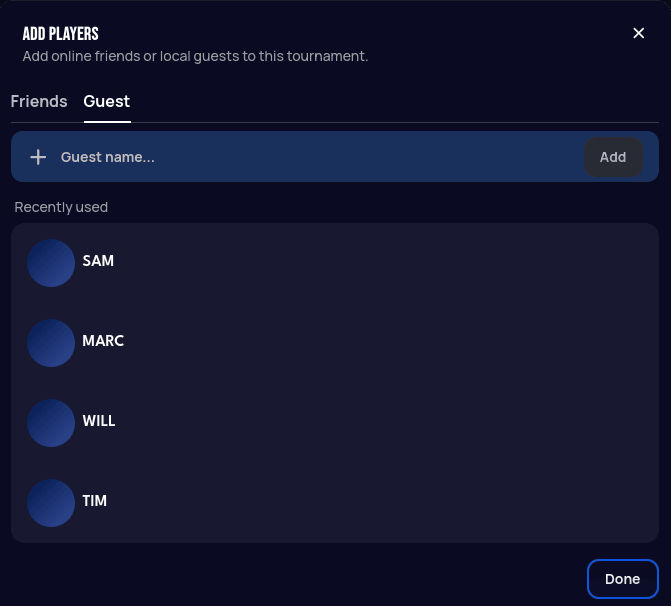
Guests and players with an account can play in the same tournament. As in an online tournament, you only take part yourself if you select Join Tournament.
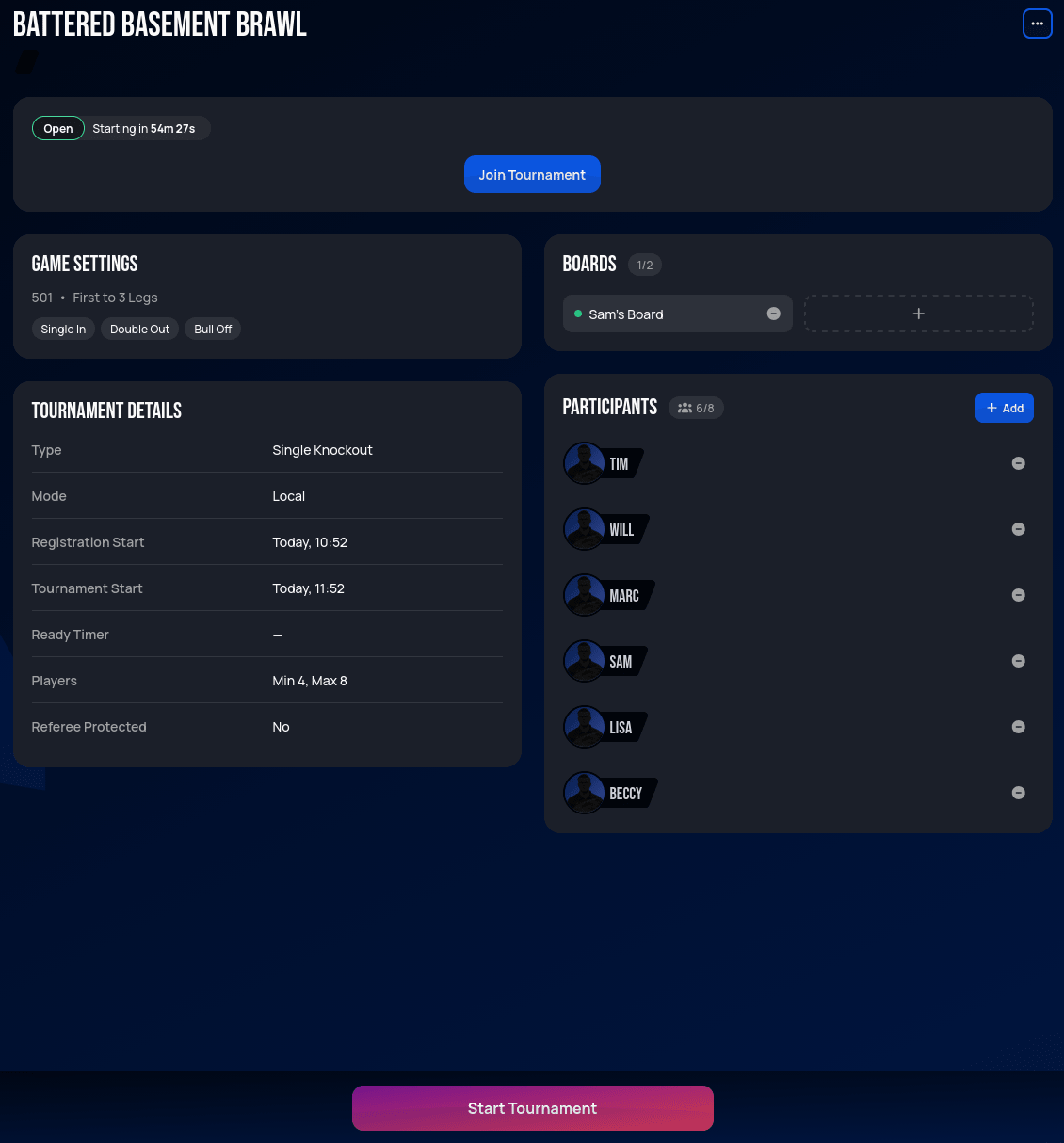
Running the matches
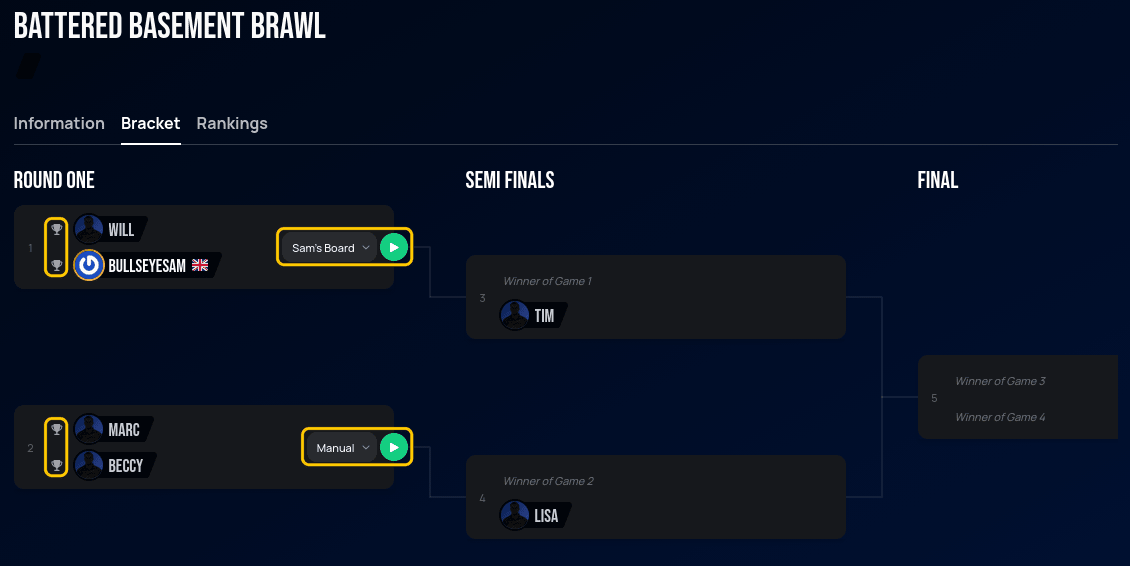
With everyone in the room, a local tournament has no ready-up and no turn or match timers. Instead, you start each match yourself, on the Bracket tab: pick the board the match is played on, then select the green play button next to it. Pick Manual instead of a board to enter the scores by hand.
To set the winner of a match yourself, select the trophy next to that player.