Public Lobbies
A public lobby is a custom lobby that anyone can find and join, not just the people you invite. It's the way to play strangers in any game mode, with whatever settings you like — Quick Match only offers a short, fixed list of games.
Finding a lobby
Select Online in the top navigation, then the Lobbies tab. (The Public Lobbies tile on the Quick Match tab takes you to the same place.)
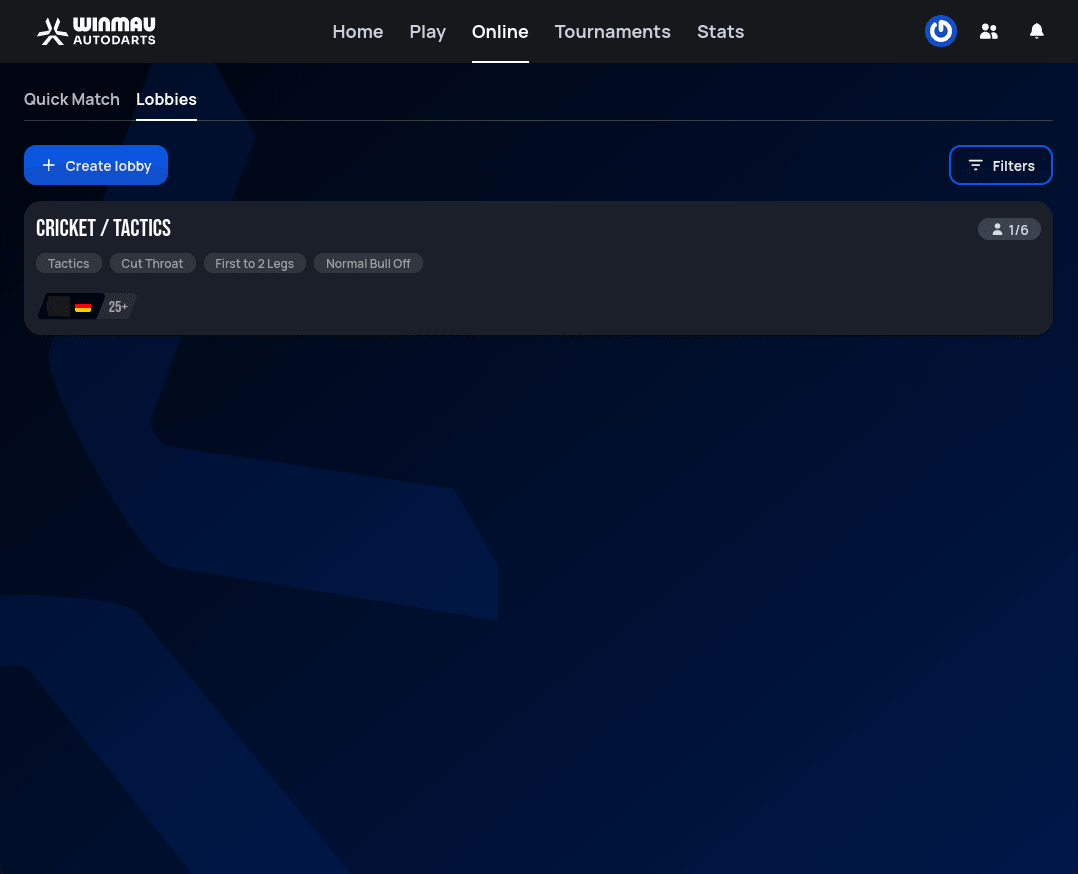 Personal data redacted
Each card is one lobby waiting for players. It shows:
- the game mode at the top, with its main settings as tags below;
- the players who have joined so far, each with their average — their 3-dart average (points scored per three darts), rounded down to a step of 5, such as 25+;
- how many players that is, out of the six a lobby can hold.
Select a lobby to join it — you're added to the lobby straight away. The game itself hasn't started yet: that's up to the host, who can start it right away or wait for more players. Until it starts, you can leave the lobby again, and the host can also remove you from it.
Filtering the list
Filters narrows the list down to the game you want. It opens with Choose a game, the same list of modes as when you set up a lobby yourself:
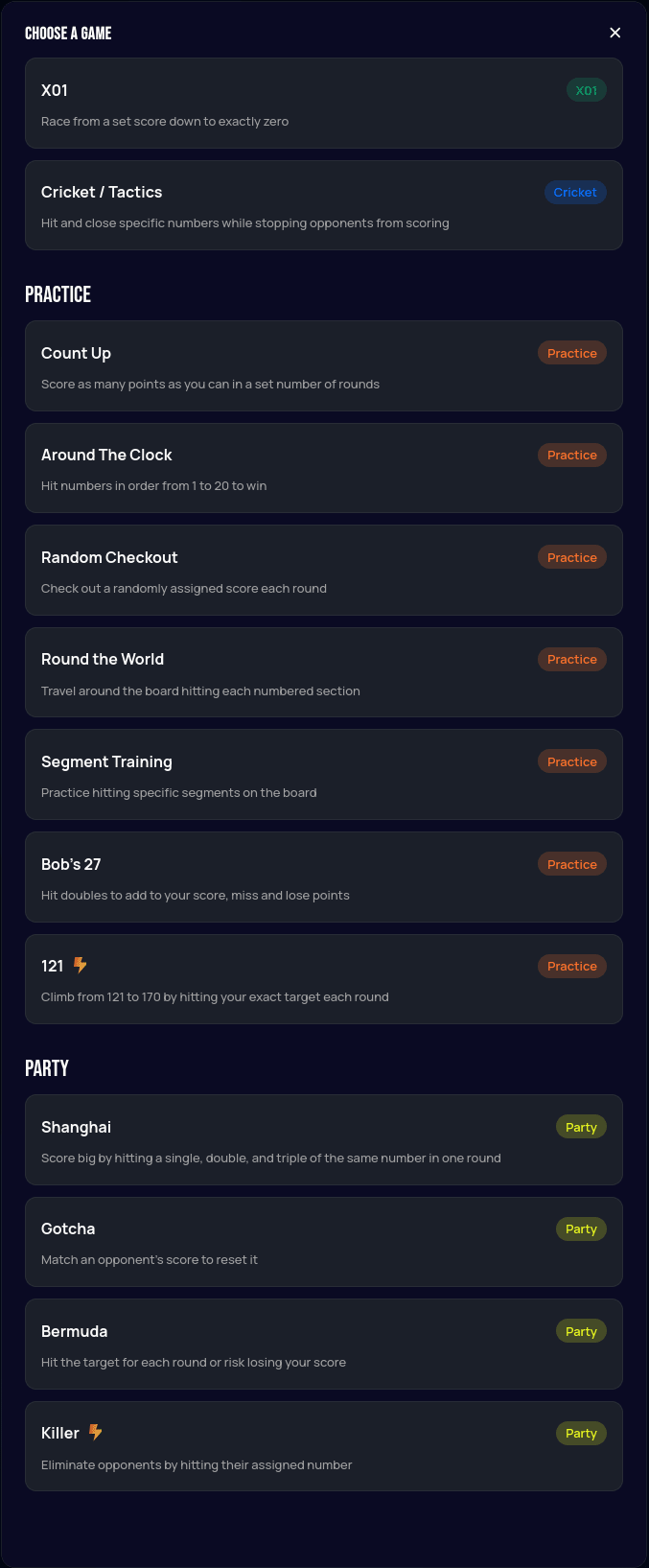
After you pick one, that mode's settings appear. Select the options you want; a setting you leave empty matches lobbies with any option. Show lobbies applies the filter, and Clear filter removes it again.
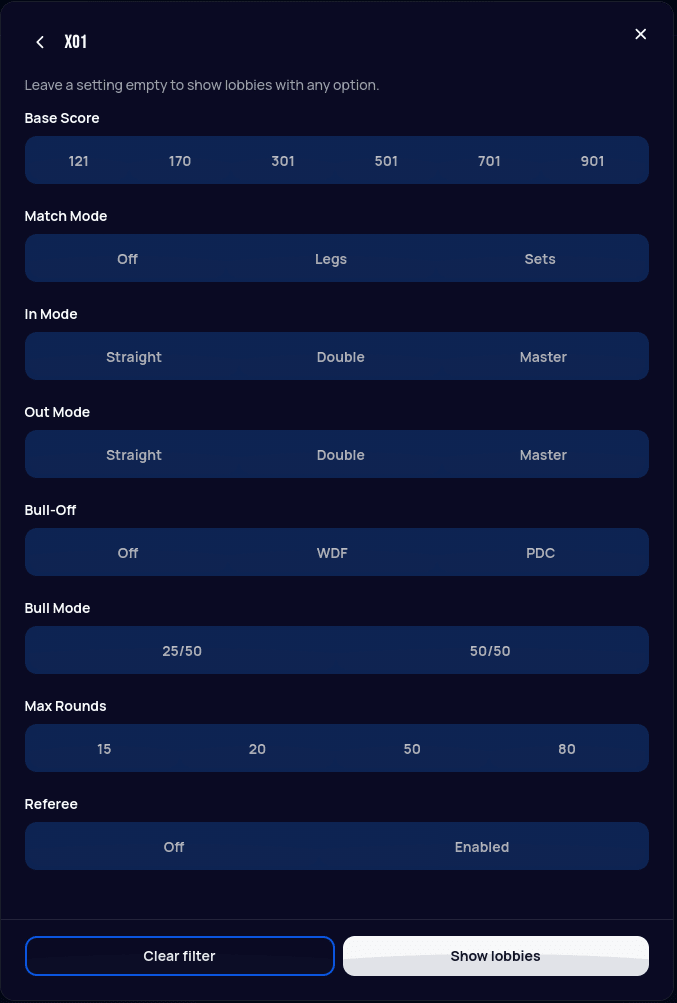
What each option means is explained on the game mode's own page — for X01, see X01 settings.
Opening your own public lobby
Any lobby you set up can be made public. Create lobby on the Lobbies tab opens the same lobby screen you get from Play (see Playing Your First Game), with a Make public button on the game card.
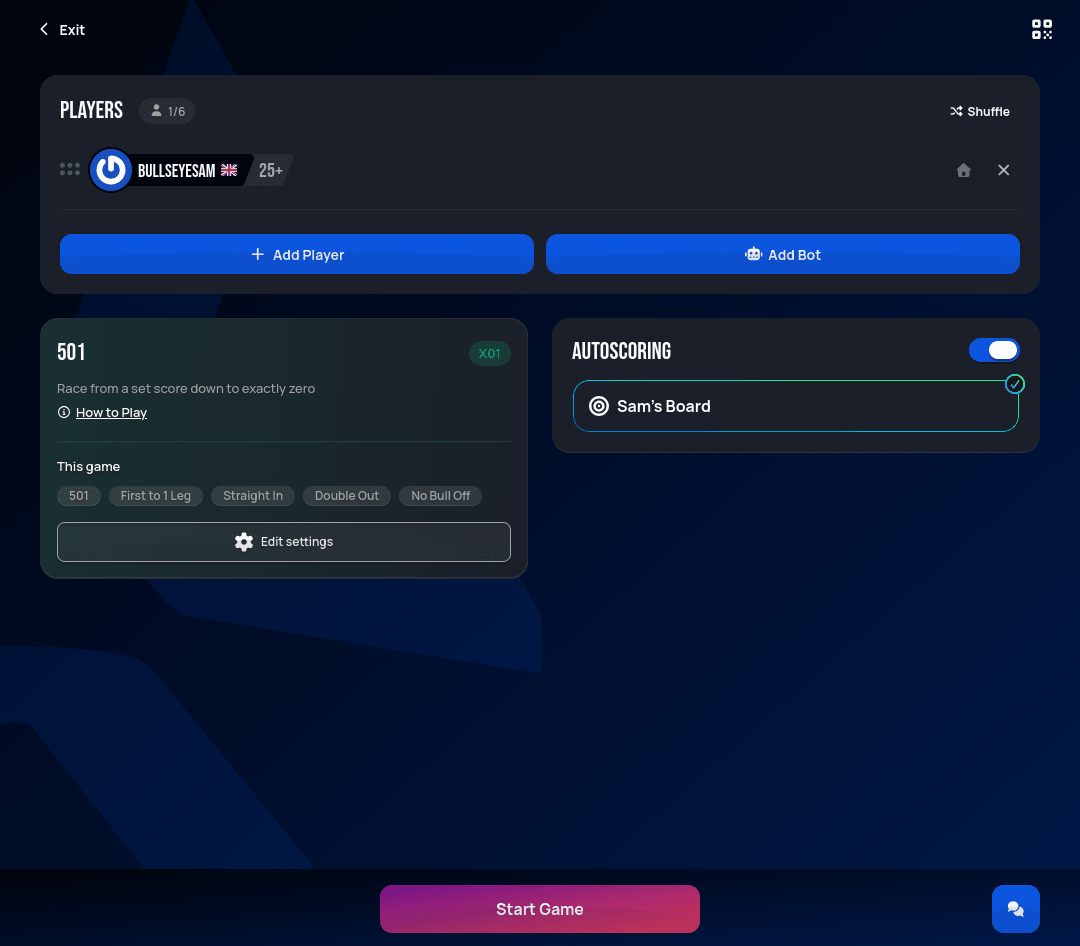
Once you select Make public, the lobby appears on the Lobbies tab for everyone, and other players can join. A public lobby stays public — it can't be made private again.
After you select Make public, the game settings can't be changed anymore, unlike a private lobby, where you can change them right up until the game starts. Choose the game mode and settings before you make it public.