Autodarts Desktop problems
Before anything else, make sure you're on the latest version: open the account menu (your name, top right) and choose Check for updates, or download it again from autodarts.com/downloads. Many of the problems below are already fixed in a newer version.
Sign-in doesn't complete
You sign in, the browser says you're signed in, and then Autodarts Desktop shows "Sign in did not complete" or "Sign in failed", or starts the sign-in over again. Autodarts Desktop signs you in through your browser, and the browser then has to hand you back to the app. When that hand-back gets blocked, sign-in never finishes.
Autodarts Desktop opens your computer's default browser for signing in. That isn't always the browser you normally use: if you use one browser every day but a different one is set as the default, sign-in opens in the other one. Look at which browser actually opens, and use that one for the steps below.
Try these in order:
- Click "Open Autodarts Desktop" on the browser's "You're signed in" page, and allow it when the browser asks whether it may open the app.
- Turn off your browser extensions for a moment, especially ad or script blockers, then start the sign-in again. Extensions can block the hand-back to the app.
- Copy the sign-in page into another window. Copy the address of the sign-in page that opened, paste it into a private window (which usually runs without extensions) or into another browser, and sign in there.
- Set the browser you use as your default. On Windows: Settings → Apps → Default apps. On a Mac: System Settings → Desktop & Dock → Default web browser. Then start the sign-in again.
- Check your computer's clock. On Windows: Settings → Time & language → Date & time, switch on Set time automatically, then click Sync now. A clock that's off by a few minutes can make sign-in fail.
- Sign in the same way you created your account: Google, Apple, or email and password. Another route can land you in a different, empty account; see Your account looks empty.
- Security software (antivirus programs such as Norton) can block the hand-back. If you use one, check whether it's stopping Autodarts Desktop.
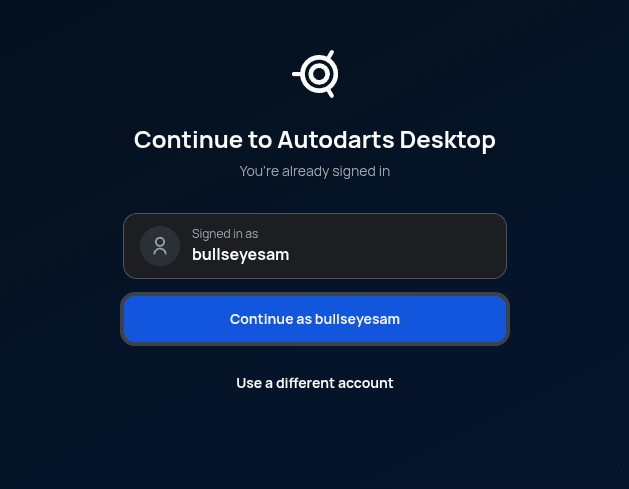
Signed in to the wrong account? Autodarts Desktop uses whoever is signed in to play.autodarts.com in the browser it opens. If you're already signed in there, the browser shows Continue to Autodarts Desktop with that account's name: check it before you click Continue as, and if it's the wrong one, click Use a different account and sign in with the right one. That also switches play.autodarts.com in that browser to the account you signed in with. Already signed in to Autodarts Desktop with the wrong account? Choose Sign out from its account menu first, then sign in again.
Autodarts Desktop closes on start
If the app opens and closes again within a few seconds, download the latest version from autodarts.com/downloads, and do a clean reinstall with it.
This also fixes a crash at every start in version 2.0, which affected Autodarts accounts whose username starts with a letter like "Ä", "É" or "Ł", and Windows user accounts whose name has an umlaut or other non-English letter. A version that crashes at start can't update itself, so installing the latest version by hand is the only way out.
On a Mac, check you downloaded the right version for your chip: Apple menu → About This Mac tells you whether you have Apple Silicon or Intel. The wrong one closes immediately.
If it still closes, tell us: the version you installed, whether it also closes with every camera unplugged, and on Windows, a screenshot of the error from Reliability Monitor (type "Reliability" into the Windows search to find it).
The Windows installer stops with an error
- Error 1603: install any waiting Windows updates first (Settings → Windows Update) and restart. If it still fails, install Microsoft's Visual C++ Redistributable (x64) with Run as administrator, then run the Autodarts installer again.
- Error 0x800702E4: copy the installer into a folder on your computer, such as Downloads, right-click it and choose Run as administrator.
There's no older version to fall back to: earlier versions rely on servers that have been switched off.
Cameras stuck on "Starting"
- Open the account menu (your name, top right) and choose Reset to defaults.
- Set up your board and cameras again, as you did the first time; see First-time setup. This includes calibrating again.
Still stuck? Do a clean reinstall.
"This board's credentials were refused"
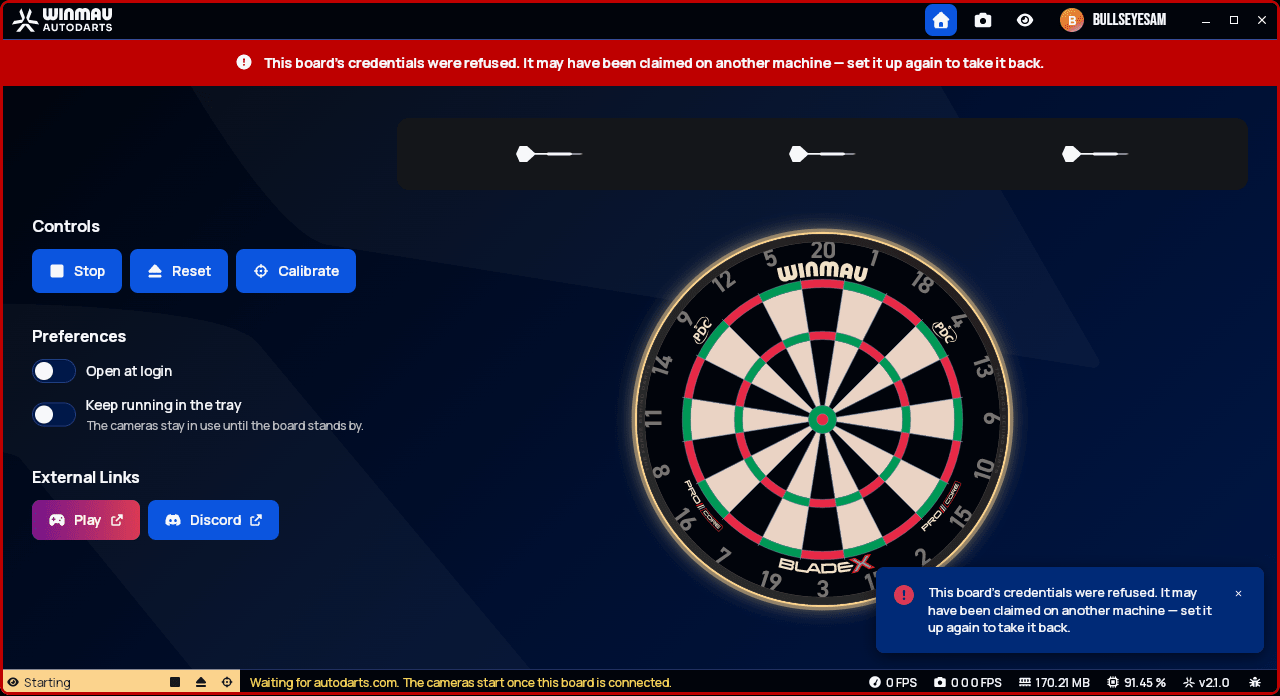
A board can only run on one computer at a time. If it has been set up on another computer since, that computer has taken it over, and this one is refused: the status stays on Starting and the cameras never switch on. To bring the board back to this computer:
- Open the account menu (your name, top right) and choose Reset to defaults.
- Set the board up again, picking your existing board under Select board and clicking Claim board; see Set up your board. The other computer stops running it.
- Set up and calibrate the cameras again.
If you play on the other computer, too, only one of them can run the board. To follow a match on the second one, open play.autodarts.com in its browser instead.
The camera pictures are black
If Autodarts Desktop lists your cameras but their pictures stay black, they're usually asking for more than your computer's USB ports can carry at once:
- Plug each camera straight into its own USB port, without a USB hub (an adapter that turns one port into several) in between.
- As a test, lower the camera resolution on the Cameras page. If the pictures come back, your computer's USB ports are the limit.
After Reset to defaults, the resolution and frame rate go back to their defaults too. If the pictures look blurry or washed out afterwards, check them on the Cameras page.
For an Autodarts X, see Autodarts X connection.
Clean reinstall
A normal reinstall keeps Autodarts Desktop's old settings files, which is why it often doesn't help. A clean reinstall deletes those too. You'll need to sign in, set up your board and calibrate again afterwards.
Windows
- Close Autodarts Desktop.
- Uninstall it: in Settings → Apps, find Autodarts Desktop and choose Uninstall.
- Restart your computer.
- Delete the leftover folders. Type each line below into the address
bar of File Explorer, press Enter, and delete the folder if it's
there:
%APPDATA%\Autodarts Desktop%APPDATA%\Autodarts%LOCALAPPDATA%\Autodarts Desktop%LOCALAPPDATA%\autodarts-desktop
- Download Autodarts Desktop again from autodarts.com/downloads and install it.
macOS
This removes Autodarts Desktop with its settings, calibration and sign-in, whether you installed it from the download page or from a terminal. Open Terminal (press ⌘ + Space and type "Terminal") and run:
curl -fsSL https://autodarts.sh | bash -s -- --purge
Then install again, from autodarts.com/downloads or with:
curl -fsSL https://autodarts.sh | bash
Linux
This removes every Autodarts installation on the computer, for every user account on it, including settings, calibration and sign-in:
curl -fsSL https://autodarts.sh | bash -s -- --clean
It may ask for your password, because older versions were installed for
the whole computer. If you downloaded the AppImage from the download
page yourself, delete that file too: the command only removes the copy
a terminal install put in ~/.local/bin. Then install again:
curl -fsSL https://autodarts.sh | bash